
A company profile shows everything Firmable holds on a company. Open one by clicking a company name in a search, list or signal. Viewing a profile doesn't use credits.
Company profiles are available on every plan. A few sections depend on your plan: account intelligence is on Small Teams, Teams Pro and Enterprise, and Tech Intelligence is an add-on.
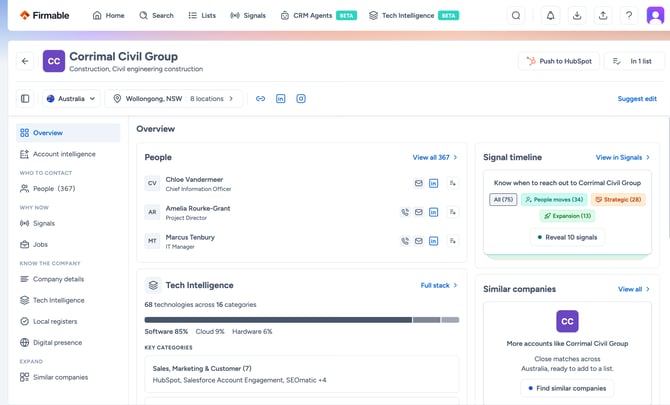
The top of the profile
- Next to the company name are its actions. If your organisation has connected a CRM, you'll see Push to [your CRM], or In [your CRM] if the company is already there. Click In [your CRM] and select Re-enrich to update the record with Firmable's latest data. Pushing to a CRM is on Small Teams and above. See How to connect your CRM to Firmable.
- If your organisation uses webhooks, Push profile sends the company to your webhook endpoints. See How to use webhooks in Firmable.
- Add to list saves the company to a list. Once it's on a list, the button shows how many lists it's in.
- Below the name, the country drop-down switches between the company's country profiles. See How to toggle between countries on company profiles.
- Next to the country are the company's headquarters, how many locations it has, and links to its website and social media.
- Suggest edit reports wrong or missing data. See How to report incorrect data.
Overview
The Overview brings the most useful details onto one page. Each card links to its full section.
- People: three people at the company, with View all to see everyone.
- Tech Intelligence: with the add-on, a summary of the technologies the company uses.
- Company snapshot: revenue, company size in the selected country, industries and headquarters.
- Account intelligence: a short version of the company's account intelligence, or the button to run it if no one in your organisation has yet.
- Signal timeline: the types of signals we've found for the company, with a button to reveal the latest.
- Similar companies: click Find similar companies to see companies like this one.
Sections
Use the menu on the left to open a section. Click the sidebar icon at the top left of the profile to hide or show the menu.
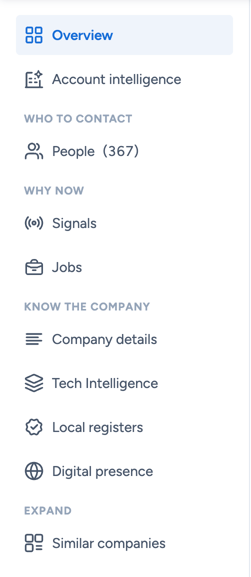
- Account intelligence: AI research on the company, based on your organisation's questions. Click Research 5 questions (the number matches how many questions your organisation has set up) to run it. Everyone in your organisation sees the result, and Regenerate runs it again with the latest sources. See What is account intelligence and how do I set it up?
- People: everyone at the company in the selected country, with their job title, seniority and department. Use filters such as Has email, Has mobile and Pushed or enriched to narrow the list. Select people to download them, push them to your CRM or add them to a list.
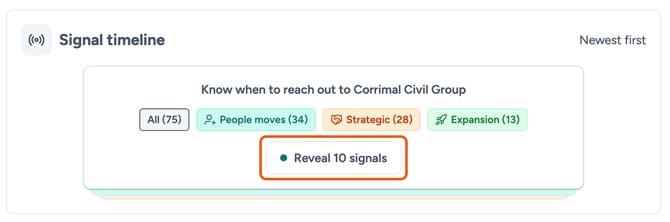
- Signals: the company's Signal timeline, newest first, covering the last 6 months. These are all the signals Firmable has for the company, so you don't need a signal agent to see them. Click Reveal 10 signals to see the latest 10 (if the company has fewer, the button shows how many), and keep revealing to see more. Click a signal category, such as People moves or Expansion, to see only those signals. If your organisation has the Search Intent add-on, you'll also see a Buying intent card. Click Check buying intent to see the topics the company has been researching and whether interest is rising or cooling.
- Jobs: the company's current job ads. Filter them, and click a job to read it.
- Company details: business identifiers such as ABN and ACN, company type, founded year, company size, revenue, website, industries and industry codes (ANZSIC, NAICS and SIC). It also shows where the company has locations and people, contact details for the selected country, a description and keywords. Select keywords and click Apply search to find companies with the same keywords.
- Tech Intelligence: with the add-on, the technologies the company uses. See How to see a company's technologies on its profile.
- Local registers: the registers the company appears in, with the details of each.
- Digital presence: the company's social media profiles, plus web traffic and employee reviews where we have them.
- Similar companies: companies like this one, 10 at a time. Narrow them with filters such as Same industry, Similar size and Not in my lists, and click Show 10 more to see more. Select companies to add them to a list.
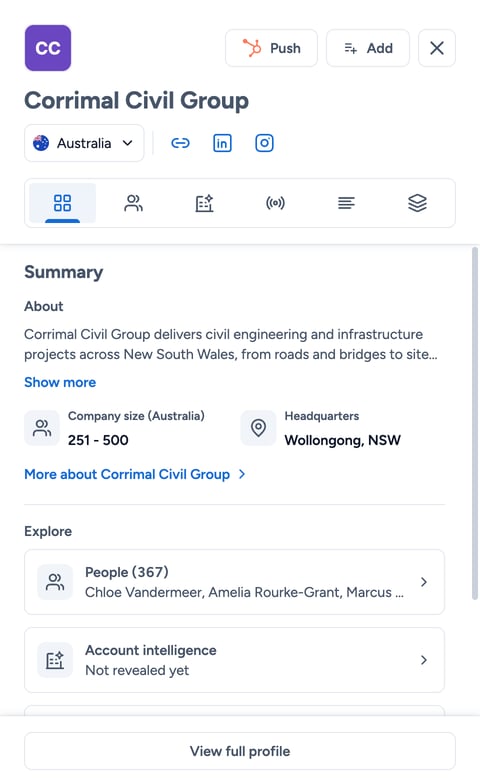
Quick view
Click a company's row in Search, Lists or Signals, or a company in Quick lookup, to open its quick view on the right. It shows a summary of the company, with tabs for its people, account intelligence, signals, company details and Tech Intelligence. In Search, it also shows why the company matched your search. Click View full profile to open the full profile.
What uses credits
Viewing a company profile doesn't use credits, and neither does revealing signals, finding similar companies or running account intelligence. Revealing a mobile number, downloading and pushing to your CRM use credits as usual. See When are credits consumed?
Learn more: