
Every user in your Firmable account has one role. The role decides what they can see and do, and whether they take a paid seat. To add users with any role, you need a Small Teams, Teams Pro or Enterprise plan.
Roles at a glance
| Role | Paid seat | Uses Firmable | Manage account |
|---|---|---|---|
| Admin | Yes | Yes | Every page |
| Standard | Yes | Yes | Your account and Country preference (personal countries only) |
| Manager | No | No | Every page except the Admin-only settings below |
| Billing | No | No | Your account, Users, Subscriptions, Billing and Credits |
| Integration | No | No | Your account and Integrations |
Manager, Billing and Integration users go straight to Manage account when they sign in. They can't search, reveal contact details, download records or push to your CRM. If you add more Admin or Standard users than your plan includes, the payment method on file is charged automatically.
What Admin and Standard users can do in Firmable
| Task | Admin | Standard |
|---|---|---|
| Search, use Quick lookup and view company and people profiles | Yes | Yes |
| Reveal contact details, download records and push them to your CRM | Yes | Yes |
| Use lists, segments, Tech Intelligence, Teammate, Data exchange and the Download Centre | Yes | Yes |
| Create signal agents, including CRM actions and webhooks on an agent | Yes | Yes |
| Use CRM agents: View records, Apply search filter, Track signals and Download XLSX | Yes | Yes |
| Create CRM agents, and use Enrich now, Refresh data and Enrich all matched | Yes | No |
What you can use also depends on your plan. For example, CRM agents need a Teams Pro or Enterprise plan, and Tech Intelligence is an add-on.
What each role can do in Manage account
To open it, click your profile picture (top right) and select Manage account.
| Page or setting | Admin | Standard | Manager | Billing | Integration |
|---|---|---|---|---|---|
| Your account: your profile, email addresses, password and two-step verification | Yes | Yes | Yes | Yes | Yes |
| Users: invite and remove users, and change roles | Yes | No | Yes | Yes | No |
| Company settings under Users: company profile, Verified domains and Security (SSO) | Yes | No | No | No | No |
| Subscriptions, Billing and Credits: change or cancel your plan, update payment details, add credits | Yes | No | Yes | Yes | No |
| Integrations: your CRM, API, connected platforms, webhooks and MCP | Yes | No | Yes | No | Yes |
| Signal agent actions: CRM action templates and signal webhooks | Yes | No | No | No | No |
| Country preference: your company's default countries | Yes | No | No | No | No |
| Country preference: your personal countries | Yes | Yes | Yes | No | No |
| Notifications, Account intelligence and Search Intent | Yes | No | Yes | No | No |
Some settings are Admin only, such as SSO and Signal agent actions, so keep at least one Admin in your account.
During a trial or when access is paused
- During a trial with no payment method, Admin, Manager and Billing users see Manage users and Activate subscription on the trial banner. Only Admins can invite or remove users from Manage users. Other users are asked to contact their Firmable admin.
- If the trial ends without a payment method, Admin, Manager and Billing users see Your free trial has ended and can click Add payment method. Standard and Integration users can click Notify admin.
- If your first payment fails, Admin, Manager and Billing users see Payment failed and can click Update payment method. Standard and Integration users can click Notify admin.
Learn more about what happens when your trial ends.
Change a user's role
You need the Admin, Manager or Billing role.
- Click your profile picture (top right) and select Manage account.
- Click Users in the Account settings sidebar, then click Users in the Company panel.
- Choose a new role from the Role dropdown next to the user.
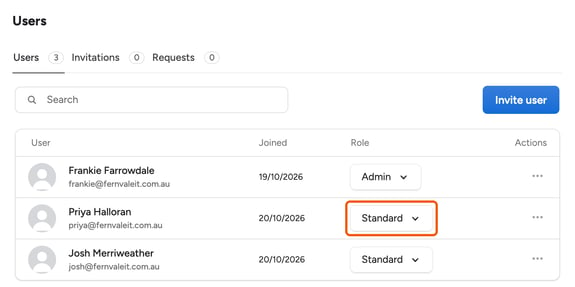
Changing someone to Admin or Standard can add a paid seat. Changing someone to Manager, Billing or Integration removes their access to search, lists, signals and the rest of Firmable.
Learn more: