
Prerequisites
- You are on a Small Teams, Teams Pro or Enterprise plan with Firmable.
- You have the Admin role on Firmable. Only Admins can manage users.
Remove a user from your account
- Access your Firmable account, click the profile icon and Manage account in the top menu, then Users in the Account settings sidebar.
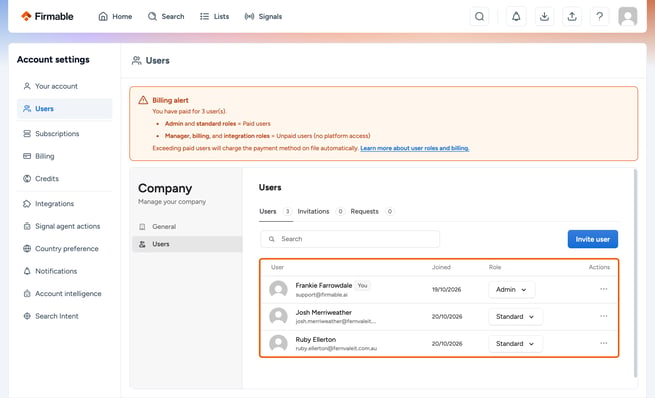
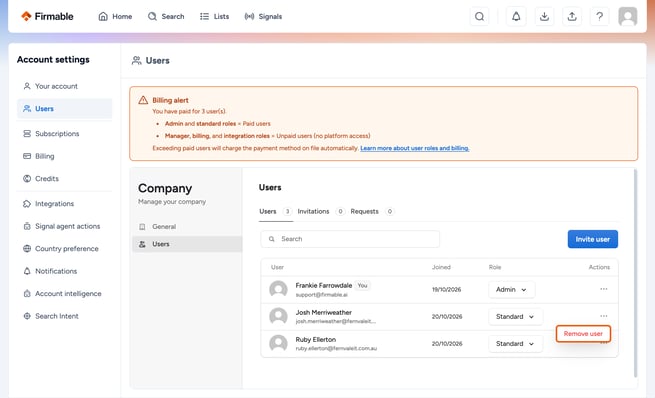
- Click the three dots next to the user and click Remove user.
Next steps
Once you’ve removed a user from your account, you have several options:
- You can add a new user to replace the old one (this won’t incur additional charges if done after removing a user).
- Leave as is and add a new user at a later date (you will still receive the full credit allocation for the number of paid users on your plan).
- You can request to remove a user from your subscription (this will reduce your paid user count at next renewal and invoice date). To request this, please email support@firmable.ai.