
Prerequisites
- You are on a Small Teams, Teams Pro or Enterprise plan with Firmable.
- You have the Admin, Manager or Billing role on Firmable.
How to invite a new user
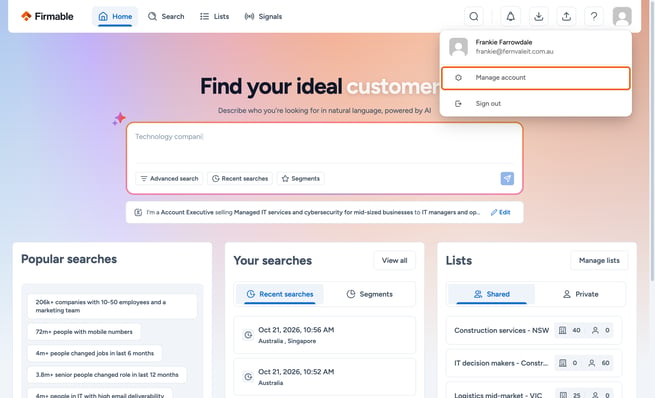
- Click your profile picture (top right) and select Manage account.
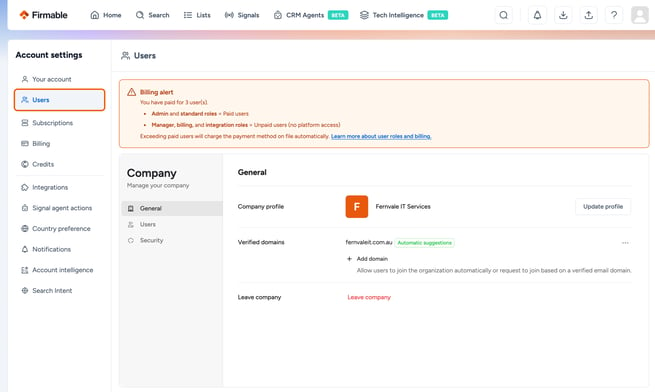
- In the Account settings sidebar, click on Users.
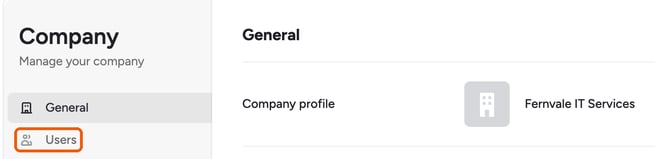
- In the Company panel, click Users.
- Click on the Invite user button, enter the email addresses of the individuals you want to add to your organisation, select the desired Role, and then click on Send invitations. If you want to invite multiple users, enter or paste one or more email addresses, separated by spaces or commas.
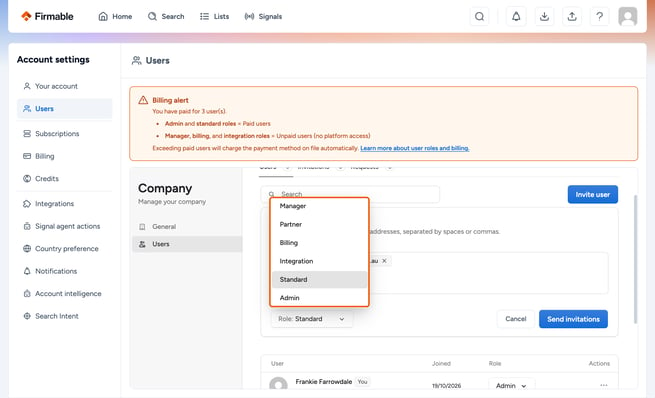
Role types:
- Admin and Standard users use Firmable and each take a paid seat.
- Manager, Billing and Integration users only get Manage account and don't take a paid seat.
See User roles and permissions for what each role can see and do.
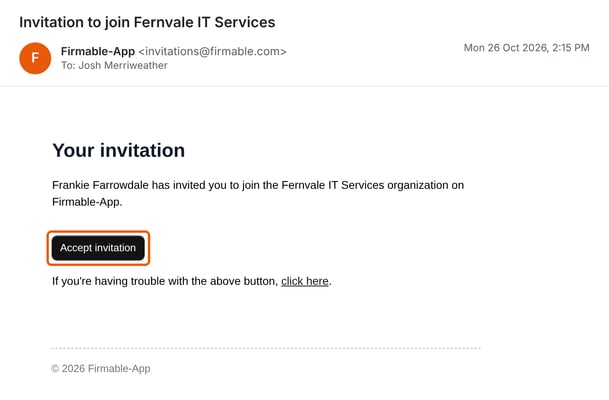
- Invited users will receive an email containing an Accept invitation button. Clicking on this button allows them to join the Firmable organisation and complete their user setup.
Additional users will incur extra charges, calculated pro-rata based on the remaining time in your billing cycle.
Learn how to create a new account and subscribe to Firmable