
Your plan includes a set number of paid seats. When someone leaves, you can give their seat to someone new without paying for an extra user, as long as you remove the person leaving before the new person joins.
Prerequisites
- You are on a Small Teams, Teams Pro or Enterprise plan with Firmable.
- You have the Admin or Manager role. Only Admins and Managers can manage users.
How paid seats work
- Admin and Standard users each take a paid seat. Manager, Billing, Integration and Developer users don't.
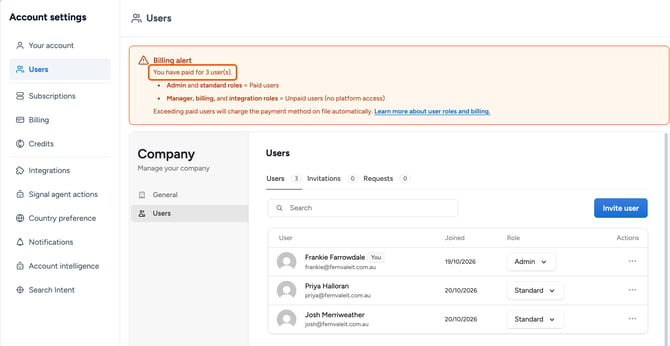
- The number of seats you pay for is shown at the top of the Users page.
- An invitation doesn't take a seat until the person accepts it.
- You're charged for an extra seat only when a new Admin or Standard user joins, or an existing user is changed to Admin or Standard, and that takes you over the number of seats you pay for. The extra seat is charged to your payment method on file straight away, pro-rata for the rest of your billing period.
- Removing a user doesn't lower the number of seats you pay for. Their seat stays free for someone else, and you keep the full credit allocation for every paid seat.
Transfer a seat to a new user
- Click your profile picture (top right) and select Manage account, then select Users in the Account settings sidebar. In the Company panel, click Users.
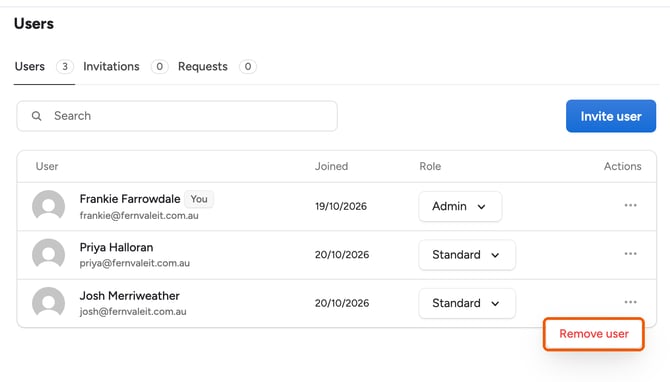
- Click the ... icon next to the person who's leaving and select Remove user.
- Click Invite user, enter the new person's work email, choose the Admin or Standard role and click Send invitations. When they accept, they take the free seat and you aren't charged.
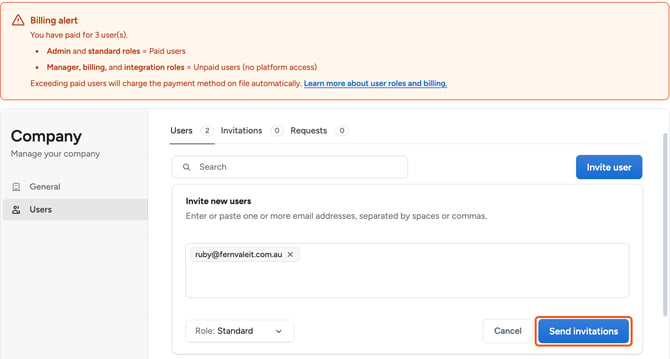
Note: Remove the person who's leaving before the new person accepts the invitation. If the new person joins first, your account briefly has more paid users than seats, and Firmable charges for an extra seat.
If the person leaving is an Admin
If the person leaving is your only Admin, change another user's role from Standard to Admin in the Role column first, so your account still has an Admin. Both roles take a paid seat, so this doesn't add a charge. Then remove the person leaving and invite their replacement.
If the person leaving is the only user on your account, email support@firmable.ai before you invite their replacement.
If you don't need the seat any more
To pay for fewer seats, email support@firmable.ai. Your paid user count goes down from your next renewal date.
Related: How to invite new users and How to remove a user from your account and/or plan.