
Important: Toggling this feature on may result in duplicate contacts created in HubSpot.
We do not recommend using this option unless you have a system in place to prevent duplicates within HubSpot. Firmable uses a contact's email address as a unique identifier to match with your HubSpot record to ensure no duplicates are created.
Learn more:
Prerequisites
- You are on a Small Teams, Teams Pro or Enterprise plan with Firmable. If you’re on an Individual plan and want to connect HubSpot, email support@firmable.ai to upgrade.
- You have the Admin, Manager, Partner or Integration role on Firmable.
- You have integrated HubSpot. If you need to connect HubSpot, follow these steps.
How to allow pushing contacts without work email
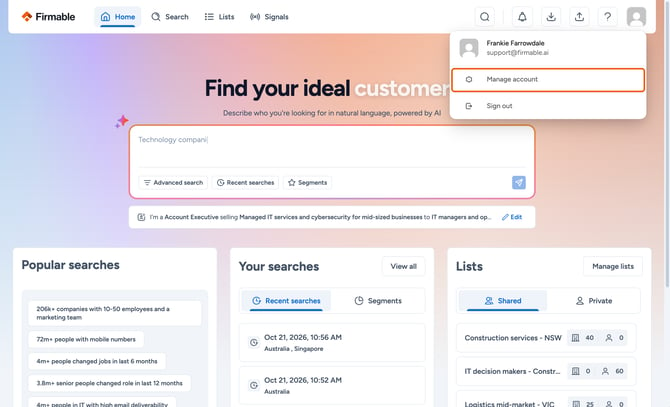
- Click your profile picture (top right) and select Manage account.
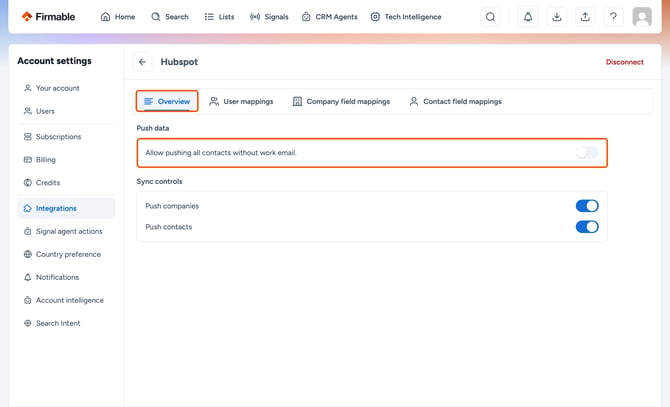
- In the Account settings sidebar, click Integrations. Locate the HubSpot integration and then click Overview.
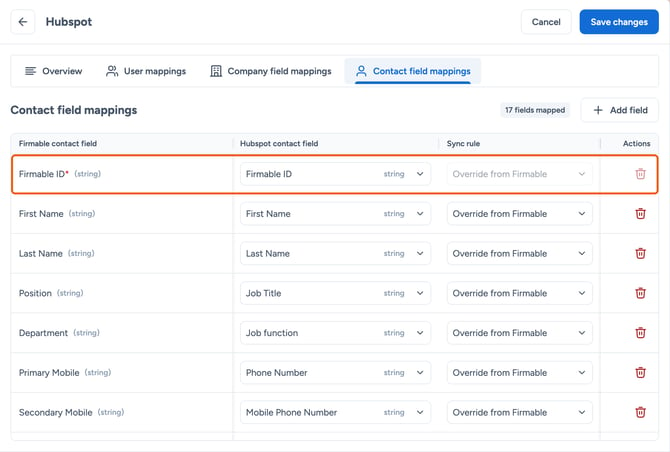
- To push contacts without an email address, you must map Firmable ID to a valid HubSpot contact property with the sync rule Override from Firmable. Because email is no longer used as the unique identifier, this mapping is required to prevent conflicts. Learn more about mapping contact properties.
- Turn on Allow pushing all contacts without work email.
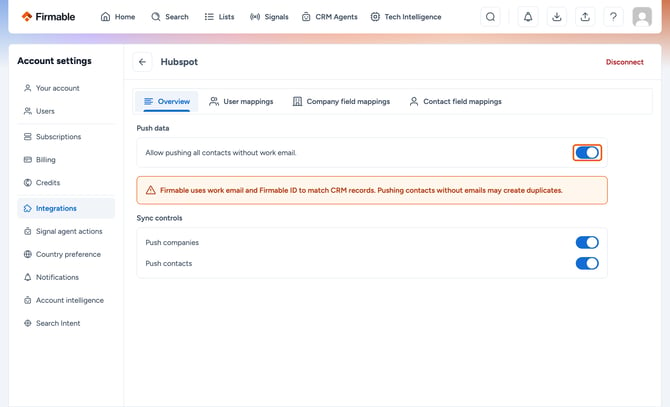
Note: Once toggled on, contacts without email addresses can be pushed to HubSpot. Keep in mind the potential risk of duplicate records.
Pushing records to HubSpot
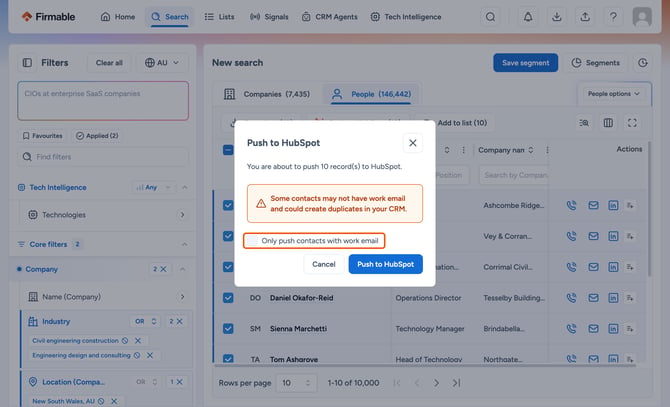
After turning on Allow pushing all contacts without work email, you will be prompted each time you push a contact record to HubSpot. Note: this applies if your selection contains contacts with and without email addresses.
-
To push contacts with and without email addresses, click Push to HubSpot.
-
To push only contacts with email addresses, tick Only push contacts with work email before clicking Push to HubSpot.
Learn more about how to use the HubSpot integration
Learn more about how to connect the Firmable Enrichment HubSpot app
Learn more about how to use the Firmable Enrichment HubSpot app