
Below is a step-by-step guide detailing the process of installing the Firmable Enrichment HubSpot app, including setup prerequisites, authorisation steps, and property mapping processes.
Prerequisites
Before initiating the integration, ensure the following:
- You are on a Small Teams, Teams Pro or Enterprise plan with Firmable.
- You have the Admin role permission on Firmable and the Super Admin role in HubSpot.
- Your email address is the same for both your HubSpot and Firmable user accounts.
Note: If you don’t yet have an active HubSpot account, you can set one up as part of this install process.
Integration setup
Account authorisation
- Go to hubspot.firmable.com to begin your installation process.
- Authorise the installation.
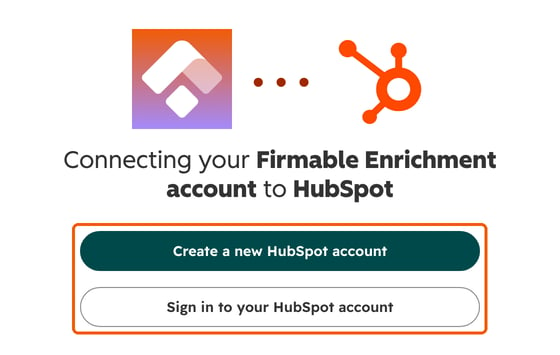
- Select either to Create a new HubSpot account to connect with or Sign in to your HubSpot account if you have an existing account you’d like to connect with. Sign in to your HubSpot account and proceed or, if you’re creating a new account, follow the prompts from HubSpot, including setting up a password, and continue with the below steps.
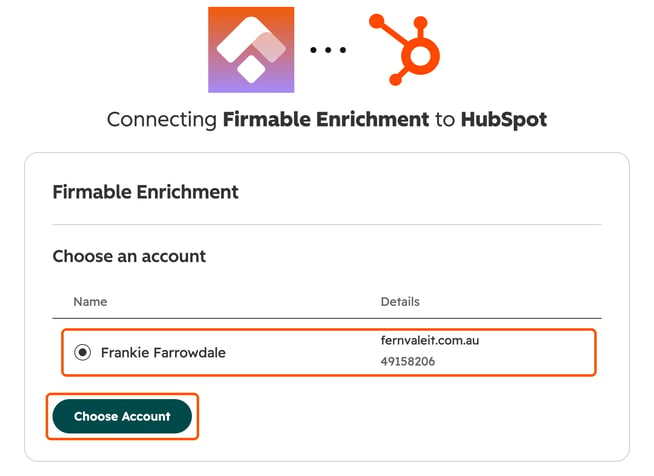
- Choose the HubSpot account you wish to connect with Firmable and click Choose account.
- Provide your Firmable login credentials if prompted (Note: you may not be prompted if you’re already signed in to an active session).
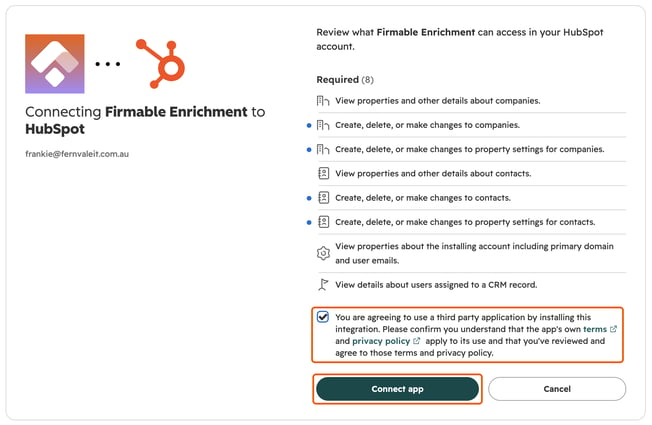
- You’ll be provided with a summary of the access the Firmable Enrichment app needs from your HubSpot account. This allows us to enrich records you choose to update data values for. Tick the checkbox to agree to the app’s terms and privacy policy, then click Connect app.
Mapping users
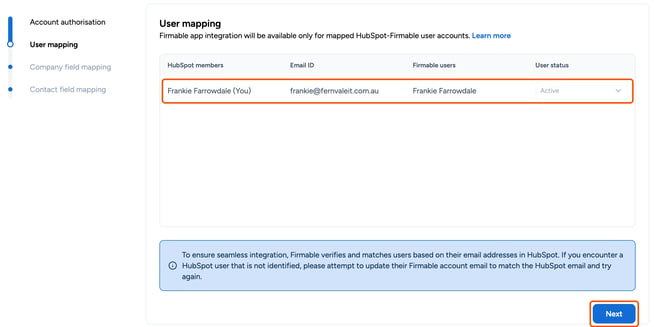
- You’ll then be presented with a list of HubSpot and Firmable users with a matching email address. Click Next to continue.
Mapping company properties
- The next step is Company field mapping. Each row is a Firmable company field mapped to a HubSpot company property (field). Default fields are mapped for you. Here, you can:
- Change the HubSpot property a Firmable field maps to using the HubSpot company field drop-down. The drop-down only lists HubSpot properties of the same type (text, number or date), and properties already mapped to another field are greyed out.
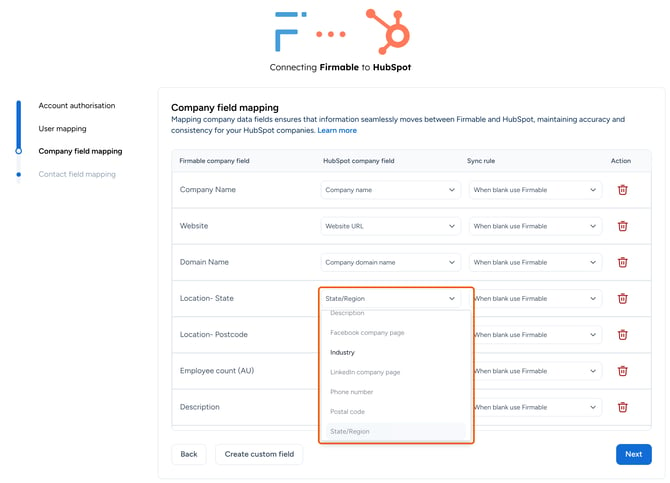
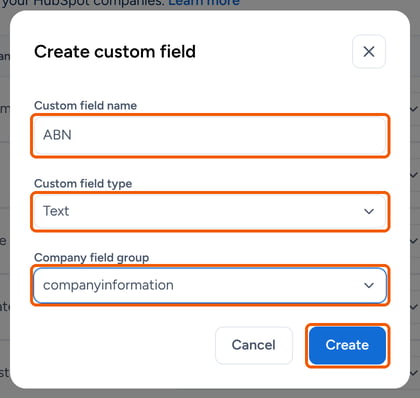
- Create a HubSpot property for Firmable data you don't have a property for yet. For example, to capture ABN against the company record, click Create custom field, enter the Custom field name, choose the Custom field type (Text, Number or Date) and the Company field group, then click Create.
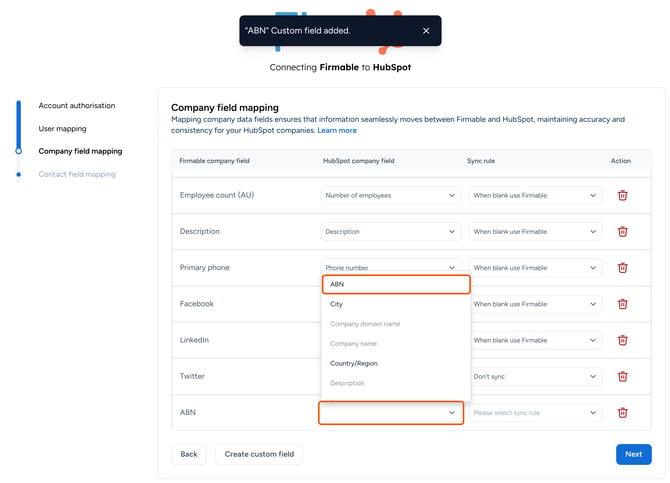
- Then select the new property in the HubSpot company field drop-down for the Firmable field you want to map to it.
- To stop mapping a field, click the delete icon in the Action column and confirm.
- Change the HubSpot property a Firmable field maps to using the HubSpot company field drop-down. The drop-down only lists HubSpot properties of the same type (text, number or date), and properties already mapped to another field are greyed out.
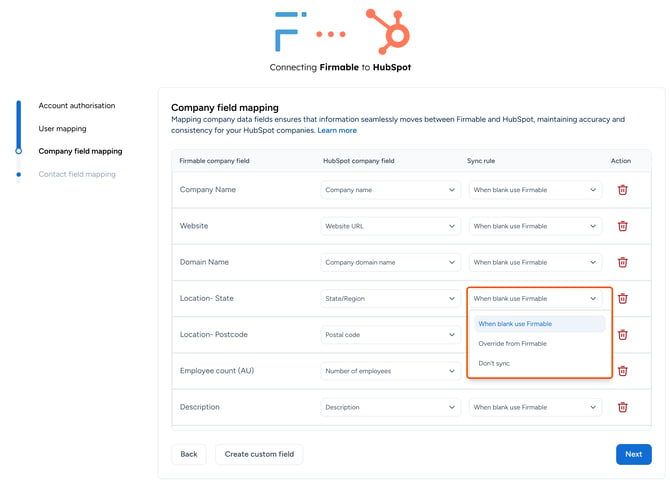
- Select the Sync rule for each field. It applies whenever someone enriches a company record. The three options are:
- When blank use Firmable. If the field is empty, Firmable data is added when the record is enriched. This is the most commonly used sync rule.
- Override from Firmable. Firmable data replaces whatever is in the field when the record is enriched. Note: Use this with care, as it overwrites data you already have in HubSpot for that field.
- Don’t sync. The field isn't updated at all.
- Click Next when done.
Mapping contact properties
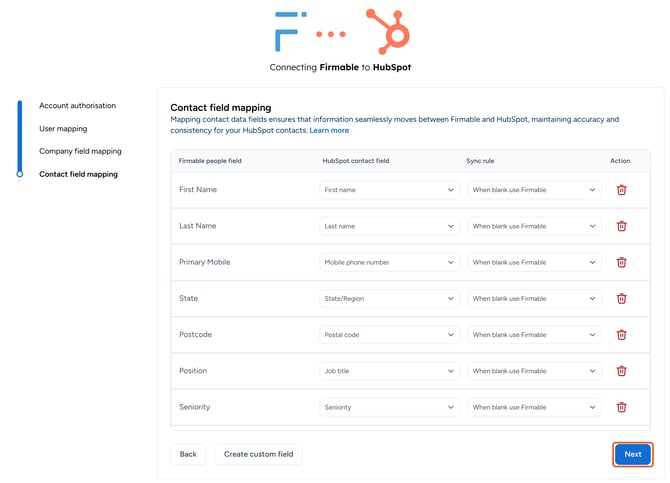
- On the next screen, Contact field mapping, review the Firmable people fields mapped to your HubSpot contact properties.
- Complete the same steps as in Mapping company properties above, including mapping fields and choosing sync rules.
- Click Next when done.
Complete setup
- Once mapping is complete, your HubSpot account is now connected to your Firmable account. You can now go straight to your Contacts or Companies views in HubSpot to start enriching.

Learn more about how to use the Firmable Enrichment HubSpot app.
Learn more about how to add the Firmable Enrichment card to HubSpot records.