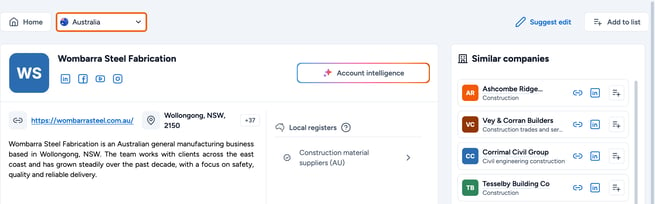
Below is an overview of how to set your default country in Firmable. This will set which country’s data appears by default in your searches, when you visit company profiles and when you download data.
Prerequisites
- To change your company's default countries, you have the Admin role. Admin, Manager and Standard users can set personal countries for themselves. See User roles and permissions.
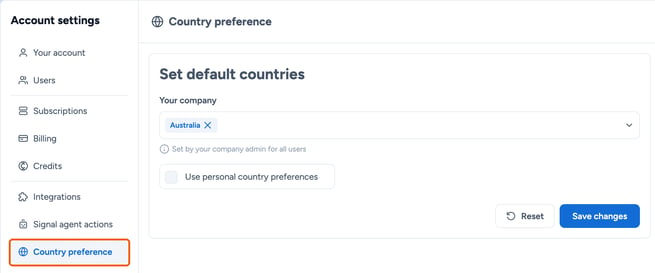
Your company's default countries apply to all users in your organisation, unless a user ticks Use personal country preferences to set countries that apply only to them. Your default country will be set to match your billing country.
How to change your default country
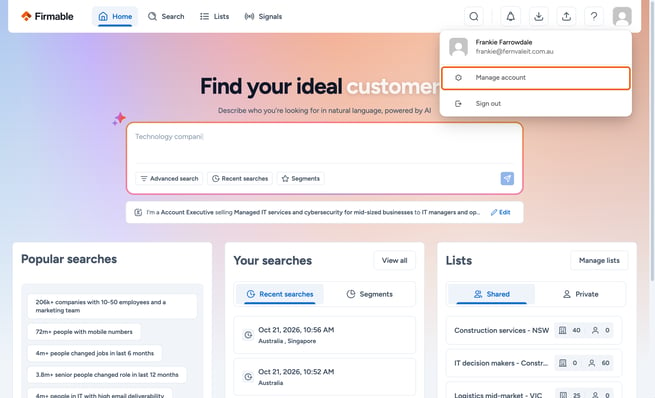
- Click your profile picture (top right) and select Manage account.
- Click Country preference.
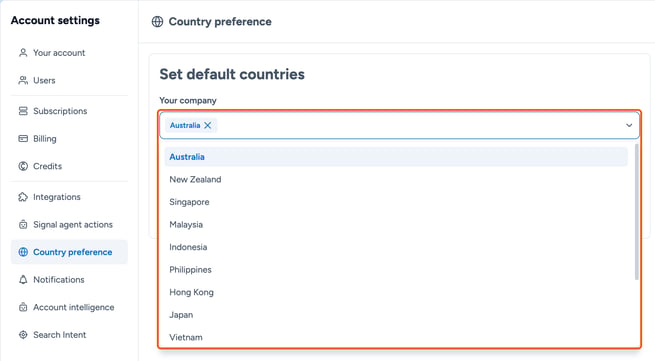
- Select one or more default countries from the drop-down menu. To set countries that apply only to you, tick Use personal country preferences and choose them there.
- Click Save changes.
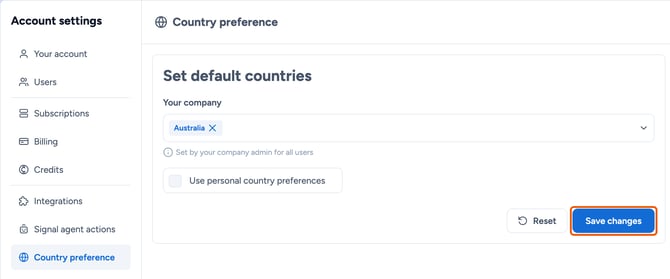
- After updating your default country, a confirmation message will appear: Country preferences updated successfully.
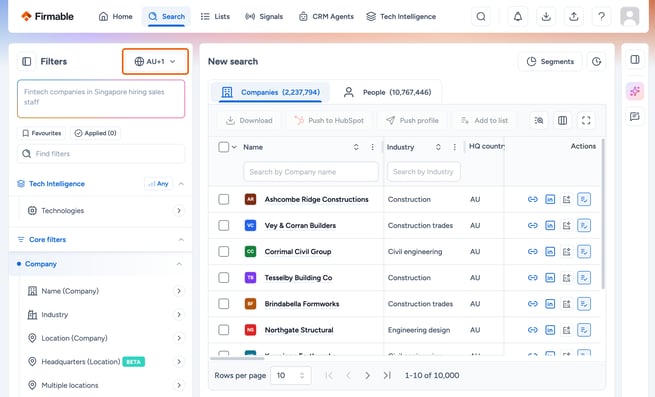
- In the main search screen, your default country will now be preselected as a filter. Learn how to use country filters in your search.
-
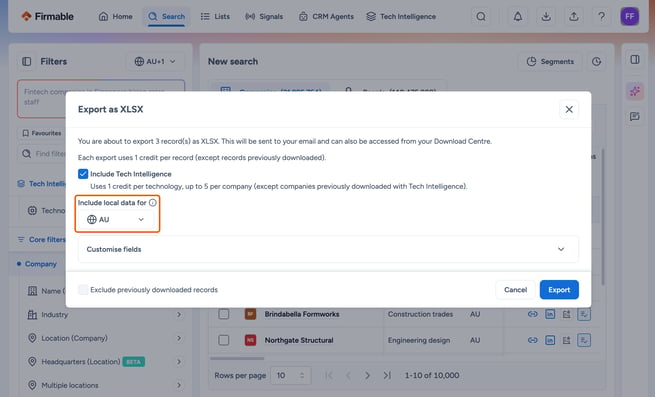
When exporting data as a download, your default country will be preselected. You can change it for each download.
- When viewing a company profile, the default country will display. Learn how to view country company profiles.