
A CRM agent manages the connection between your CRM and Firmable. Each agent pulls a defined set of records from your CRM on a schedule you control.
Prerequisites
Before setting up 2-way CRM sync, ensure the following:
- You are an Admin on your Firmable account.
- You have an active HubSpot or Salesforce account.
- You are on a Teams Pro or Enterprise plan on Firmable.
What is a CRM agent?
CRM agents are most commonly used for three things:
- Finding net-new prospects: pull your existing CRM records into Firmable so searches automatically exclude them. Every result is a genuinely new prospect.
- Enriching records in bulk: identify contacts or companies with missing data, such as no mobile number, and enrich them at scale without manual exports.
- Re-engaging CRM segments: build an agent around a specific segment, such as closed-lost accounts, and monitor those records for buying signals.
Before you start
For accurate matching and deduplication over time, we recommend creating the following custom property in your CRM before setting up your first agent.
Firmable ID
Create a single-line text field with a length of 20 characters. Company IDs are a lowercase "f" followed by 12 digits (for example, f000001729377), and person IDs are "fp" followed by 12 digits, so a 20-character field fits both. Set it as a unique identifier. Firmable ID is permanent and does not change even if a contact changes company, email address, or phone number. Mapping it early gives you the most reliable matching key for the life of the record.
Setting up a CRM agent
Step 1: Connect your CRM
- Click your profile picture (top right) and select Manage account.
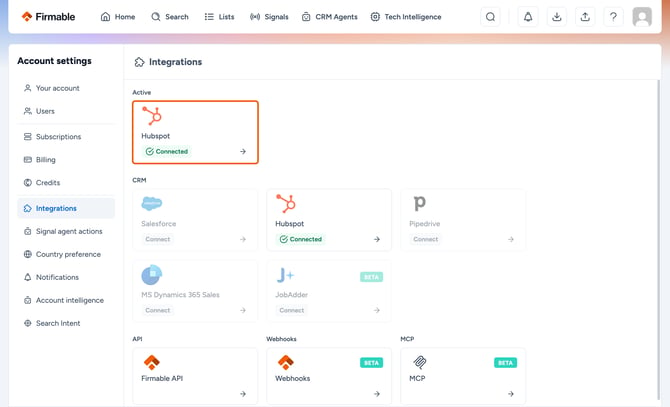
- Select Integrations in the Account settings sidebar.
- Select HubSpot or Salesforce as your CRM platform.
- Follow the prompts to authorise the connection.
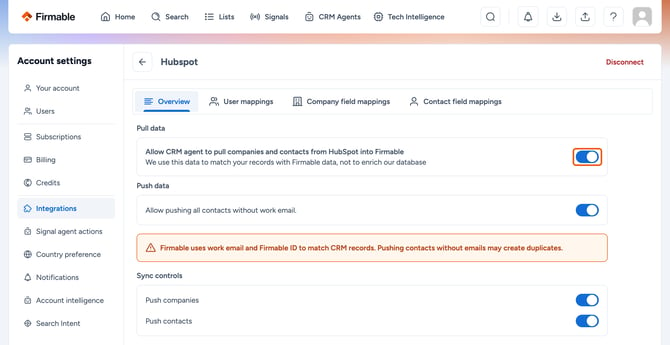
- Click your connected CRM to open the setup page.
- Turn on data pull for your CRM. For HubSpot, toggle on Allow CRM agent to pull companies and contacts from HubSpot into Firmable
Step 2: Select record type
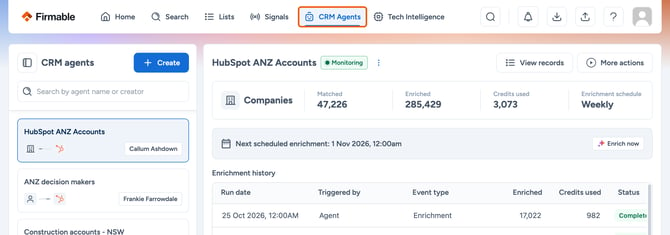
- Click CRM Agents in the top navigation.
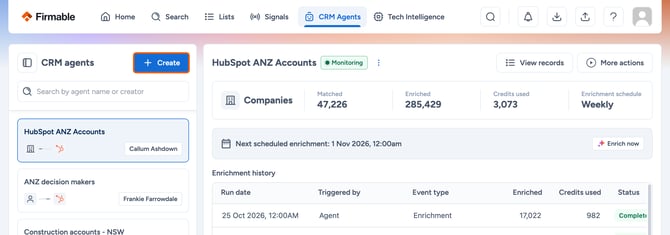
- Click Create.
-
Under Select record type to pull, choose what to import from your CRM:
- Companies (HubSpot) or Accounts (Salesforce)
- Contacts (HubSpot and Salesforce)
- Leads (Salesforce only)
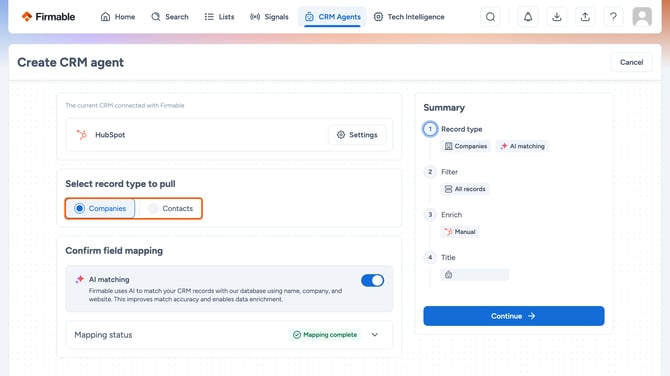
- Click Continue.
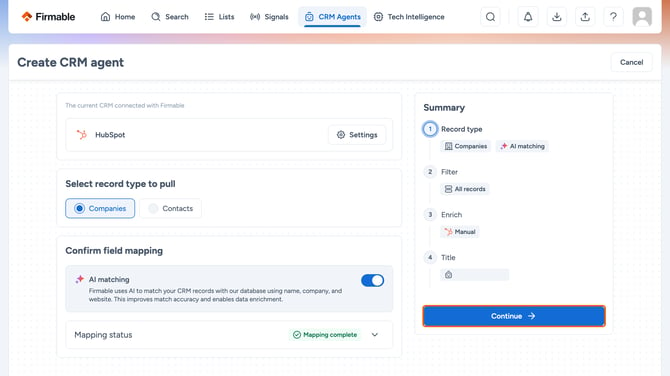
Step 3: Configure filtering rules
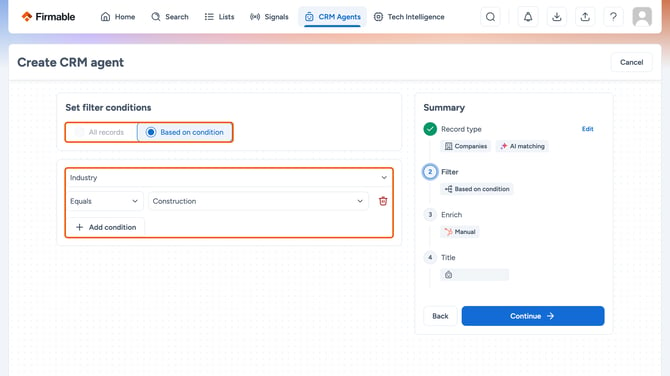
Choose how Firmable determines which records to pull:
- All records: Every record of the selected type will be pulled from your CRM.
- Based on condition: Define AND/OR logic to filter which records are pulled (for example, only records owned by a specific team, or records within a certain industry).
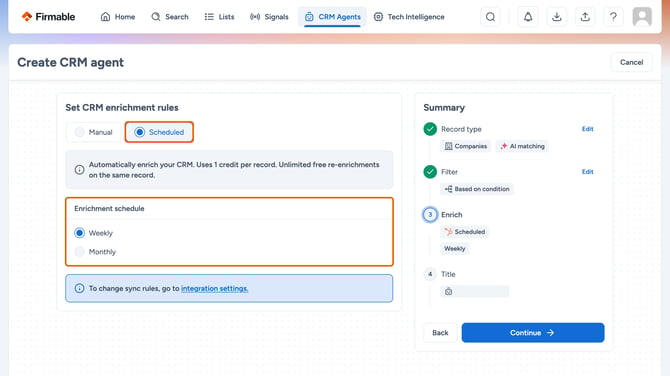
Step 4: Set enrichment schedule
We recommend starting with manual enrichment first. This allows you to confirm that records are matching correctly and that CRM sync is working as expected. Automatic enrichment on a schedule can consume a large batch of credits before anyone notices, so only move to it once you're confident in the results and understand how credits are being used.
Choose how often Firmable re-enriches the records in this agent:
- Manual: Enrichment only runs when you trigger it.
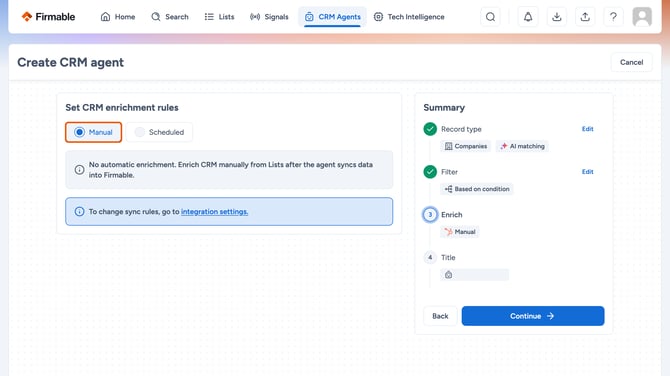
- Scheduled: Records are automatically re-enriched each week or month.
- Click Continue.
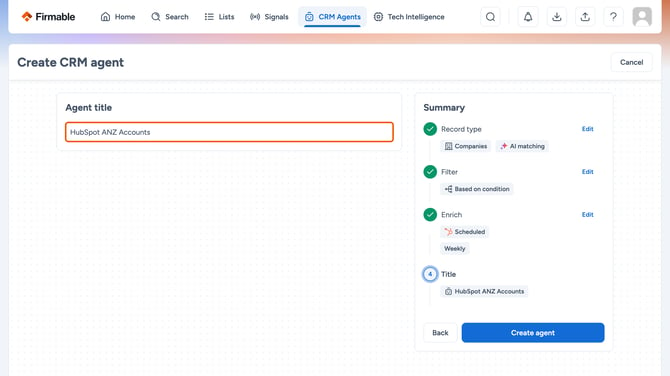
Step 5: Name and save the agent
- Give the agent a name that reflects the records it contains (for example, "HubSpot ANZ Accounts").
- Click Create agent to save.
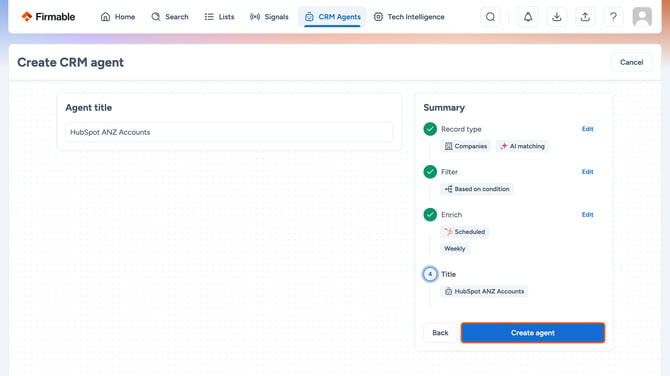
- Confirm that the agent and its records appear in Firmable under the name you assigned.
Viewing your CRM agent
Once an agent is created, click CRM Agents in the top navigation, then select the agent in the left-hand panel. From the agent view:
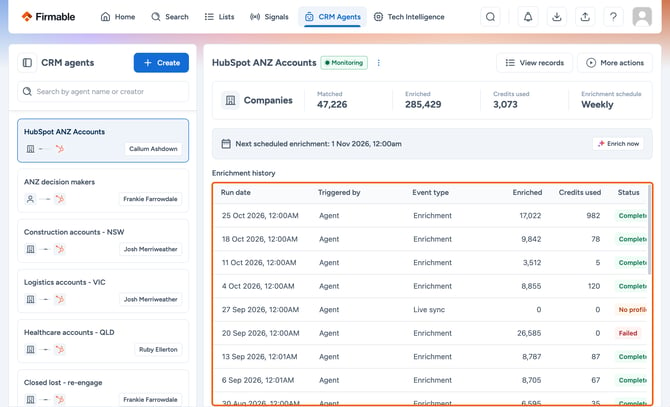
- See a summary of records matched and enriched, credits used and the enrichment schedule.
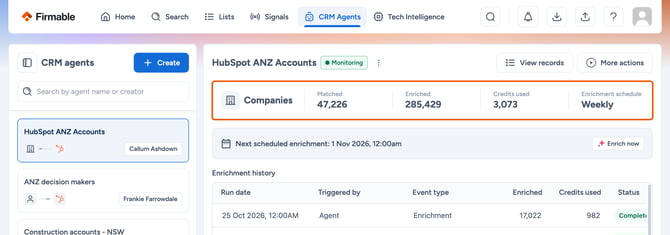
- View the full run history in the run log table.
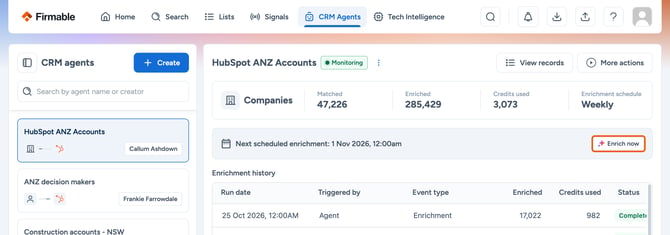
- Click Enrich now to manually trigger a new run and confirm it appears in the log.
Viewing CRM records in Firmable
-
Records pulled by a CRM agent appear in the Lists page under a dedicated CRM section.
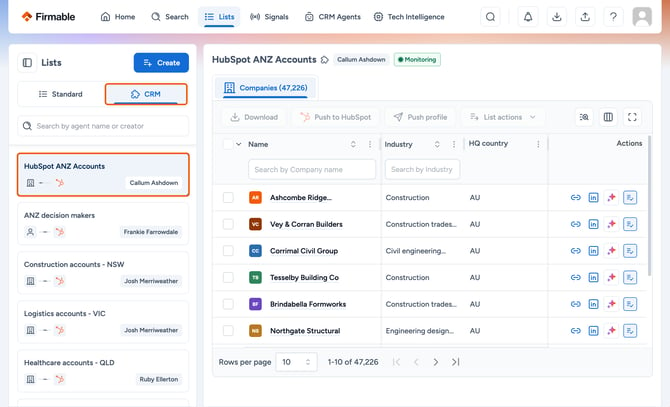
- CRM agent lists reflect the most up-to-date data from the last agent run.
- These lists are read-only and cannot be manually modified.
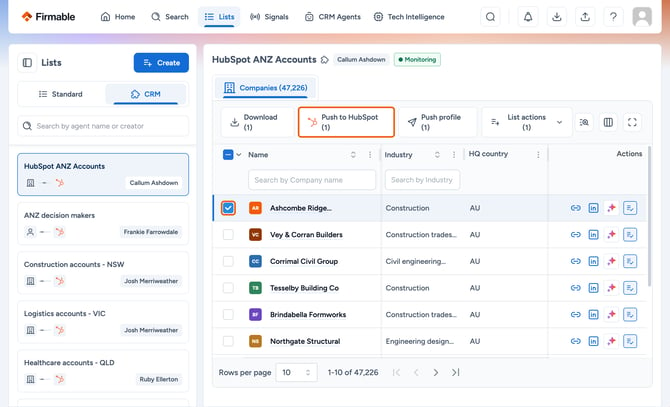
- To push records back to your CRM with enriched data, select records from the list and click Push to HubSpot or Push to Salesforce.
Filtering search results by CRM data
CRM agent records can be used to filter results in Firmable's Search page:
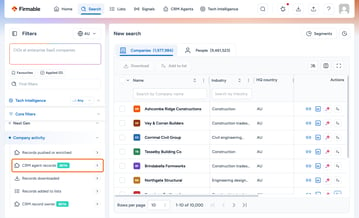
- Open the CRM agent records filter (under Company activity) and select a CRM agent to see only its records.
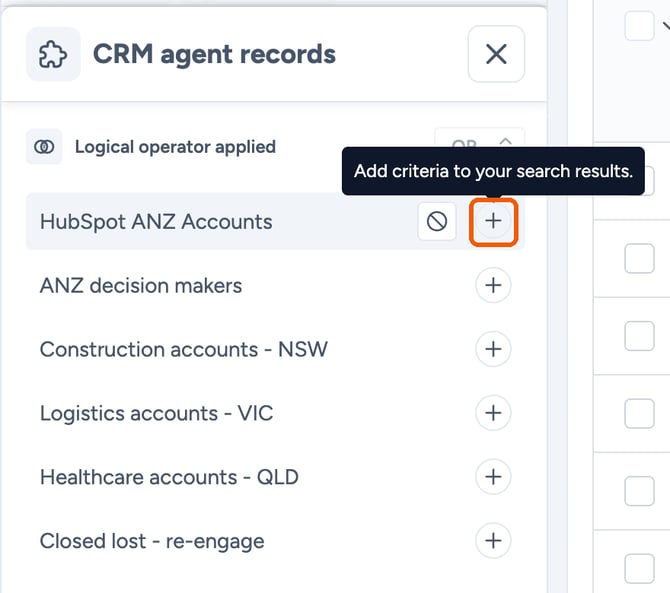
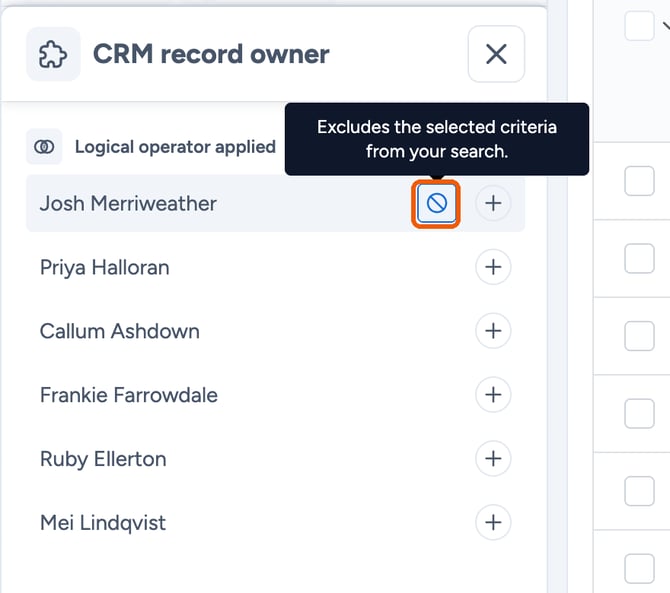
- Hover over the CRM agent and click + to include its records, or the exclude icon to exclude them.
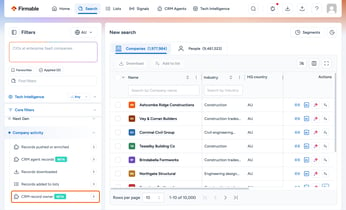
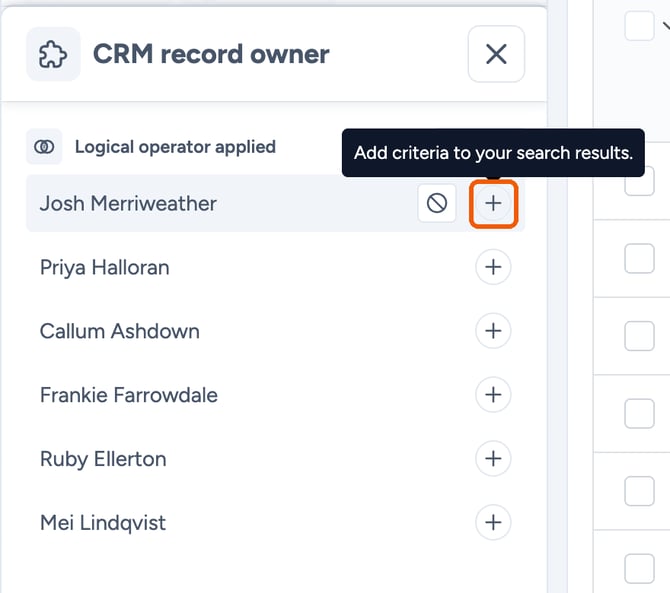
- Use the CRM record owner filter (also under Company activity) to focus on a team member's accounts or people records.
Records found through search can be selected and pushed to your CRM with enriched Firmable data.