
Open a profile by tapping a company or person anywhere in the app, whether from search results, a list, or a signal. Company profiles and people records share the same actions for adding to lists and sharing, and link to each other, so you can move from a company to its people and back again.
People profiles and contact details
Viewing email addresses
Available work and personal email addresses are shown directly on the people record; there is no reveal step and no credit cost. A shield icon marks verified addresses. Tap an address to start an email. If no addresses are on file, a Request link appears (see below).
Revealing a mobile number
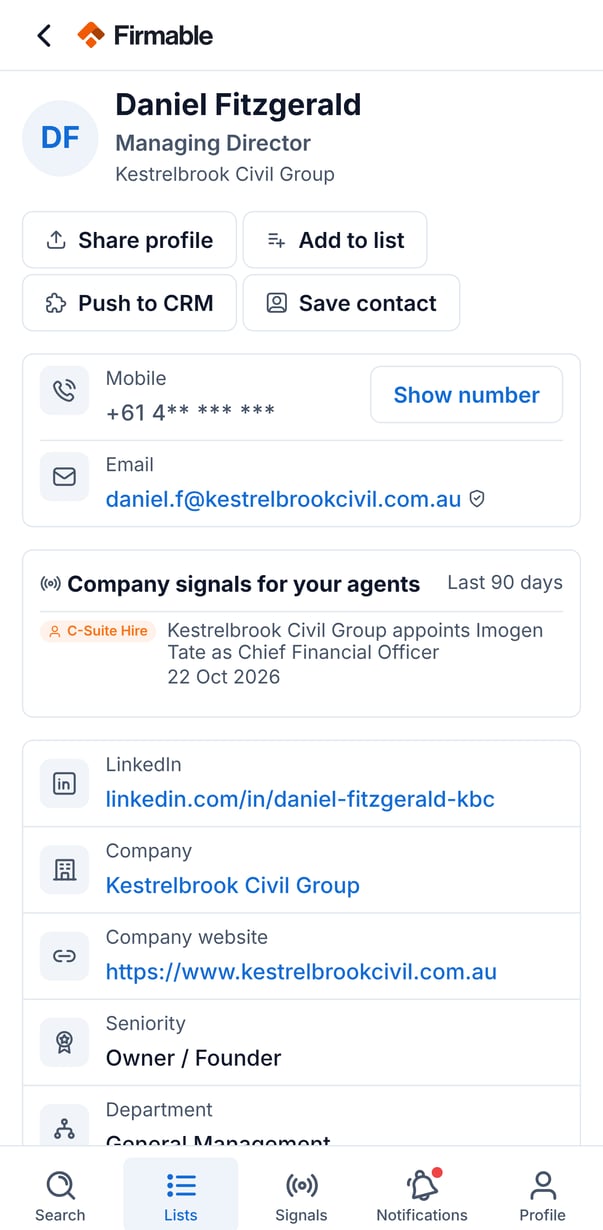
- Mobile numbers are hidden until you tap Show number.
- Revealing a number uses 1 credit, and only if a number is found. It's free if your organisation has already paid for that record. Once revealed, the number stays visible and doesn't cost another credit to view again.
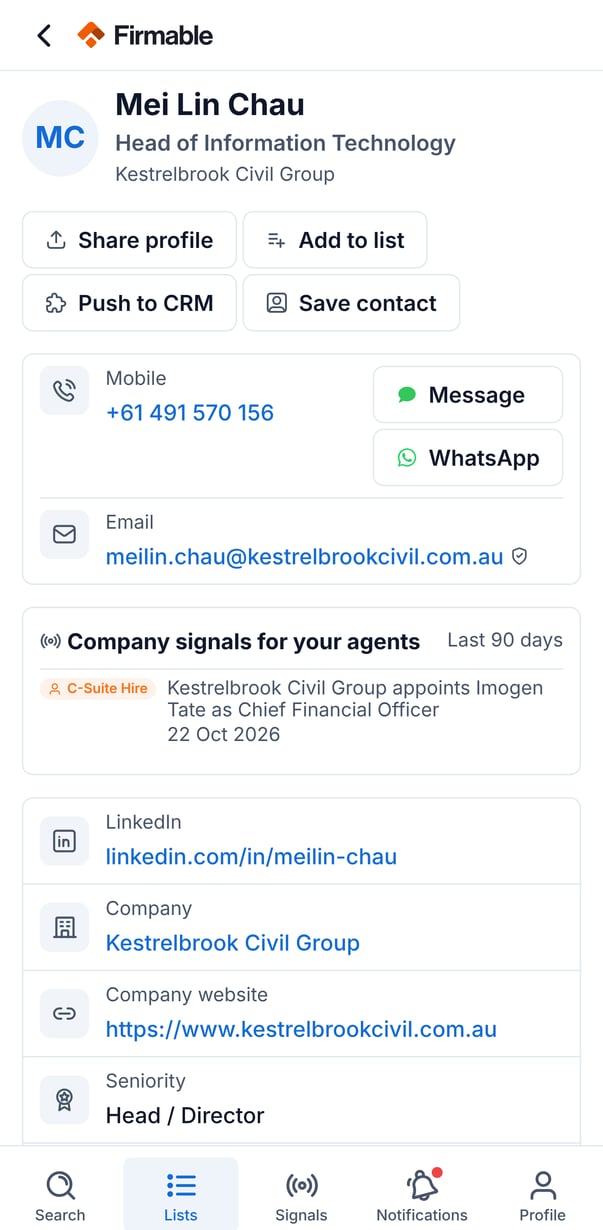
- After revealing, tap the number to call, tap Message to send an SMS, or open WhatsApp.
Requesting missing contact details
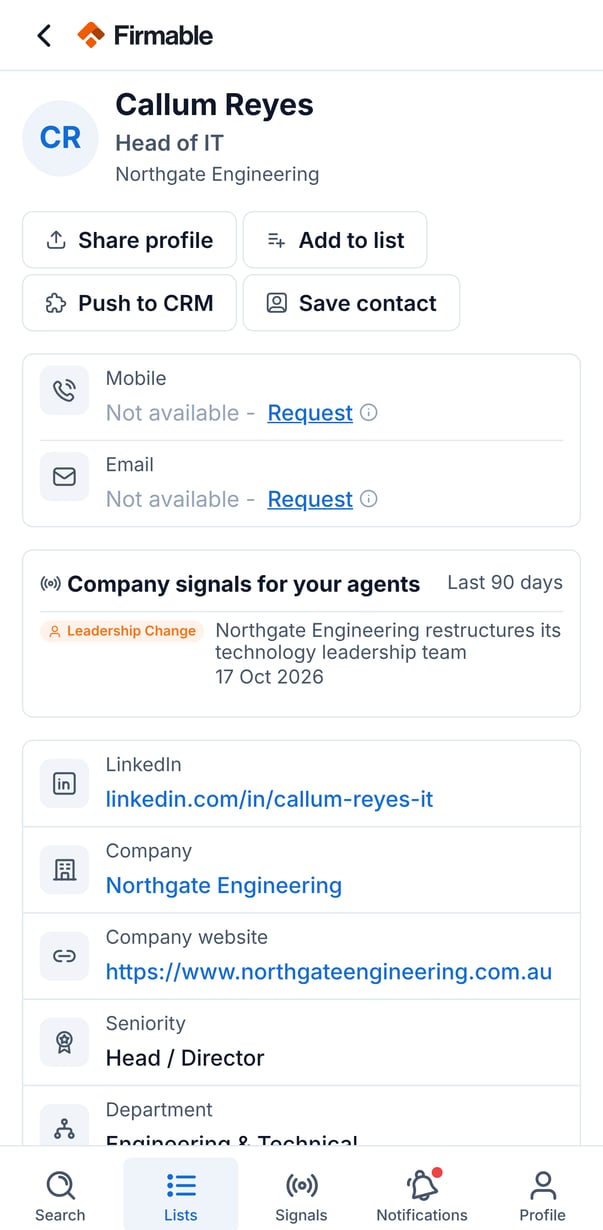
When a phone number or email isn't available, tap the Request link to ask the Firmable team to find it for you. You'll see a "Request sent" confirmation, and when Firmable finds it, you'll see it under Data requests in the Notifications tab.
- A request does not message the prospect.
- A request doesn't cost a credit. If a phone number is found, revealing it uses 1 credit (free if your organisation has already paid for that record). Found emails are free to view.
Other details on a people record
People records also show the person's LinkedIn, current company (tap through to the company profile), company website, seniority, department, location, and time in role. Skills show the first 10 with More... to expand, and Experience shows work history with company, title, dates, and location. Recent signals from the last 90 days appear where available.
People actions
- Share profile: share via your phone's share sheet.
- Add to list: add the people record to one of your lists.
- Save contact: save the person to your phone (see below).
- A Push to CRM option also appears here but is not yet available.
Saving a contact to your phone
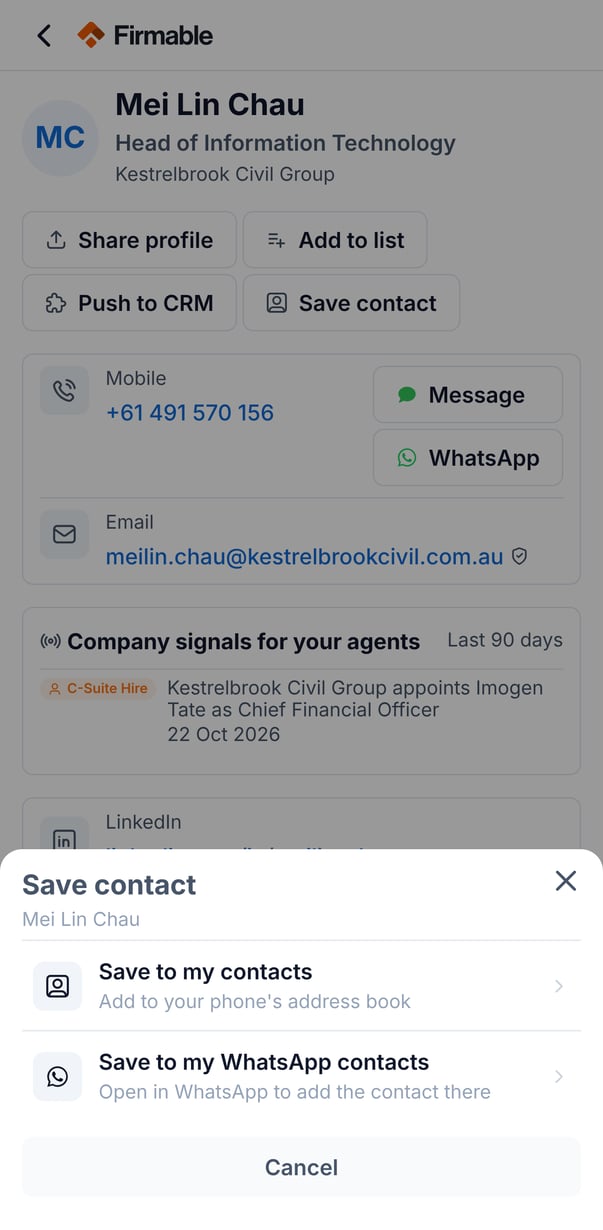
- Tap Save contact, then choose Save to my contacts to add or update a card in your phone's address book with the person's name, phone, email, company, and LinkedIn, or choose Save to my WhatsApp contacts for the same, framed for WhatsApp.
- The first time you save a contact, the app explains that it needs permission to add to your address book.
Company profiles
What a company profile shows
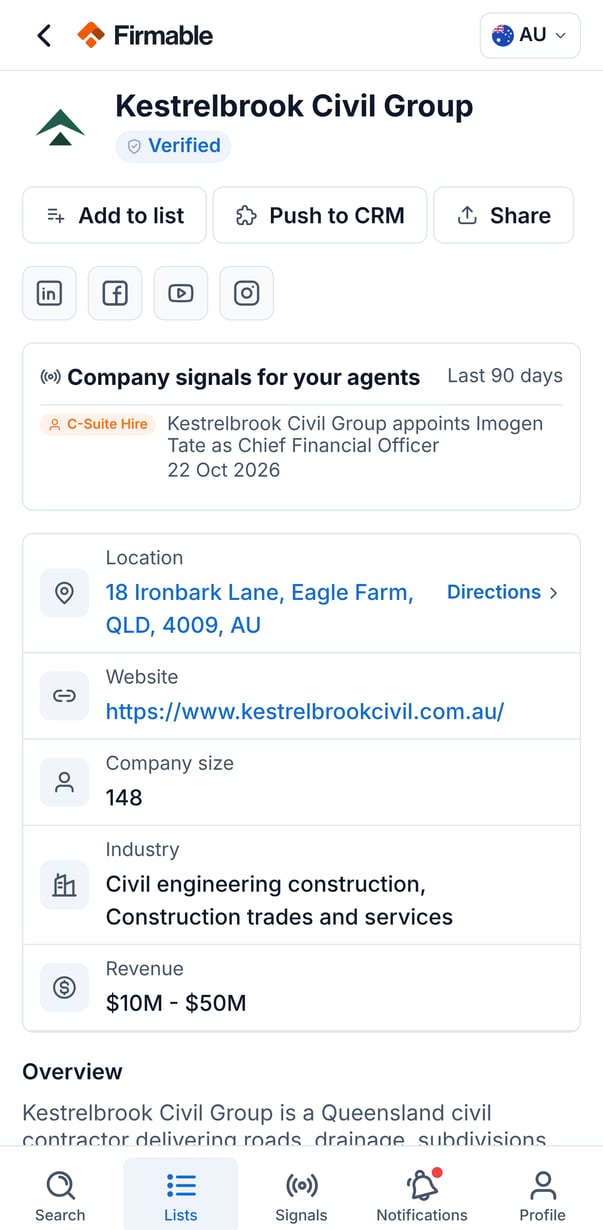
- Logo (or initials), company name, and a Verified badge when the record is Firmable-verified.
- Location; tap it to open the address in your maps app.
- Website, company size, industry, and revenue.
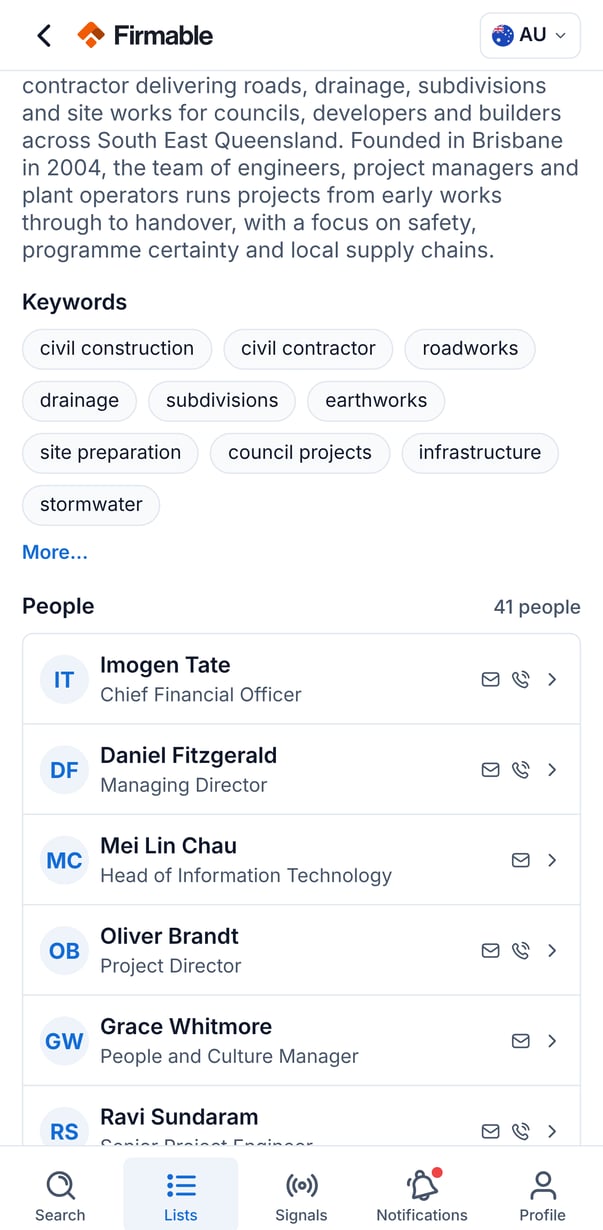
- An Overview showing the first lines, with More... to expand.
- Keywords, showing the first 10 with More... to expand.
- Company signals for your agents: signals about the company from the last 90 days, where available.
- Social links where available: LinkedIn, X (Twitter), Facebook, YouTube, and Instagram.
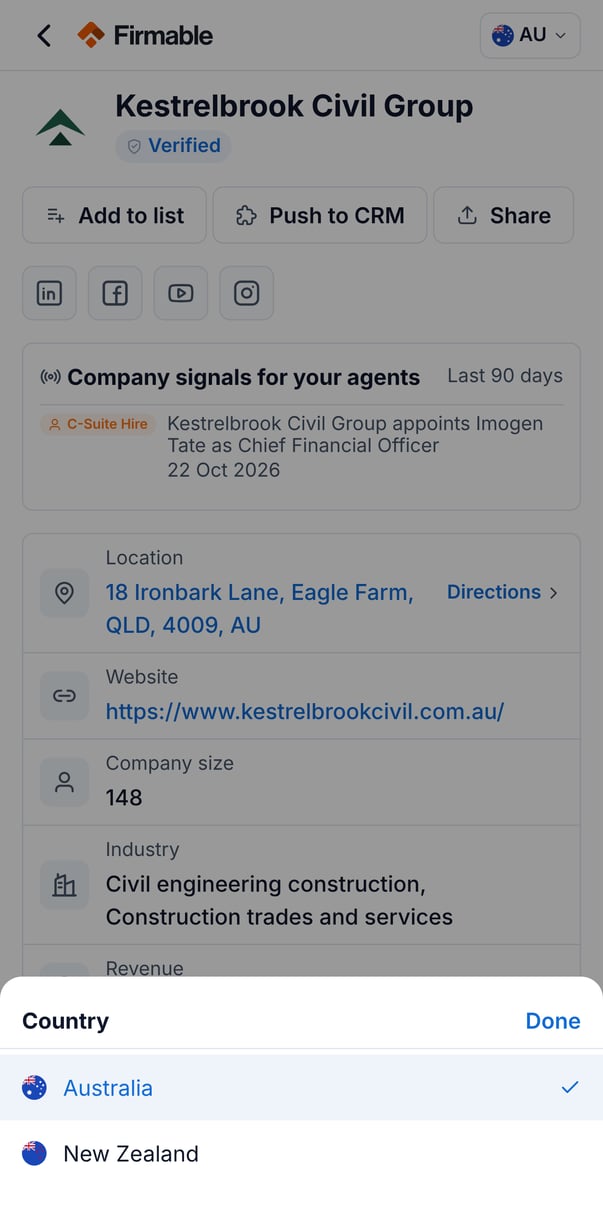
Switching countries
For companies operating in more than one country, use the country dropdown at the top right to switch countries and see that country's website, location, size, revenue, and social profiles.
People at this company
The profile lists employees for the selected country, showing each person's name, title, and email and phone availability, along with the total count. Tap Load more to see additional people, and tap any person to open their people record.
Company actions
- Add to list: add the company record to one of your lists.
- Share: share the profile via your phone's share sheet (Messages, email, WhatsApp, AirDrop, and more).
A Push to CRM option also appears here but is not yet available.