
Signal agent actions let your signal agents push the signals they find straight into your CRM as tasks and notes. Actions can run automatically each time an agent runs, or you can trigger them manually on signals you select. This means buying triggers like leadership changes, new joiners, and intent spikes land in your CRM the moment they fire, with no copy-pasting between Firmable and your CRM.
Signal agent actions work with HubSpot and Salesforce. CRM actions use 1 credit per record. Records your organisation has already paid for don't use another credit.
Prerequisites
- Your organisation must have a CRM integration connected (HubSpot or Salesforce).
- An admin must configure agent action templates before actions can be added to signal agents.
- You are on a Small Teams, Teams Pro or Enterprise plan with Firmable.
How it works
- Admins configure task and note templates once, in one place. Every signal agent across your organisation inherits these templates.
- Users toggle actions on or off when creating or editing a signal agent, but the templates themselves are admin-controlled to keep CRM activity consistent.
- When an agent runs, it creates tasks and notes in your CRM based on the signals it finds. You can also manually action specific signals from the agent runs view.
Admin setup: configuring agent action templates
Agent action templates are set once by an admin and apply to every agent in your organisation.
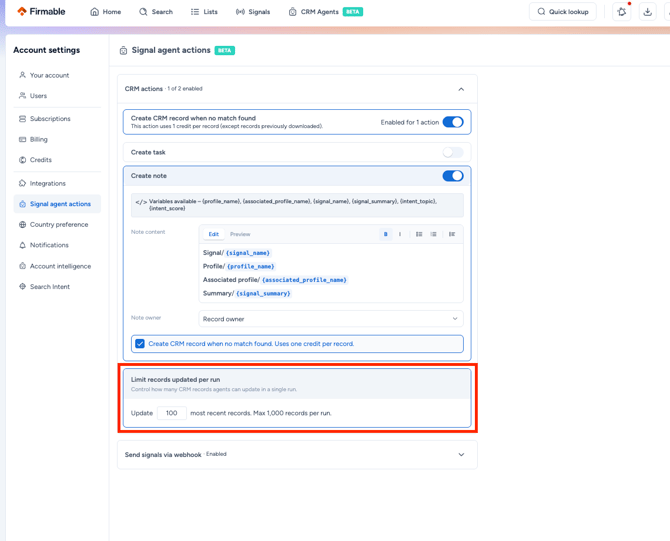
- Click your profile picture (top right) and select Manage account, then select Signal agent actions in the Account settings sidebar and open CRM actions.
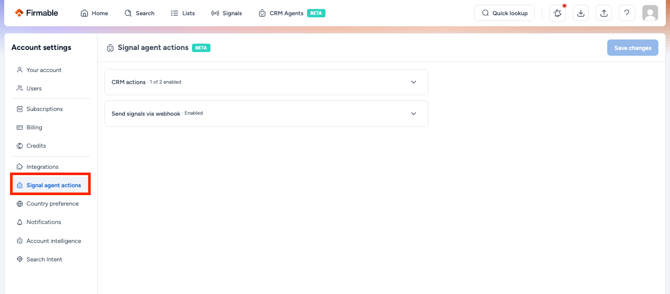
- Set the Create CRM record when no match found toggle, which controls whether a new CRM record is created when no matching record exists.
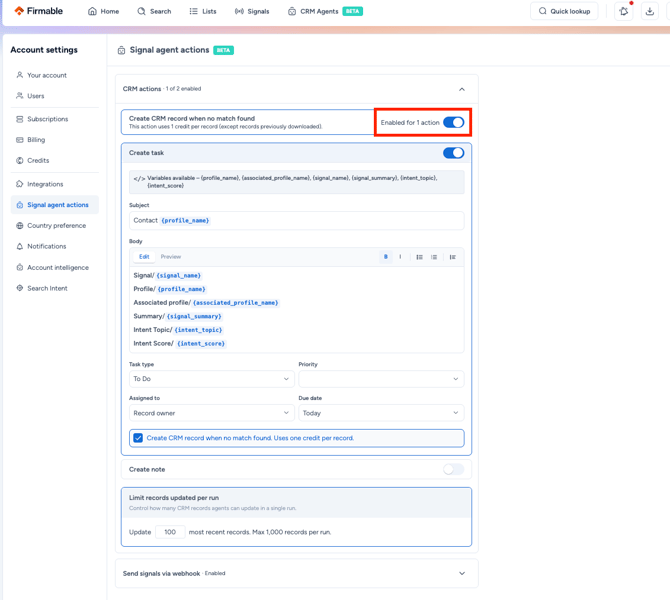
- Configure the Create task card: the subject, body, task type, priority, assignee and due date.
The subject and body support the following variables: {signal_name}, {profile_name}, {associated_profile_name}, {signal_summary}, {intent_topic} and {intent_score}.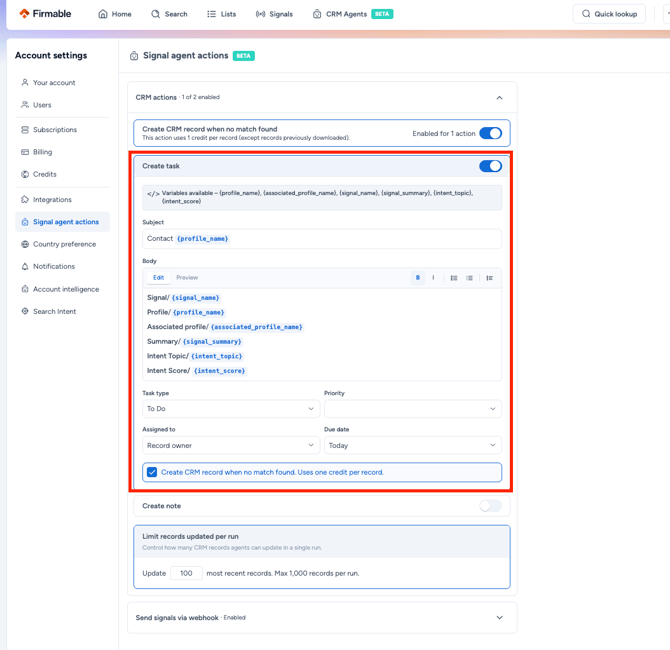
- Configure the Create note card: the note content and note owner.
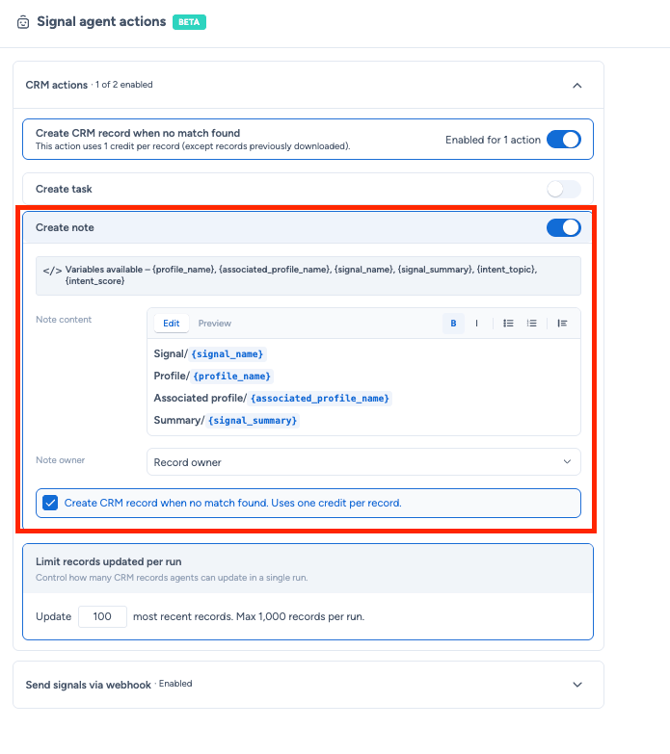
- Set Limit records updated per run to control how many CRM records agents can update in a single run (up to 1,000).
- Click Save changes.
Whatever the admin sets here is what users see when they create agents. Users can toggle actions on or off but cannot edit the templates.
Adding actions to a signal agent
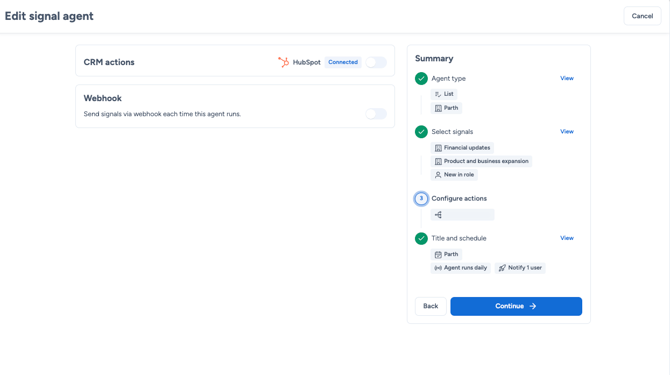
Creating a signal agent works the same way it does today: choose the agent type (and lists), then select signals and any targeting. Actions are configured on the Configure actions step.
- Create the agent as usual: Agent type, then Select signals.
- On the Configure actions step, turn on CRM actions and choose Create task and/or Create note.
- Review the admin-set templates in the read-only preview.
- If your admin has allowed it, adjust the Create CRM record when no match found setting or the per-run record limit.
- Continue to Title and schedule to set the agent's title and run schedule, then click Create agent.
Both Create task and Create note can be enabled at the same time for the same agent.
Viewing and actioning signals
Once an agent has actions configured, the agent runs view includes:
- Agent activity: a button at the top right of the page that opens a panel listing each historical run, with counts of signals found, automatically actioned, manually actioned, and not actioned.
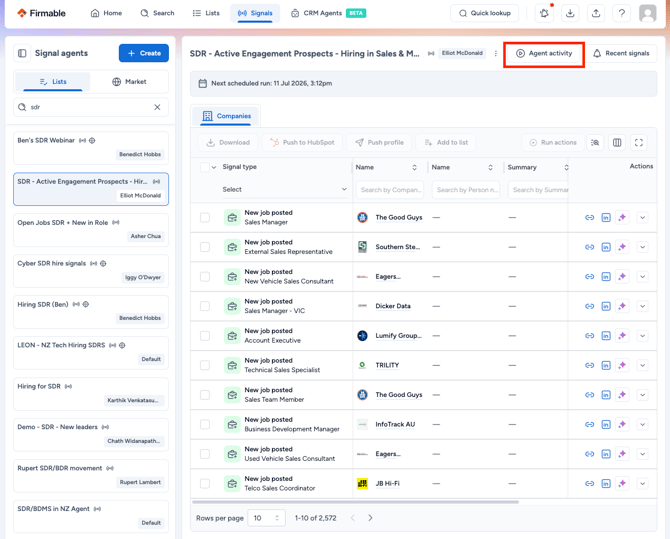
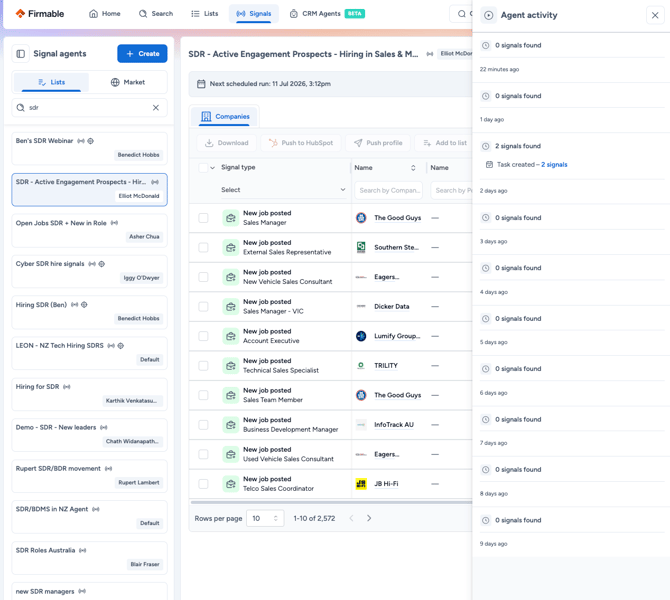
- Agent actions column: shows the status of each signal, such as Task created by the agent or Note created manually. Signals that have not yet been actioned show a dash.
- Run actions: tick the rows you want to action, then click Run actions to manually push the selected signals through the agent's configured action.
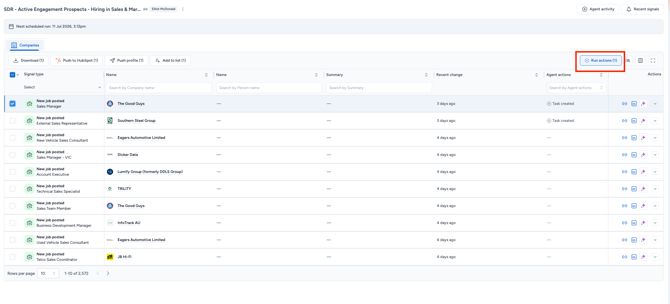
Signals are never actioned twice. If a signal has already been actioned, its status appears in the Agent actions column.
What happens to existing agents
Agents created before signal agent actions became available keep working exactly as before. To add actions to an existing agent, edit the agent and enable them on the Configure actions step.
Frequently asked questions
-
Which CRMs are supported? HubSpot and Salesforce.
-
Can an agent create both a task and a note? Yes. Both actions can be enabled at the same time for the same agent.
-
Can users edit the task title or note content? No. Templates are admin-controlled so that CRM activity stays consistent across your organisation.
-
Can I action signals manually? Yes. In the agent runs view, tick the rows you want to action and click Run actions.
-
What if a signal has already been actioned? It won't be actioned twice. The Agent actions column shows the current status of each signal.
-
Who owns a record created by an action? A new company or contact created because no match was found is assigned to whichever user's connection ran the push. An existing record keeps its current owner. It's never reassigned, even when Firmable enriches or actions it.
-
My signal agent is stuck "scanning" with no hits. Is it broken? Usually not. An agent with no recency filter can sit in a scanning state without surfacing results. Add a recency filter (for example, last 30 days) to the agent's targeting on the Select signals step. This typically surfaces hits immediately.