
Lists are collections of companies and people. On mobile, you can view lists, add records to them, and manage existing lists on your Firmable account. Creating a brand-new list is done in the Firmable web app, and an existing list is required as the destination when adding records on mobile.
Lists home
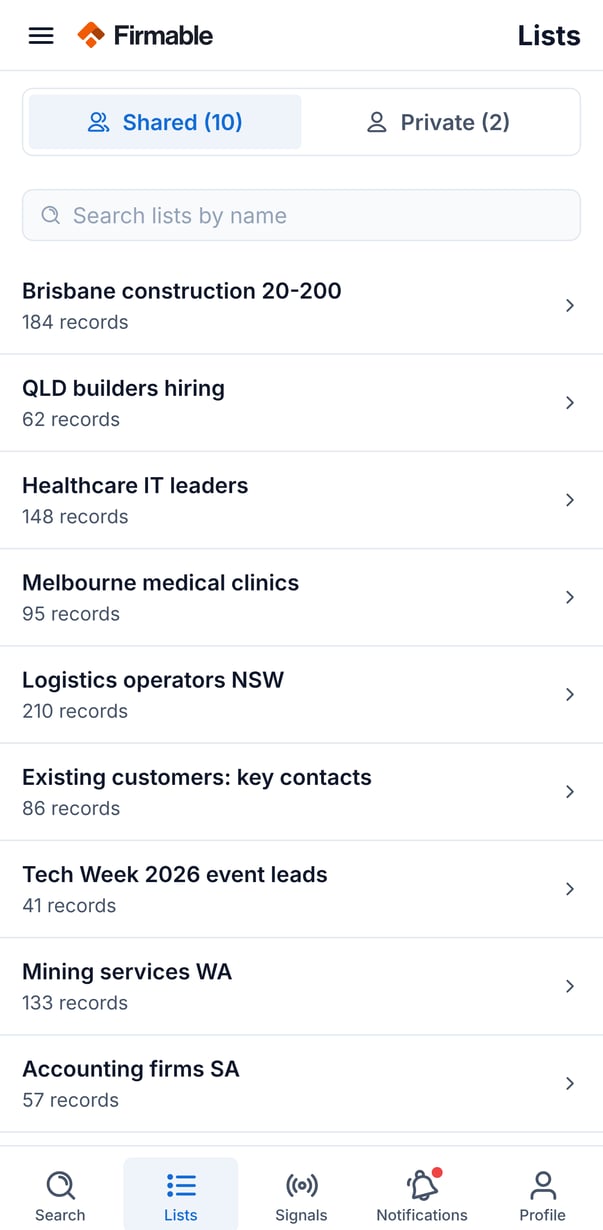
The Lists screen has two tabs:
- Shared: lists visible to your team.
- Private: lists only you can see.
Search lists by name; each list shows its name and total record count (companies plus people).
Managing a list
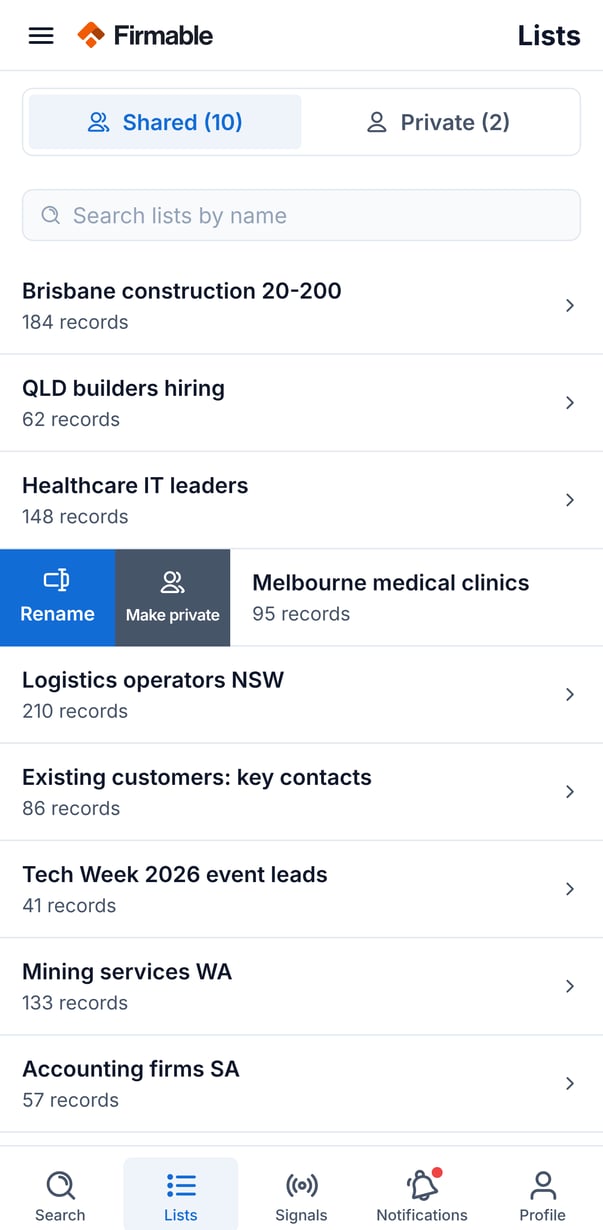
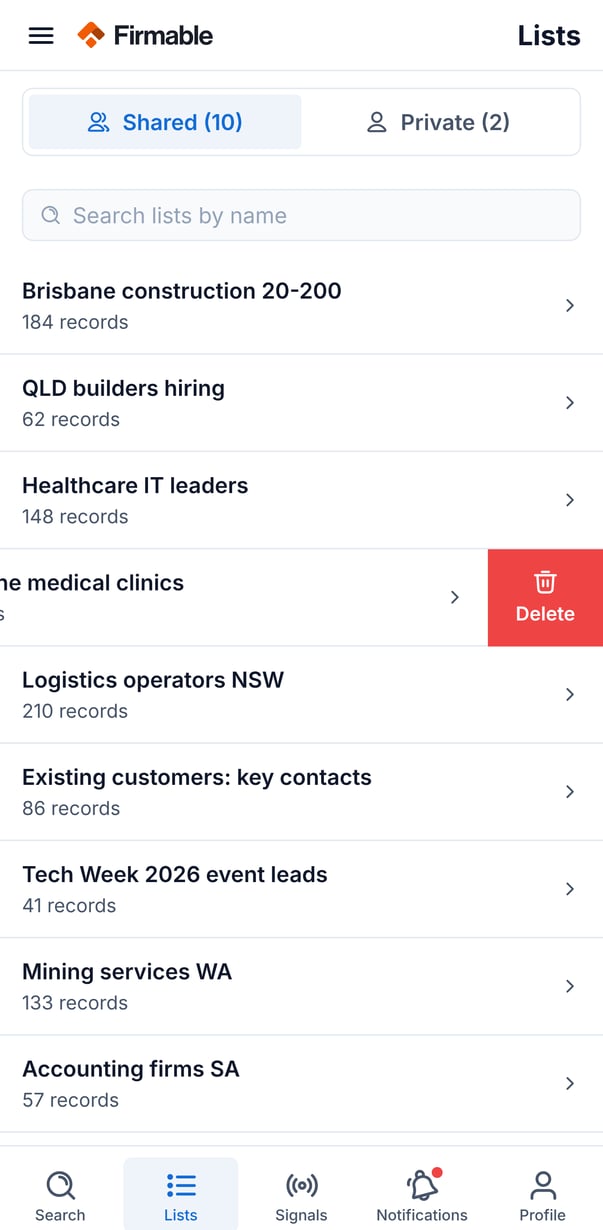
Swipe on a list to reveal its management actions:
- Rename: change the list's name.
- Make shared / Make private: toggle the list's visibility, with a confirmation step.
- Delete: remove the list, with a confirmation step. Deleting a list can't be undone.
Working inside a list
Open a list to see its contents in two tabs, Companies and People, each with a count. Records load in pages; tap Load more to see additional records.
To act on multiple records, long-press to select, then:
- Add to list: copy or move the selection into another list.
- Remove: take the selection out of this list, with a confirmation step.
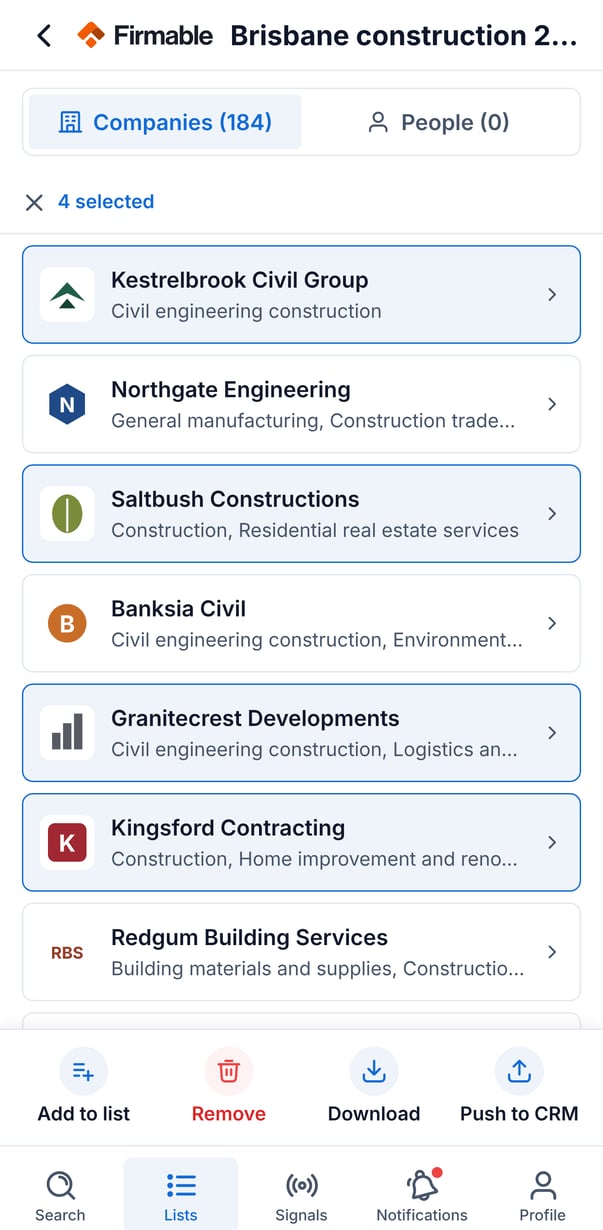
Download and Push to CRM options also appear here but are not yet available.