
What happens behind the scenes
Setting up automation platforms
What are webhooks?
Webhooks allow Firmable to automatically send enriched data to a URL you specify whenever certain events occur. Instead of manually exporting data, webhooks push company and people profiles directly to your systems the moment you trigger them.
Webhooks are ideal when you want to:
- Automate workflows: send profiles to your CRM, database, or internal tools without manual effort.
- Connect to automation platforms: integrate with tools like Zapier, Make, or n8n to build automated pipelines.
- Get data in real time: receive profile data the moment you push a profile.
- Build custom integrations: send data to your own endpoints for custom processing and storage.
When you push a company or person profile, Firmable enriches the data and sends it as a JSON payload to every webhook endpoint you have configured. Your endpoint receives the data and can process it however you need.
Prerequisites
Before using webhooks, ensure the following:
- You are on a Small Teams, Teams Pro or Enterprise plan with Firmable.
- You have the Admin, Manager, Partner or Integration role to set up webhooks. To push profiles, you need the Admin, Standard or Partner role.
- You have at least one endpoint URL ready to receive HTTPS POST requests.
- Your account has sufficient credits (pushing a profile uses 1 credit the first time; profiles your organisation has already paid for are free).
Firmable webhook uses
Webhooks are most useful when combined with an automation platform like Zapier, Make, or n8n. Once a profile is pushed from Firmable, the data can be used to trigger a wide range of downstream actions. Some common examples include:
- Create a new contact or company record in your CRM: Find a person or company record in Firmable, push the profile, and have the record created in a tool like Monday.com or Outreach, pre-populated with Firmable's data such as job title, email, employee count, and revenue.
- Enrich an existing CRM record: Push a profile to update an existing contact or company record with the latest data from Firmable, such as industry or headcount.
- Add records to a spreadsheet: Push profiles into a Google Sheet for list building, reporting, or further analysis.
- Trigger an email or outreach sequence: Push a person profile to automatically enrol them into an outreach tool or email sequence.
- Send a Slack notification: Push a profile to your automation platform and configure it to send a Slack message notifying your team that a record has been pushed.
Note: Firmable webhooks deliver enriched data to your chosen endpoint. What happens with that data is determined by the automation platform you have set up. Where a direct Firmable integration is available for your tool (e.g. Salesforce, HubSpot, Pipedrive or MS Dynamics 365 Sales), it is recommended to use that first and use webhooks as an alternative where no direct integration exists.
Accessing the Webhooks portal
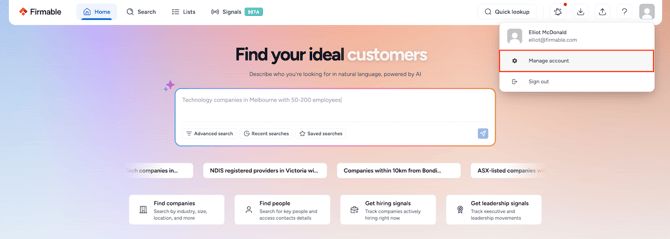
- Click your profile picture (top right) and select Manage account.
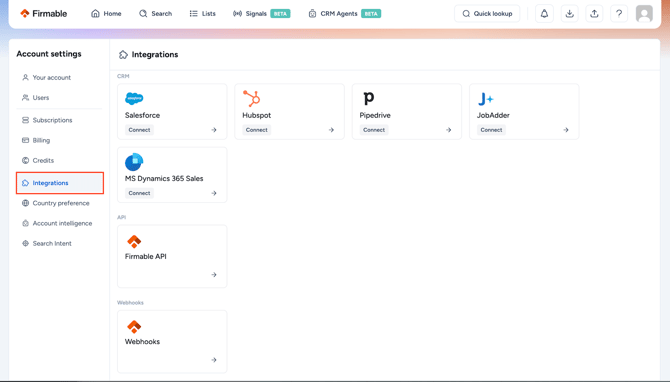
- Select Integrations in the Account settings sidebar.
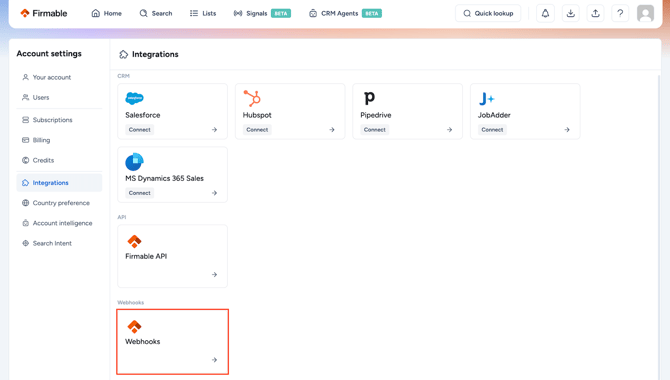
- Locate the Webhooks card and click on it to open the Webhooks portal.
First-time setup: The first time you access the Webhooks portal, Firmable automatically creates a webhook application for your organisation. This happens in the background; no action is needed from you.
The Webhooks portal has four main tabs:
- Endpoints: View and manage all configured webhook endpoints.
- Event catalog: Browse available event types to subscribe to.
- Logs: View the full history of webhook messages sent from your account.
- Activity: Monitor real-time delivery status across all endpoints.
Managing endpoints
Endpoints are the URLs where Firmable sends webhook data. You can configure multiple endpoints to send data to different destinations simultaneously.
Adding an endpoint
- In the Endpoints tab, click + Add Endpoint.
- Enter the full HTTPS URL where you want to receive webhook data (e.g.
https://hooks.zapier.com/hooks/catch/123456/abcdef/). - Optionally, add a description to identify the endpoint later (e.g. "Zapier - New Leads Pipeline").
- Optionally, select which event types this endpoint should receive. By default, endpoints listen to all events.
- Click Save. The endpoint is now active.
Editing an endpoint
- Click on any endpoint to view its details.
- Click Edit to update the URL, description, or subscribed event types.
- You can also enable or disable an endpoint without deleting it.
Deleting an endpoint
- Open the endpoint's detail view.
- Click the three-dot menu (...) in the top-right corner.
- Select Delete. The endpoint will immediately stop receiving messages.
Endpoint signing secret
Each endpoint is assigned a unique signing secret used to verify that incoming messages are genuinely from Firmable. If building a custom integration, always verify the webhook signature before processing the payload. The signing secret can be viewed or rotated from the endpoint detail page.
Event types
Events represent different types of data that Firmable can send to your endpoints. You can choose to receive all events or subscribe to specific ones.
| Event type | Description | When it's sent |
|---|---|---|
enrich.company |
Company profile data | When you push a company profile |
enrich.person |
Person profile data | When you push a person profile |
What data is included?
Company profile (enrich.company)
When a company profile is pushed, the webhook payload includes the full company record, such as:
- Company name, domain, and website
- Industry classification
- Employee count and revenue data
- Location and regional information
- Social profiles and contact details
- Company attributes
Below is an example payload with dummy values:
{
  "type": "enrich.company",
  "data": {
    "name": "Acme Corporation",
    "domain": "acmecorp.com",
    "website": "https://www.acmecorp.com",
    "industry": "Software & Technology",
    "employee_count": 250,
    "revenue": "$10M - $50M",
    "location": {
      "city": "Sydney",
      "state": "New South Wales",
      "country": "Australia"
    },
    "social_profiles": {
      "linkedin": "https://www.linkedin.com/company/acmecorp"
    },
    "attributes": {
      "founded_year": 2010,
      "abn": "12 345 678 901"
    }
  }
}
Person profile (enrich.person)
When a person profile is pushed, the webhook payload includes:
- Full name, job title, and seniority level
- Work and personal email addresses
- Phone numbers
- Current employer and company details
- Professional experience and skills
- Social profiles (LinkedIn, etc.)
Below is an example payload with dummy values:
{
  "type": "enrich.person",
  "data": {
    "full_name": "Jane Smith",
    "job_title": "Head of Sales",
    "seniority": "Senior",
    "work_email": "jane.smith@acmecorp.com",
    "personal_email": "jane.smith@gmail.com",
    "phone": "+61 400 000 000",
    "employer": {
      "name": "Acme Corporation",
      "domain": "acmecorp.com"
    },
    "experience": [
      {
        "company": "Acme Corporation",
        "title": "Head of Sales",
        "start_date": "2020-03"
      },
      {
        "company": "Previous Co",
        "title": "Sales Manager",
        "start_date": "2017-01",
        "end_date": "2020-02"
      }
    ],
    "skills": ["SaaS Sales", "Pipeline Management", "Account Executive"],
    "social_profiles": {
      "linkedin": "https://www.linkedin.com/in/janesmith"
    }
  }
}
Filtering events per endpoint
When creating or editing an endpoint, you can select which event types it should receive. This is useful when you have multiple endpoints serving different purposes.
Example setup:
- Endpoint 1 (automation platform to CRM): Subscribe to
enrich.companyonly, so new company data goes straight to your CRM. - Endpoint 2 (automation platform to email tool): Subscribe to
enrich.persononly, so new contacts get added to your email outreach tool.
Pushing profiles via webhook
- Use Firmable's search to locate the company or person profiles you want to send.
- Select the profiles you want to send.
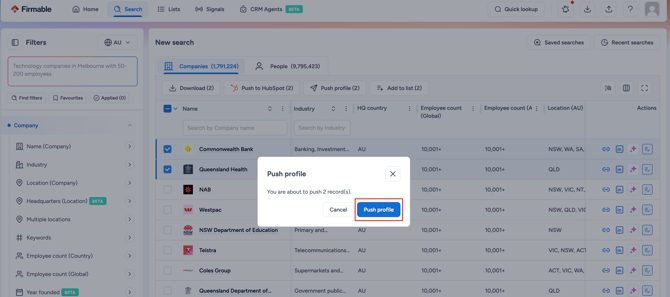
- Click Push profile. The data will be sent to all active, subscribed endpoints.
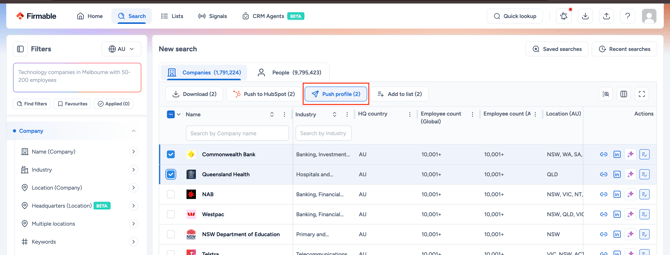
- Click Push profile to confirm.
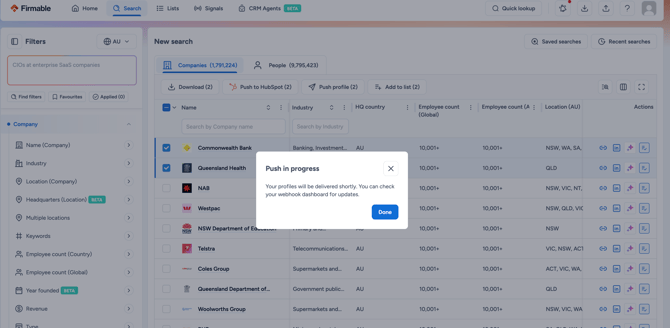
- A Push in progress message confirms the push. Click Done. Your profiles are delivered shortly after.
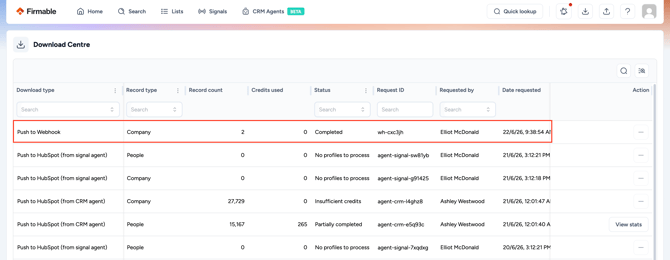
- The push can be tracked in the Download Centre.
Note: Pushing a profile uses 1 credit the first time, regardless of how many endpoints receive the data. Re-pushing a profile, or pushing one your organisation has already paid for, is free. If your account doesn't have enough credits, the Push profile button will be disabled. Hover over it to see a tooltip explaining why.
What happens behind the scenes
When you click Push profile:
- Firmable fetches the latest enriched data for that profile.
- The data is sent as a JSON payload to all active endpoints that are subscribed to the relevant event type.
- 1 credit is deducted from your Firmable account, unless your organisation has already paid for that profile.
- The delivery is logged and can be reviewed in the Webhooks portal under Logs.
Setting up automation platforms
Zapier
- In Zapier, create a new Zap and choose Webhooks by Zapier as the trigger.
- Select Catch Hook as the trigger event. Zapier will generate a unique webhook URL.
- Copy the URL and add it as a new endpoint in the Firmable Webhooks portal.
- Push a test profile from Firmable, then configure your Zap's actions (e.g. create a CRM contact, send an email).
Make (formerly Integromat)
- In Make, create a new scenario and add a Webhooks module as the trigger.
- Select Custom webhook and click Add to generate a URL.
- Copy the URL and add it as a new endpoint in the Firmable Webhooks portal.
- Push a test profile. Make will detect the incoming data structure automatically, allowing you to map fields in subsequent modules.
n8n
- In n8n, create a new workflow and add a Webhook node as the trigger.
- Set the HTTP method to POST and copy the production webhook URL n8n generates.
- Add the URL as a new endpoint in the Firmable Webhooks portal.
- Activate the workflow and push a profile from Firmable to verify the data flows through.
Pro tip: Always send a test profile after setting up a new endpoint to verify the connection works correctly. Check delivery status in the Webhooks portal's Logs tab.
Monitoring & delivery logs
The Webhooks portal provides visibility into every webhook message sent from your account.
Each endpoint shows a visual breakdown of delivery stats:
| Status | Meaning |
|---|---|
| Success | Message delivered; endpoint returned a successful response (HTTP 2xx) |
| Pending | Message is queued and waiting to be delivered |
| Sending | Message is currently being transmitted |
| Failed | Message could not be delivered after all retry attempts |
Under each endpoint, individual message attempts show:
- Event type: Which event triggered the message (e.g.
enrich.company) - Message ID: A unique identifier for each message
- Timestamp: When the message was sent
- Status: Whether it succeeded, failed, or is still attempting
Filter by All, Succeeded, or Failed to quickly find issues.
Automatic retries
If an endpoint is temporarily unavailable, Firmable will automatically retry delivery following an exponential backoff schedule. If all retries are exhausted, the message is marked as permanently failed. Failed messages can be manually resent from the portal.