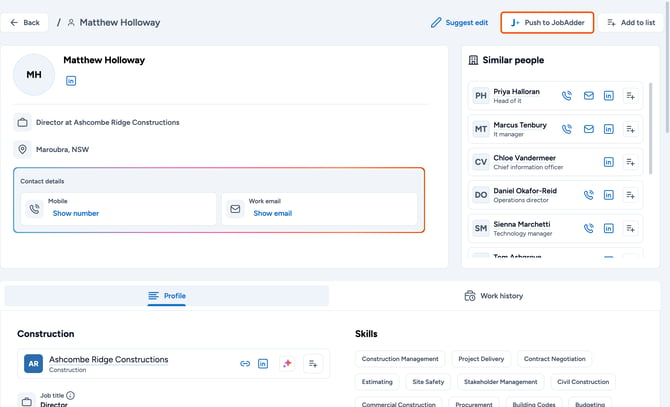
Below is a step-by-step guide detailing the process of how to use the JobAdder integration, including the process of pushing contacts and companies into JobAdder, and how to view the records you have pushed to JobAdder.
Learn more:
- How to push new company records into JobAdder
- How to push new contact or candidate records into JobAdder
Still need to set up your JobAdder integration? See how to connect the JobAdder integration.
How to push new company records into JobAdder
- Begin by navigating to the Search page.
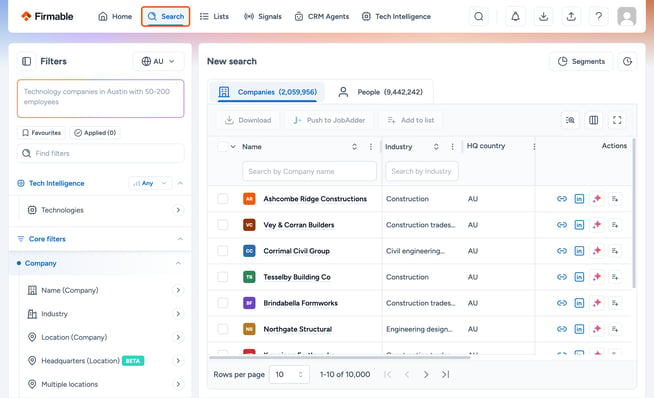
- Apply your desired filters to your search using AI search or by choosing them on the left panel.
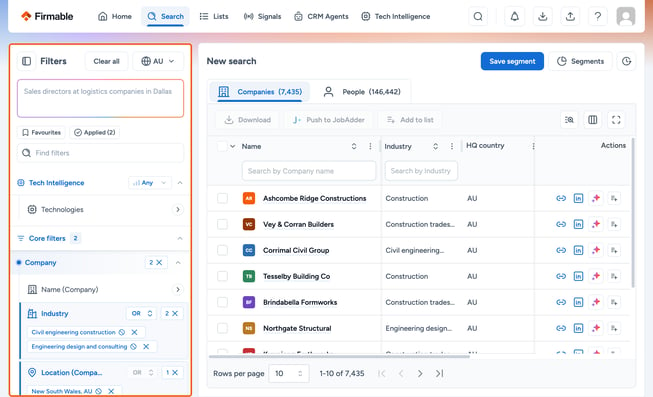
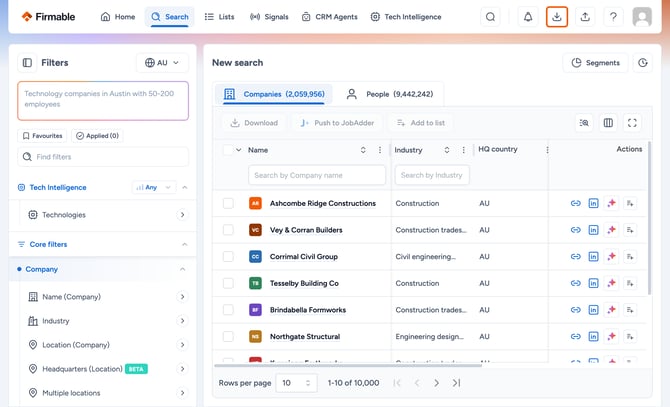
- Once you have chosen your desired filters, you can see the number of records as a result of your search on the Companies tab.
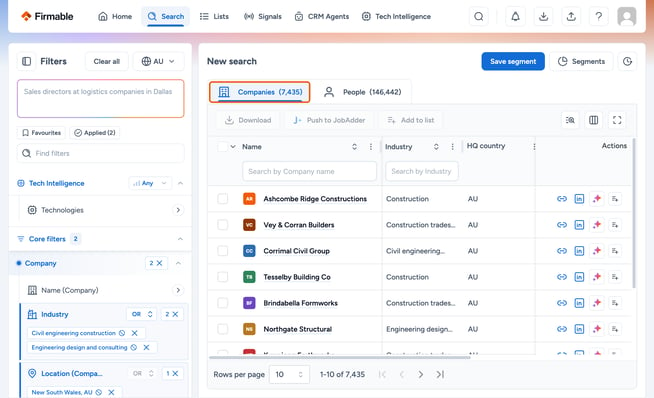
- To push those records to JobAdder, choose the records you want to import by ticking the box on the left.
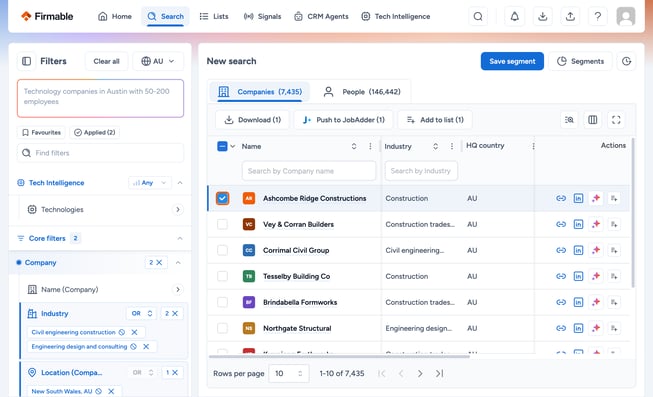
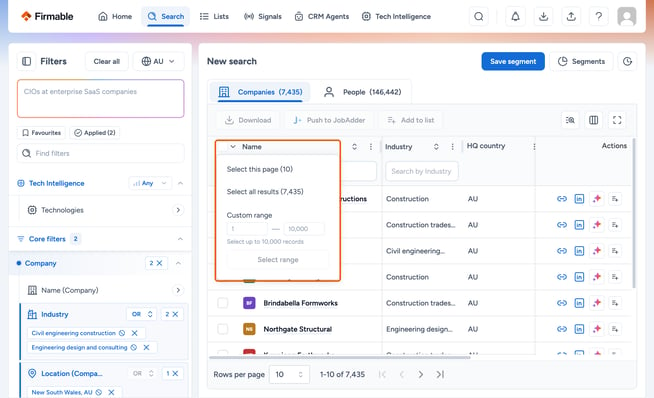
- To select multiple records at once, click the checkbox at the top. A dropdown will appear with these options:
- Select this page
- Select all results
- Custom range
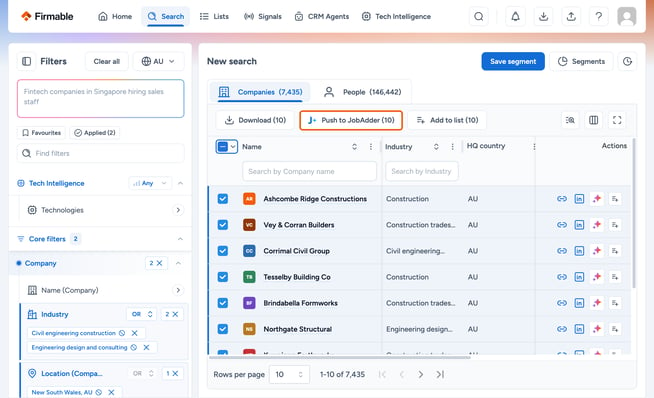
- Once you have selected the number of records you wish to import to JobAdder, click on Push to JobAdder.
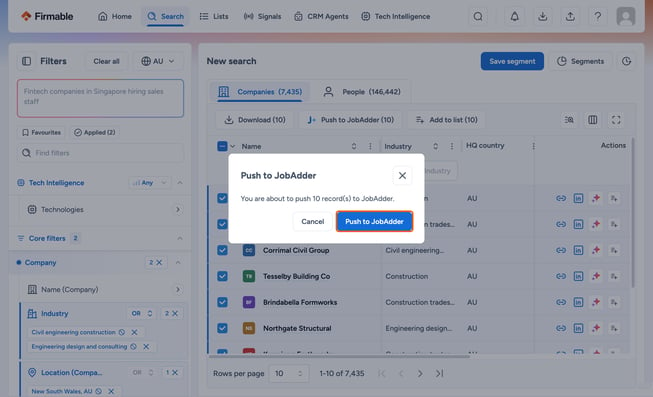
- You will get a pop-up message indicating the number of records you are about to push to JobAdder. Click the Push to JobAdder button to proceed.
- Your process of pushing company records to JobAdder is now complete.
- To view the status and progress of your push requests, visit the Download Centre.
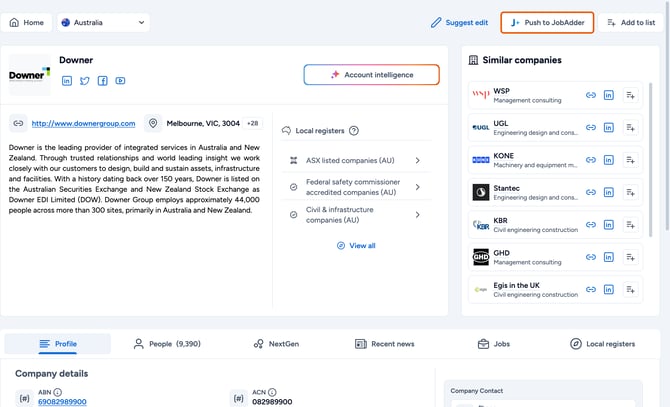
- Note: You can also push a company record directly from the company profile.
How to push new contact or candidate records into JobAdder
The process of pushing new contact or candidate records into JobAdder follows a similar pattern to pushing company records.
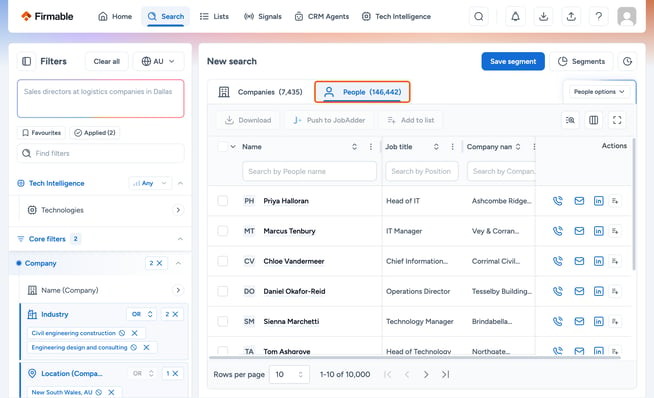
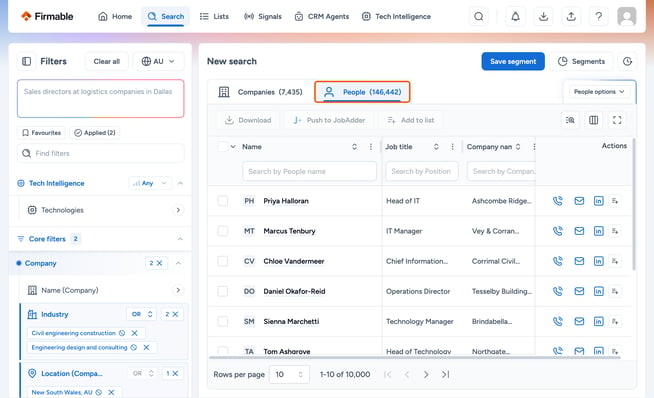
- On the Search page, click on the People tab.
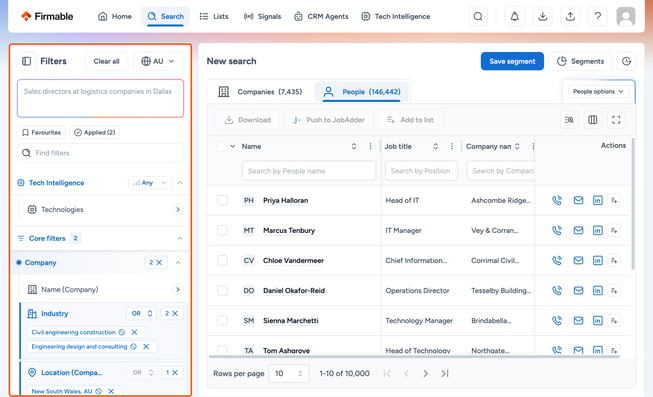
- Just like with company records, apply your desired filters on the left panel to narrow down your search.
- Once you've selected your desired filters, you'll see the number of records as a result of your search in the People tab.
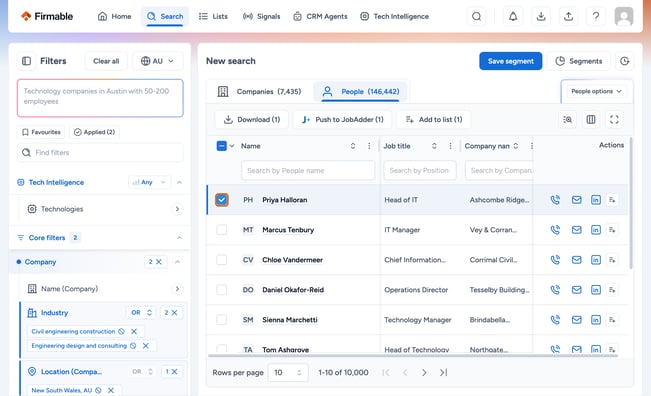
- To push contact records to JobAdder, select the contacts you wish to import by ticking the boxes next to their names.
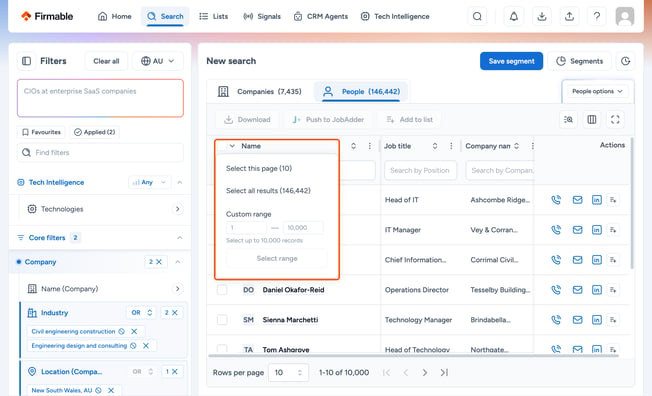
- Similar to company records, you can select all records on this page or all results in one click. Click the checkbox at the top. A dropdown will appear with these options:
- Select this page
- Select all results
- Custom range
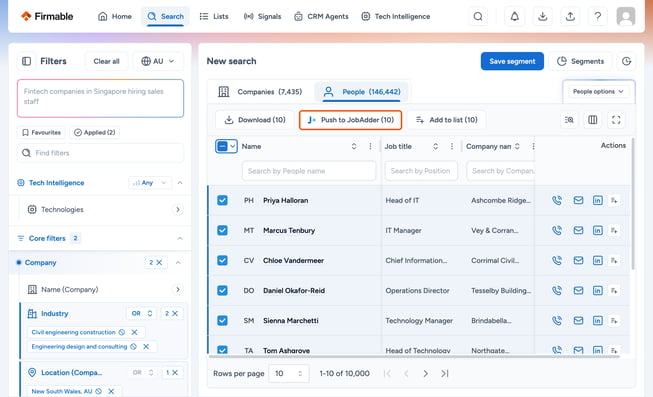
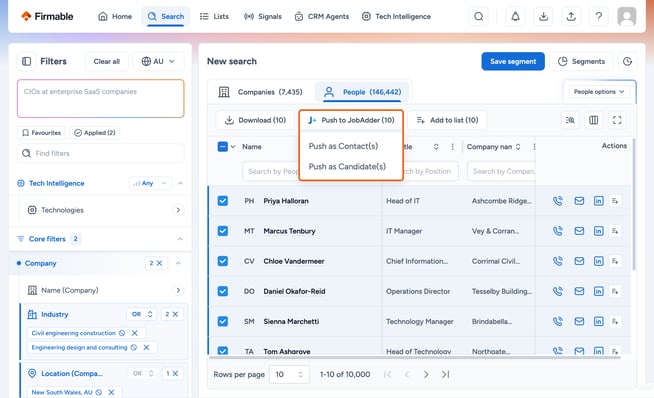
- Once you've made your selection, click on the Push to JobAdder button.
- Choose Push as Contact(s) or Push as Candidate(s) from the dropdown.
- Your process of pushing contact records to JobAdder is now complete.
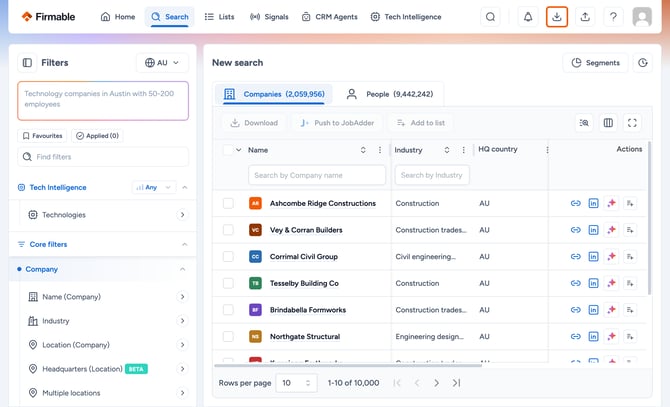
- To view the status and progress of your push requests, visit the Download Centre.
- Note: You can also push a contact or candidate record directly from the contact profile.