
Data exchange enables you to:
- Enrich your own data: Upload your existing prospect or customer lists to enrich them with new data, including up-to-date contact information, enhancing the quality of your contact and company database.
- Match customer accounts: Cross-reference your target accounts to find new people at those companies, or to exclude them from your Firmable searches so you can stay focused on finding new prospects.
- Stay updated using signals: Track role changes, new funding, and other important updates across the accounts that matter most to you. Learn more about Signals and how to use signal agents.
Prerequisites
Before using Data exchange, ensure the following:
- You are on a Small Teams, Teams Pro or Enterprise plan with Firmable.
- You have a CSV file ready to upload with either People data or Company data that meets the minimum data requirements. See the CSV upload requirements below.
How to use the data upload and enrichment exchange
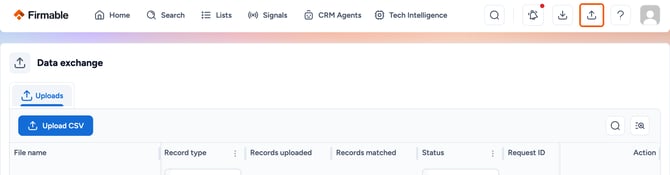
- Open Data exchange using its icon in the top right menu, as shown below.
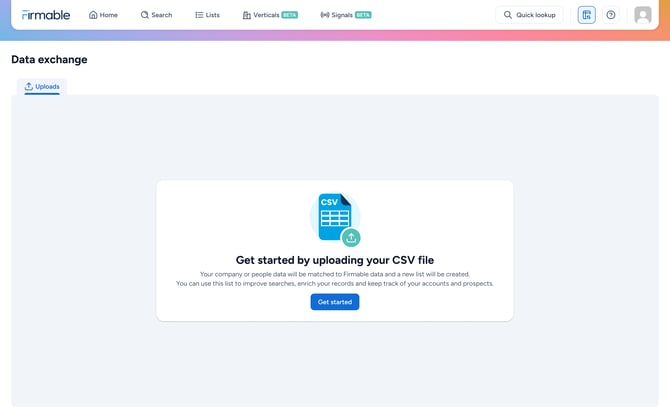
- The first time you open Data exchange, select Get started.
- If you are returning after an initial upload, click Upload CSV.
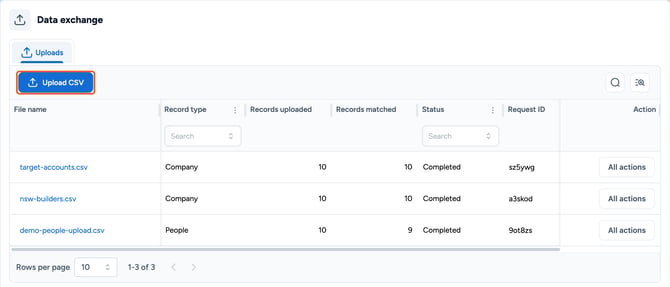
Note: once you have uploaded your first file, you will no longer see the getting started screen. Instead, you will see a table showing any prior uploads.
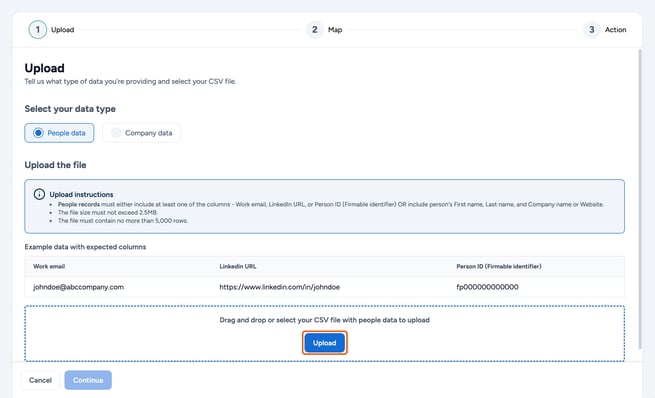
- Select whether you’re uploading People data or Company data. You can only upload one at a time for the matching process to work effectively.
Note: before you upload your file, we recommend you name each of your columns to help with matching. Ensure that each of your column names is unique. Your file must be in comma-separated values (CSV) format to be accepted. The more fields populated, the higher the potential match rate.
- Company CSV upload instructions:
- Company records must include at least one of the following columns: Company name, Website, LinkedIn URL, ABN, or Company ID (Firmable identifier).
- The file size must not exceed 2.5MB.
- The file must contain no more than 5,000 rows.
- People CSV upload instructions:
- People records must either include at least one of the columns: Work email, Personal email, LinkedIn URL, or Person ID (Firmable identifier), OR include the person's First name, Last name, and Company name or Website.
- The file size must not exceed 2.5MB.
- The file must contain no more than 5,000 rows.
Note: If you include a LinkedIn URL in a people CSV, use the public LinkedIn profile URL, not the Sales Navigator URL.
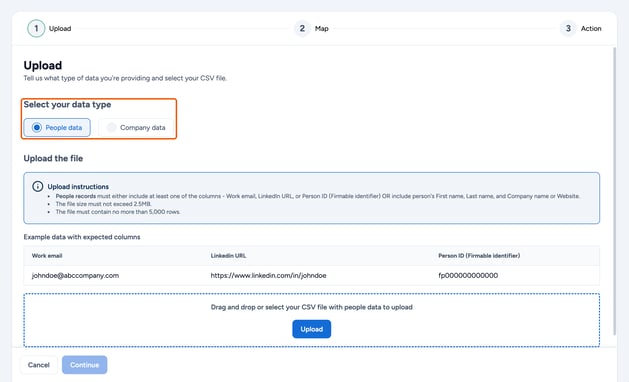
- Click Upload or drag and drop your CSV file to upload. Once your file has been uploaded, click Continue.
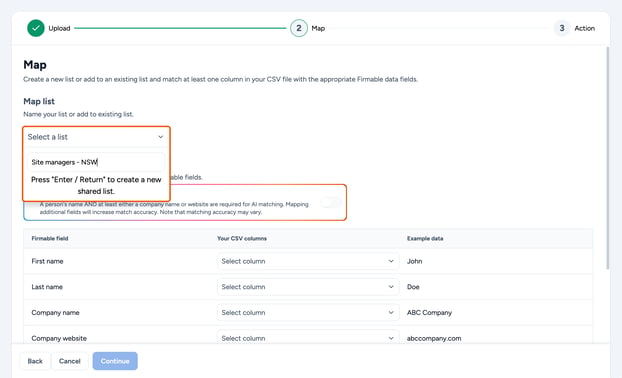
- Map your upload to a list. Either:
- Create a new list by typing the name and hitting enter; or
- Select the dropdown to add to one of your existing lists.
- Once your list has been selected, map at least one column in your CSV file with the appropriate Firmable data fields. The more fields mapped, the higher the potential match rate.
- Click Select column to open the list of your column headings within your CSV file and map to the appropriate Firmable field. For example, map your CSV column Website or Domain name to the Firmable Website field.
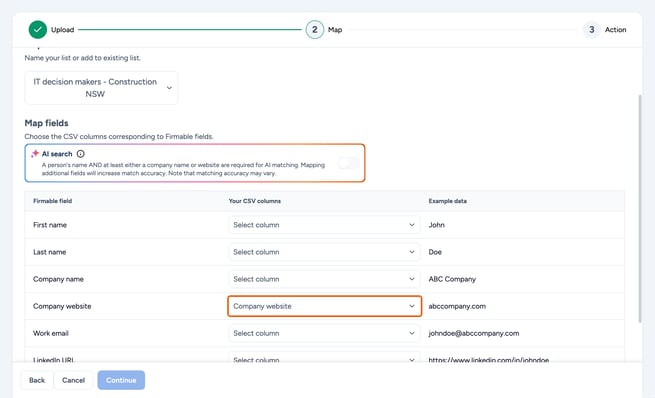
AI search is available to help match as many records as possible. This will provide you with broader match results; however, the matching accuracy may vary. If you prefer, toggle off AI search and you will get exact matches based on the fields mapped.
- AI search is turned on by default when the necessary columns are selected.
- AI search for company CSV uploads:
- Company name is required for AI search. Mapping additional fields will increase match accuracy. Note that matching accuracy may vary.
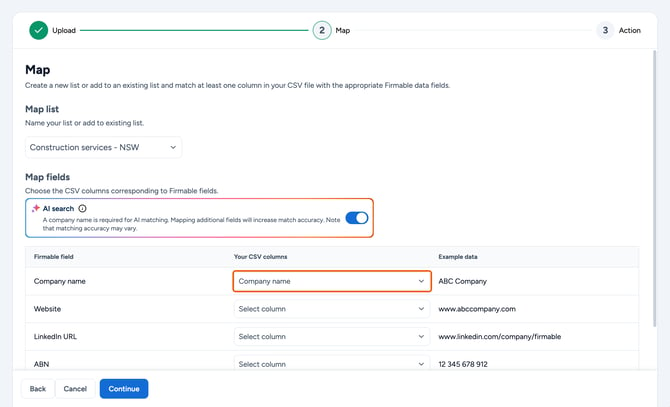
- Company name is required for AI search. Mapping additional fields will increase match accuracy. Note that matching accuracy may vary.
- AI search for people CSV uploads:
- Person's name AND at least either a company name or website are required for AI search. Mapping additional fields will increase match accuracy. Note that matching accuracy may vary.
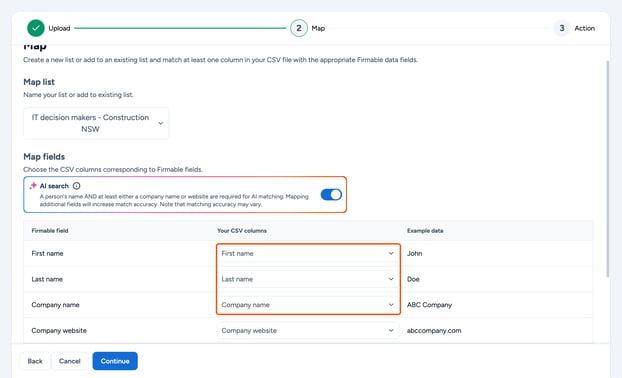
- Person's name AND at least either a company name or website are required for AI search. Mapping additional fields will increase match accuracy. Note that matching accuracy may vary.
- Your file will then start processing and may take up to 5 minutes depending on the file size.
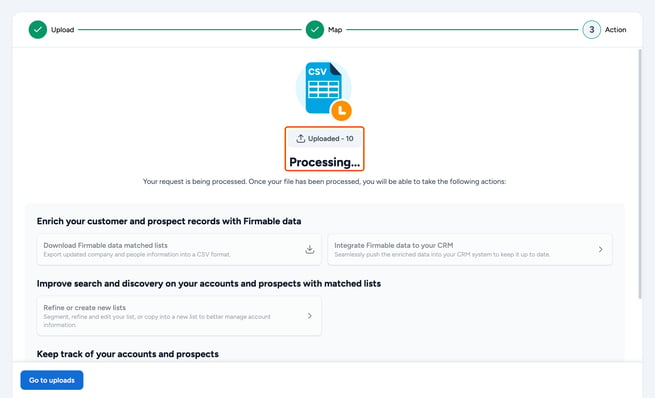
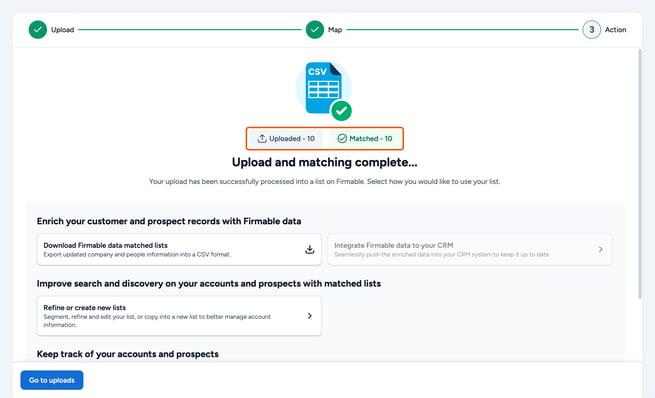
- Once your file has been processed, your screen will refresh and provide an update to highlight if the upload was successful. A summary will show the number of uploaded records and how many were matched.
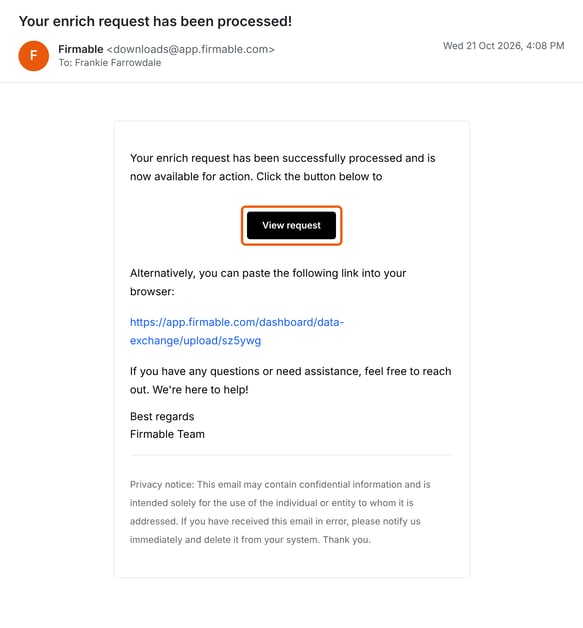
Note: If you want to do other things while you wait, you can work in a new tab or return later. We’ll send you an email to notify you that it’s ready.
- Select what you want to do with your data:
- Enrich your customer and prospect records with Firmable data: Download Firmable data matched lists or integrate Firmable data into your CRM.
- Improve search and discovery on your accounts and prospects with matched lists: Refine or create new lists.
- Keep track of your accounts and prospects with Signals: Track changes for companies and people on your lists using Signals. Learn more about Signals.