
Every CRM agent has its own CRM list. The list holds the companies or people the agent pulls from your CRM, matched to Firmable profiles, and it updates as the agent finds new matching records.
Prerequisites
- You have at least one CRM agent set up with HubSpot or Salesforce.
- You are on a Teams Pro or Enterprise plan on Firmable.
Open a CRM list
- Click Lists in the top navigation.
- Select the CRM tab. Each card is one CRM agent, with the agent's name, the record type, your CRM and who created the agent.
- Click a card to open its list. To find an agent quickly, type its name or the creator's name in the search box.
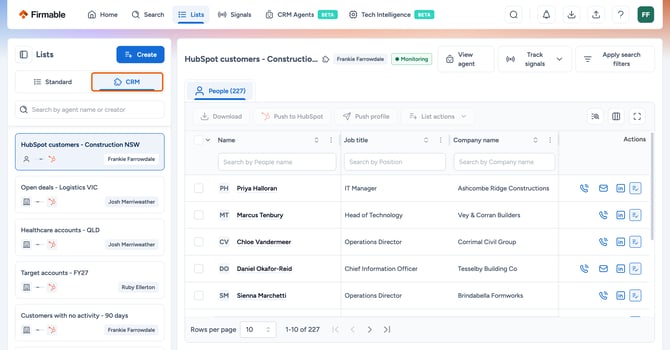
CRM lists are named after their agent and you can't create, rename or delete them from Lists. To change which records are in a list, edit the agent.
Check the agent's status
The badge next to the list name shows what the agent is doing:
- Initialising: the agent is importing records from your CRM for the first time. You can leave the page and matching carries on.
- Refreshing: the agent is importing the latest records from your CRM.
- Monitoring: the agent matches new records in your CRM as they appear.
- Disabled: the agent is turned off, so new CRM records aren't matched until you enable it.
- Connection lost: the agent can't reach your CRM. Reconnect your CRM in Integrations to restore it.
Click View agent to open the agent's settings.
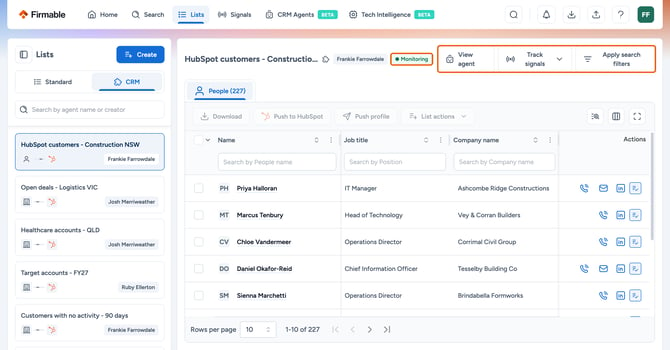
Track signals for the list
- Click Track signals.
- Click the plus next to a signal agent to add the list to it, or type a name in Search or create new to create a new signal agent.
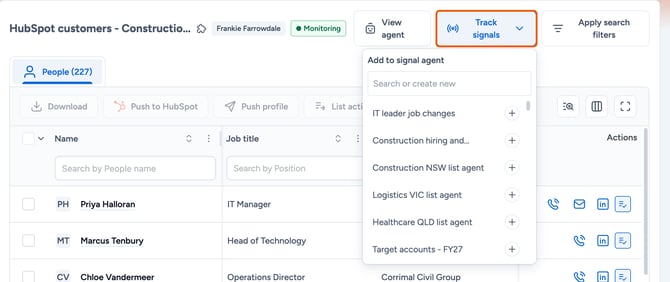
See How to use signal agents for what you can track.
Search within the list
Click Apply search filters to open a new search filtered to the agent's records. Add more filters to narrow it down, for example to find people in a certain role at the companies in your CRM.
Work with records
Select the records you want with the checkboxes, then choose an action:
- Download: download the selected records. See How to download data in Firmable.
- Push to HubSpot or Push to Salesforce: push the latest Firmable data for the records back to your CRM. Only the CRM the agent is connected to shows.
- Push profile: send the records to a webhook. This shows if webhooks are set up on your account. See How to use webhooks in Firmable.
- List actions > Add to another list: copy the records to a standard list. They stay in the CRM list too.
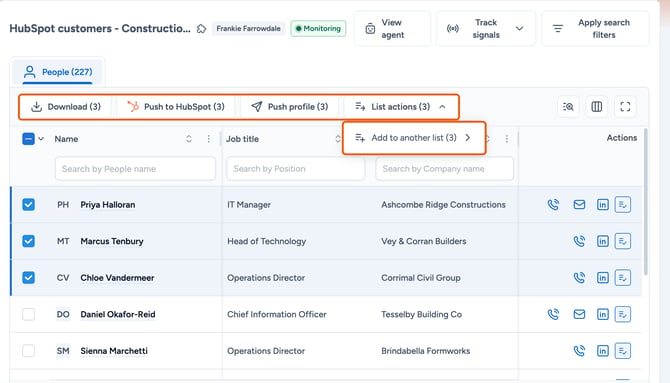
You can't move or remove records from a CRM list. The agent decides which records are in it.
Learn more: