
You can add a list to a signal agent straight from the list, so the agent tracks signals for the companies and people in it. Add the list to an agent you already have, or create a new agent for it.
Prerequisites
- You're on a Small Teams, Teams Pro or Enterprise plan with Firmable.
- You have a saved list. No lists yet? Learn how to create a list.
Add a list to an existing agent
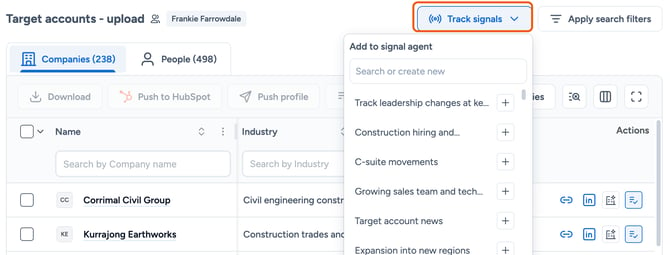
- Open the list, then click Track signals at the top right.
- Click the + next to the agent you want. The list is added and the + changes to a tick.
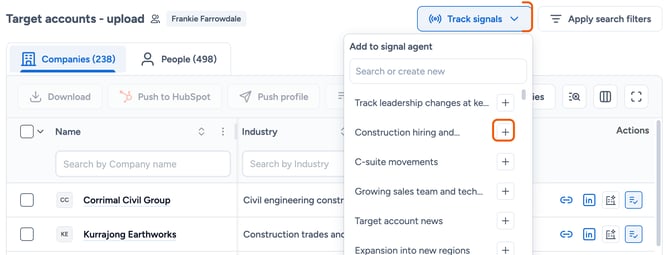
Only your targeted signal agents that are switched on show in this menu. Default agents and Search Intent agents don't.
Remove a list from an agent
- Click Track signals, then click the tick next to the agent.
An agent needs at least one list, so you can't remove the only list from an agent. Each agent also has a maximum number of lists. If an agent is full, you'll see a message when you try to add another one.
Create a new agent from the list
- Click Track signals and type a name for the new agent.
- Click Create new agent.
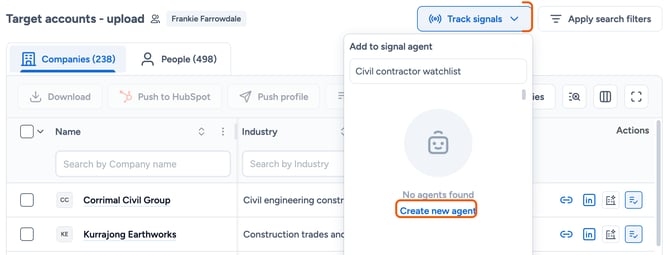
- The signal agent set-up opens with your list already selected and the name filled in. Choose the signals you want to track, then finish setting up the agent.
Learn more: