
A segment keeps a set of filters under a name, so you can run the same search again without rebuilding it. Use segments to track the market against consistent criteria and spot new companies or people that match over time.
Save a segment
- Start a new search and add filters to narrow your results. For example, search for People in the Construction industry, in Queensland, with the job title marketing manager.
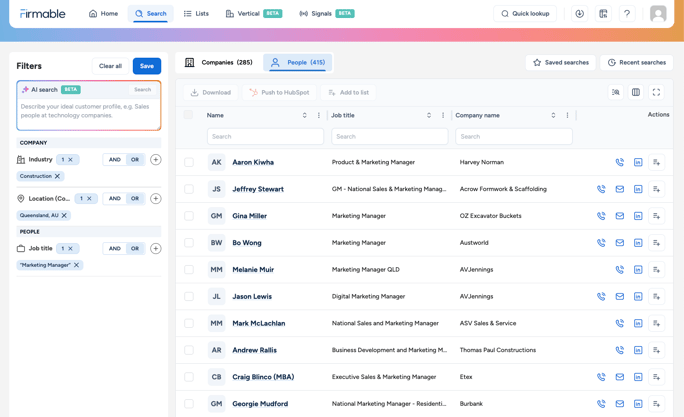
- Click Save segment. The button appears once you've added at least one filter other than country.
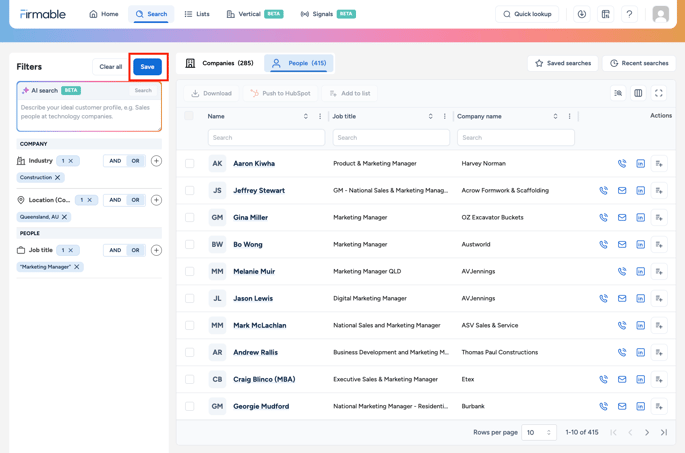
- Enter a Name. The Summary is optional. Firmable fills it in from your filters, and you can edit it.
- To let everyone in your organisation find and run the segment, choose Share with your organisation under Who can use this. Otherwise the segment stays private.
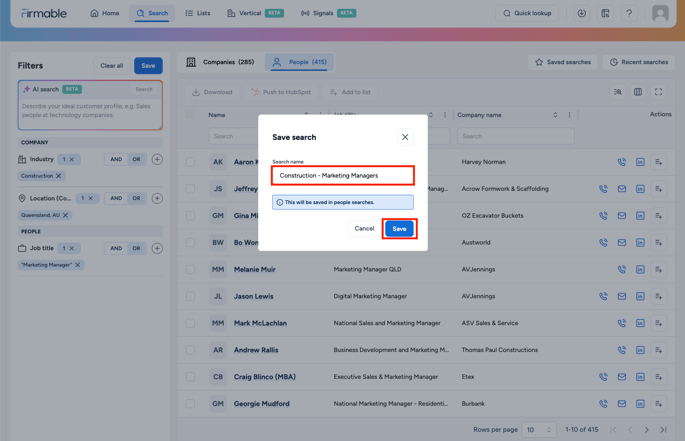
- Click Save. If you chose to share the segment, the button reads Save and share.
Open a segment
There are two ways to open your segments:
- From the Home page, select the Segments tab in the Your searches card. Click View all to open the full Segments panel.
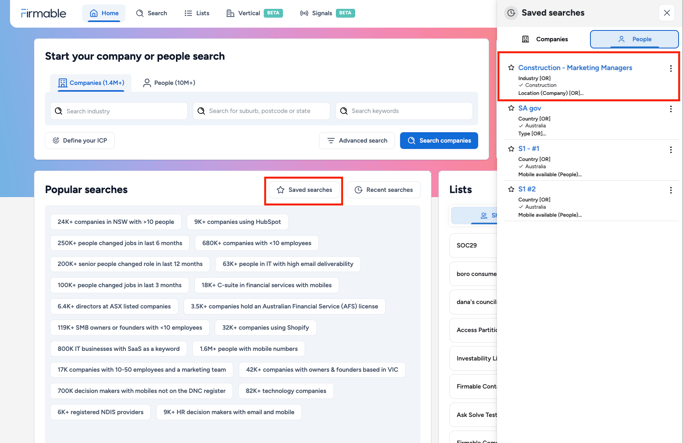
- During a search, click Segments at the top of the search page.
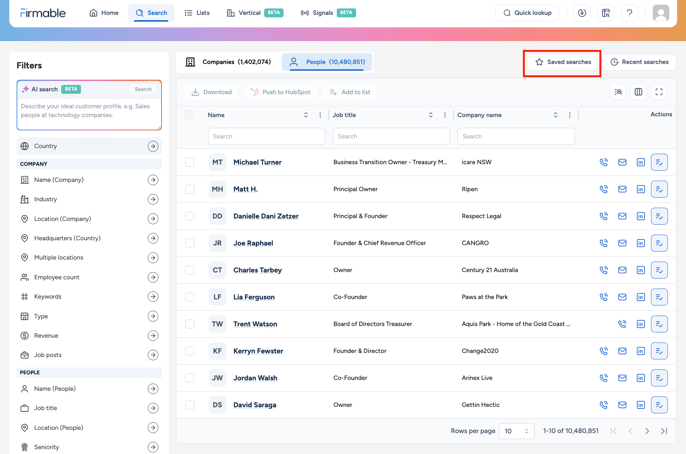
The Segments panel lists your segments. Use All, Favourites, Private, Shared or Recommended to narrow the list, or search by name. Recommended segments are ready-made searches from Firmable. Click a segment to run it with its filters already applied.
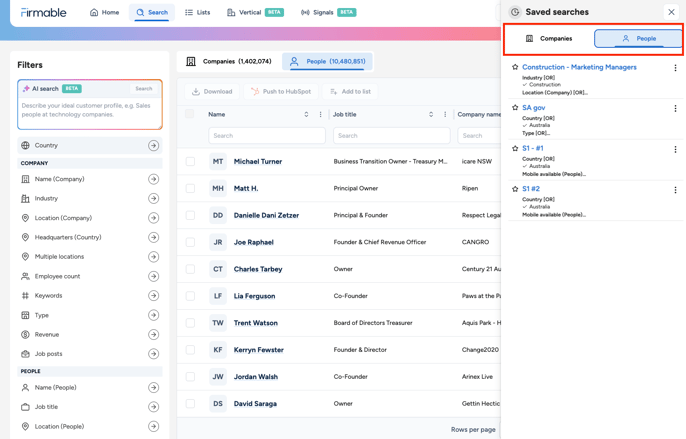
Favourite, edit or delete a segment
- Star a segment to add it to Favourites. Favourites are saved in your browser, so they don't appear if you log in from a different browser or device.
- To rename a segment, change its summary or change who can use it, open the three-dot menu on the segment, click Edit, then click Save changes. To remove a segment, click Delete in the same menu.
- Only the person who created a segment can edit or delete it. Segments shared with you can be run but not changed.
Segments that use the Technologies filter
These save the same way, including the confidence and last observed settings. They also appear under Segments on the Tech Intelligence page. If a segment used the retired Technographics filter, it still runs without that filter and returns more results. Rebuild it with the Technologies filter and save it as a new segment. For the filter steps, see How to use the Technologies filter.