
Below is an overview of how to save your searches to enhance your workflow. Saved searches are useful to monitor the market using specific and consistent search criteria to track new companies or individuals that meet your requirements over time.
Optimise your search experience by applying a variety of filters to refine your results. Once you've perfected your search criteria, save them for future use, eliminating the need to reapply filters each time.
How to save a search
- Start a new search and add filters to narrow your results. For example, search for People working in the Construction industry in Queensland [location] as a marketing manager [job title].
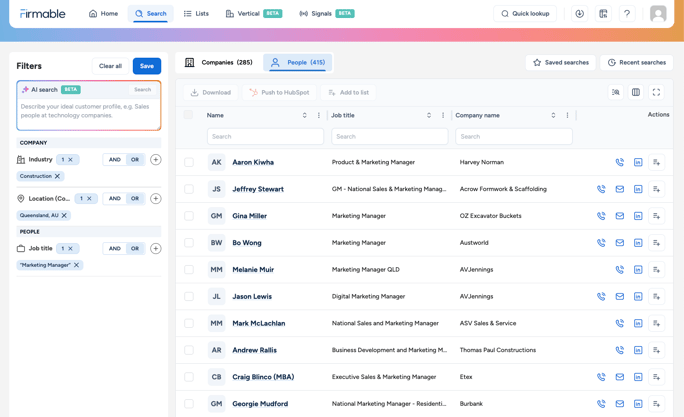
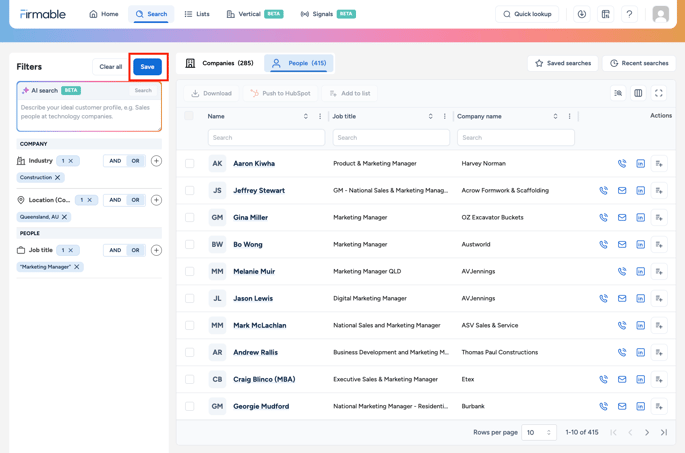
- Click on the Save button.
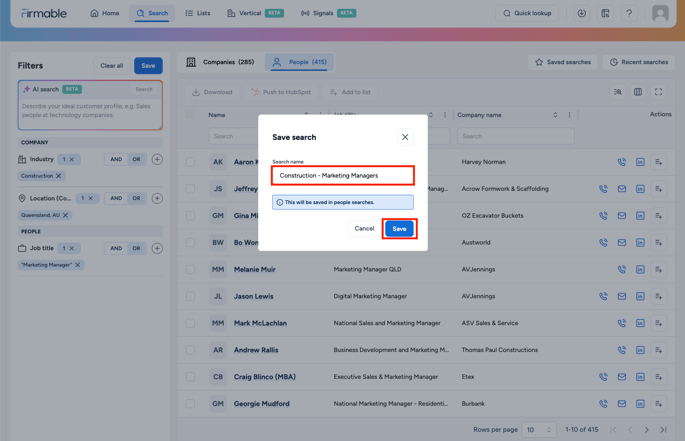
- Give a name to your search and click Save.
How to find your saved searches
There are two options to access saved searches:
- Option 1: Access them from the Home page under the Saved searches panel.
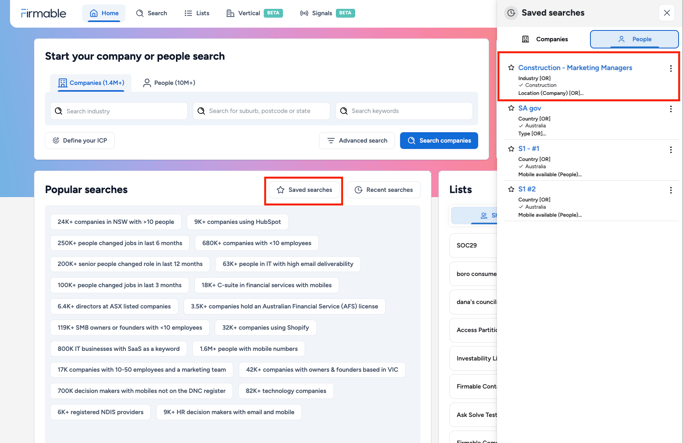
- Option 2: Open them directly during a search by clicking the Saved search button below the top navigation panel.
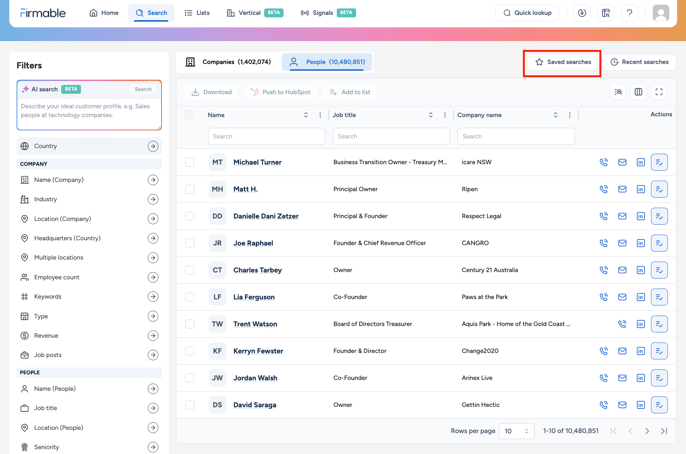
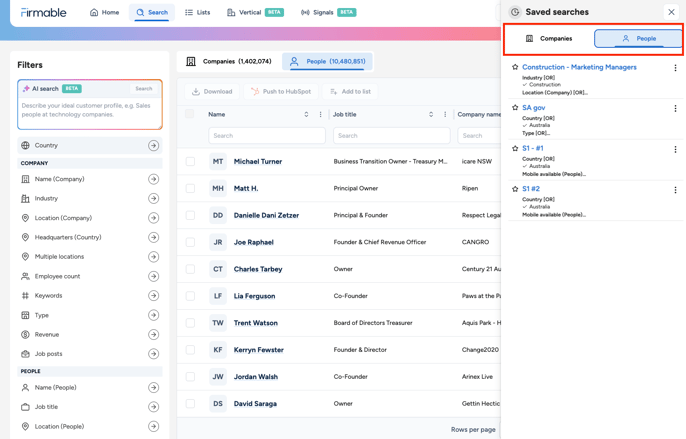
- Click Saved search. You will see your saved searches under the Company or People tab on the right-hand panel.
Saving a search that includes Tech Intelligence filters
- Searches that use the Technologies filter save the same way, including the confidence and last observed settings.
- They also appear in Segments on the Tech Intelligence page, so you can run them from there.
- If you had a saved search that used the Technographics filter, it still runs but without that filter, so it returns more results. Rebuild it with the Technologies filter.