
When you search Firmable for new business, you'll often find people and companies that are already in your CRM. A CRM agent pulls those records into Firmable as a reference list. You can then exclude them from your searches, so every result is net-new.
Prerequisites
- You're on a Teams Pro or Enterprise plan.
- Only Admins can create CRM agents. Standard users can still use them in their searches.
- You have an active HubSpot or Salesforce account, connected to Firmable.
Step one: Allow Firmable to pull records from your CRM
- Click your profile picture (top right) and select Manage account, then select Integrations in the Account settings sidebar.
- Select Salesforce/HubSpot and connect it if you haven't already.
- Switch on the toggle to allow CRM agents to pull records from your CRM into Firmable.
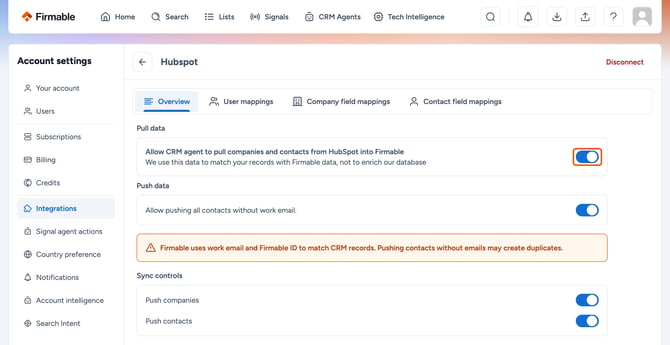
This toggle only gives Firmable the ability to pull. It doesn't pull anything until you create an agent.
Step two: Create your CRM agents
- Click CRM Agents, then Create CRM agent.
- Choose the record type.
- HubSpot supports Companies and Contacts.
- Salesforce supports Accounts, Contacts and Leads.
- Choose All records and click Continue.
- Set the enrichment rule to Manual (not Scheduled).
- Give the agent a clear name, such as "HubSpot all companies", and click Create agent.
- Repeat for each record type.
For Salesforce, that's three agents: Accounts, Contacts and Leads. Pulling everything gives your whole team one complete reference list to exclude from.
Why we recommend Manual
Pulling records into Firmable to use as an exclusion list doesn't use any credits. Credits only apply when you enrich or push a record back to your CRM. Scheduled turns on automatic enrichment. With thousands of records, that can use thousands of credits before anyone notices. Keep your agents on Manual until you're comfortable with how they work. You can switch on automated enrichment later.
Step three: Wait for the first sync
The first sync usually takes around 24 hours, depending on how many records you have. The agent shows Initialising while it imports. When it shows Monitoring, the first pull is done.
After that, the agent stays in sync with your CRM. If you add 10 customers in your CRM, the agent's record count goes up by 10. If you delete records in your CRM, it goes down.
Step four: Exclude your CRM records from a search
- Click Search.
- Open the Company activity filter and select CRM agent records.
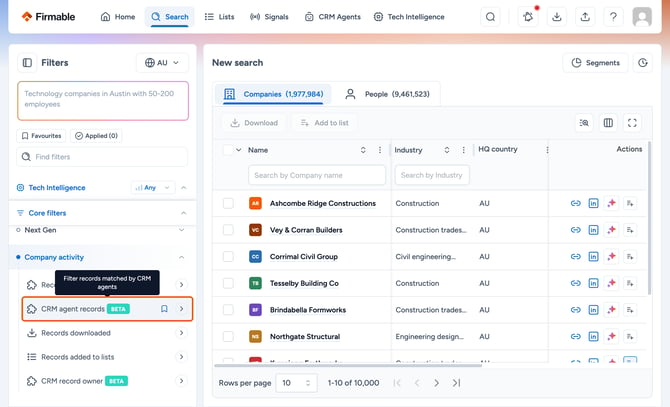
- Hover over your agent and click the exclude icon (⊘).
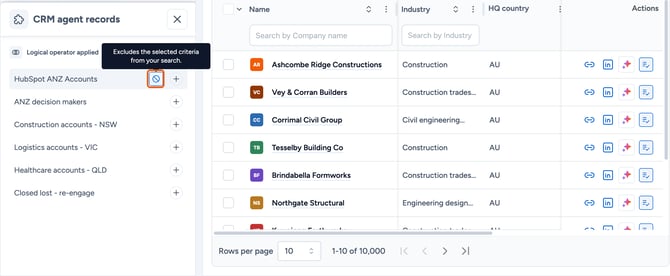
- Add your usual filters, such as industry, location and job title.
- Every result is now a record that isn't in your CRM.