
When downloading records from Firmable, you can now choose exactly which fields to include in your export. Select only what's relevant to your workflow and leave out anything you don't need, keeping your downloads clean and easy to work with.
Prerequisites
- You are on a Small Teams, Teams Pro or Enterprise plan with Firmable.
- You have credits available on your account for the download.
How to select custom fields on a download
-
You can download any record from Search or Lists pages, select the Company or People tab. Learn more about how to download data.
-
Select the records you want to download using the checkboxes next to each result. To select all records on the page, click the bulk select checkbox in the column header.
-
Click the Download button that appears in the action bar at the top of your results.
-
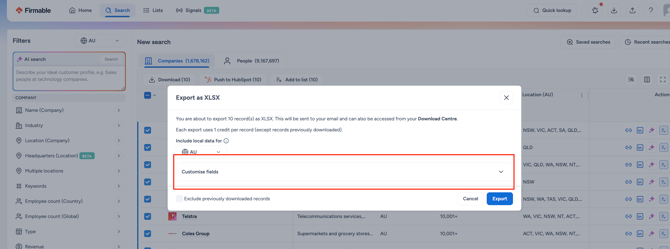
In the download panel that appears, click Customise fields. A list of all available fields for the record type (company or people) will appear.
-
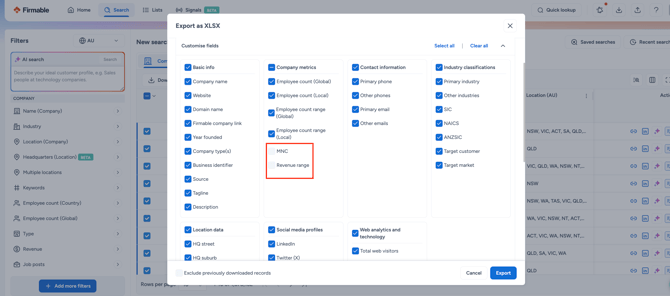
Use the checkboxes to select the fields you want to include in the export. Deselect any fields that are not needed. Selected fields will be highlighted. Click select all or clear all to reset preferences.
-
Once you're happy with the selection, click Export to confirm and download the file. The export will be delivered as a XLSX file containing only your chosen fields.
- Note, the system will automatically save your preferences for the next download.