
Learn more:
Connect the integration
How to map users
Mapping company (account) fields
Mapping lead fields
Mapping contact fields
How to create a custom field
Prerequisites
Before initiating the integration, ensure the following:
- You are on a Small Teams, Teams Pro or Enterprise plan with Firmable.
- You have the Admin, Manager, Partner or Integration role on Firmable and the Admin role in MS Dynamics.
- No other CRM is connected to Firmable. You can connect one CRM at a time.
Note: If your company has multiple Admins, the app only needs to be installed once by one Admin. All other Admins and users can subsequently use it.
Integration setup
Connect the integration
- Log in to Microsoft Dynamics 365 Sales in a separate tab.
- Log in to your Firmable account to begin the integration process.
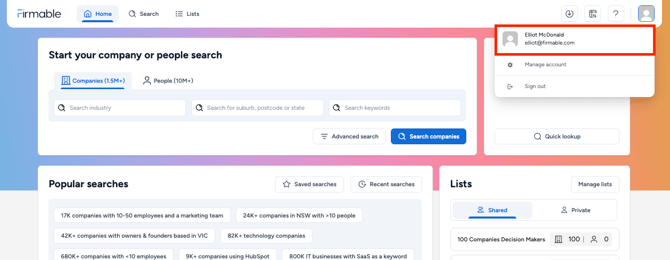
- Click your profile picture (top right) and select Manage account.
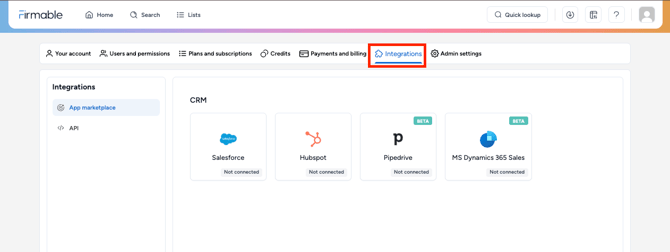
- In the Account settings sidebar, click on Integrations.
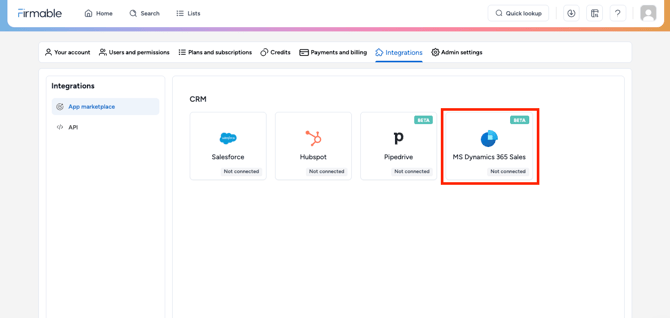
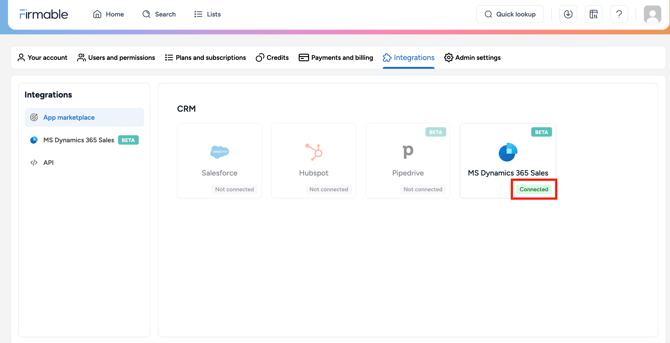
- Locate the MS Dynamics 365 Sales card and click Connect.
- Enter your MS Dynamics 365 subdomain when prompted and click Continue to proceed.
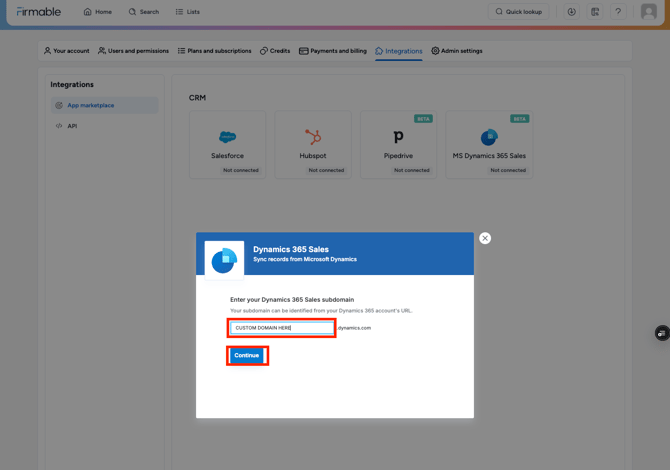
- In Microsoft Dynamics 365 Sales, your subdomain is the first part of your Dynamics environment’s URL.
.png?width=670&height=73&name=Screenshot%202025-08-11%20at%209.44.06%20AM%20(1).png)
For example, if your environment URL is https://contoso.crm6.dynamics.com, your subdomain is contoso.crm6.
- Your Microsoft Dynamics 365 Sales integration is now connected.
How to map users (optional but recommended)
Note: If users are not mapped, the default behaviour is to leave the record owner field blank.
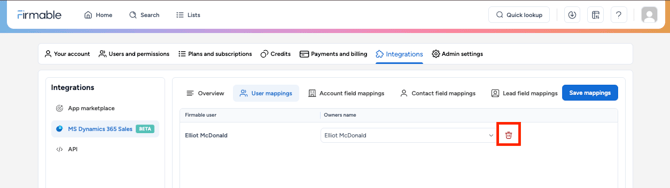
- Click on User mappings.
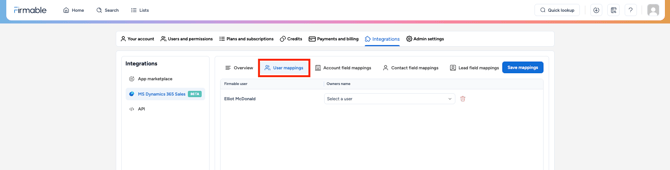
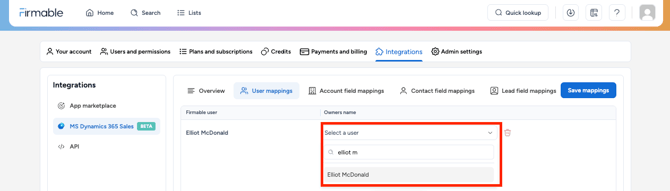
- For each Firmable user, select the matching MS Dynamics user from the Owners name dropdown.
- Repeat this step for each Firmable user and click Save mappings.
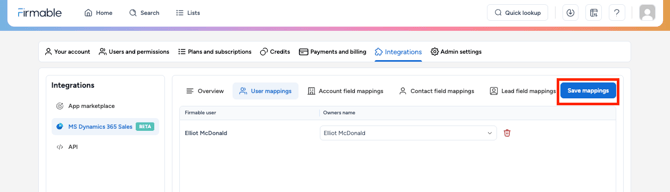
- To clear a user mapping, click the rubbish bin icon and click Save mappings.
Mapping company (account) fields
Note: Firmable matches company records by website domain, so ensure the domain or website field is mapped correctly at your endpoint to enable accurate record matching downstream and avoid duplicate records.
- The next step is to review a list of MS Dynamics Account properties (fields) mapped to corresponding Firmable company properties (fields). Under Integrations, click on MS Dynamics 365 Sales.
- Note: Firmable will map some MS Dynamics 365 Sales fields by default.
- If an MS Dynamics 365 Sales field is already mapped, it will be greyed out and unavailable for selection. To map it to another field, you’ll need to clear the current mapping first.
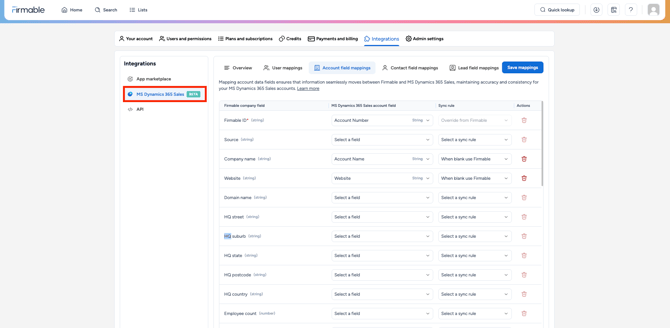
- Change the pre-selected Firmable properties to connect your MS Dynamics properties to via the corresponding Firmable company field dropdown.
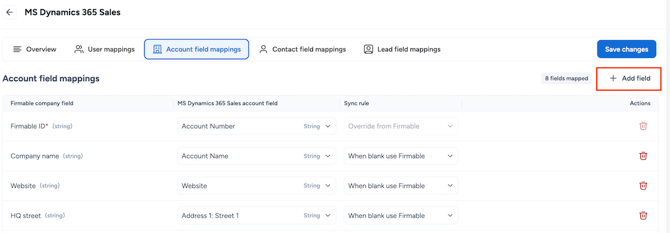
- To add more fields to map, click Add field.
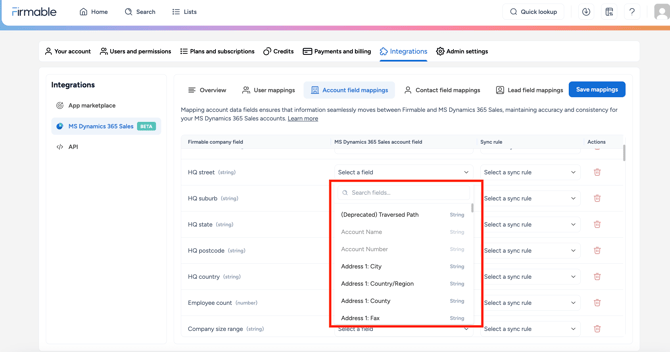
- Use the search bar to find the field you want to map, or browse the category list and expand a category using the down arrow.

- Click + Add to include the field in your mapping.

- Use the search bar to find the field you want to map, or browse the category list and expand a category using the down arrow.
- Once you’ve reviewed all the properties you want to connect, select the Sync rule for each property that will apply whenever a user chooses to enrich a company record. The three options are:
- When blank use Firmable. This means if there is currently no value in the field for a record, Firmable data will be populated when enriched. This is the most commonly used sync rule.
- Override from Firmable. This means regardless of whether there is or isn’t a value in the field for a record, Firmable data will override it when enriched. Note: Be wary of using this, as it will override existing data you have populated in MS Dynamics for that field.
- Don’t sync. You can also choose not to sync the property at all.
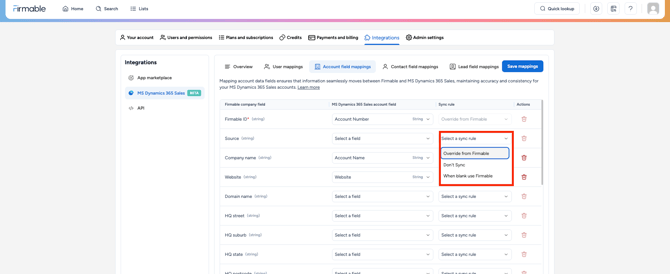
- Click Save changes when done.
Note: During mapping, ensure that the data types match between Dynamics and Firmable so that the data can be pushed to MS Dynamics without errors. Firmable supports Text, Number, and Boolean field types, but for optimal compatibility, map to Text type fields in MS Dynamics.
Mapping lead fields
Note: Firmable matches people records by email address, so ensure the email field is mapped correctly at your endpoint to enable accurate record matching downstream and avoid duplicate records.
- Click on Lead field mappings and review the list of MS Dynamics lead fields mapped to corresponding Firmable contact fields.
- Complete the same steps as described under Mapping company (account) fields above, including mapping properties and choosing sync rules.
- Click Save changes when done.
Mapping contact fields
Note: Firmable matches people records by email address, so ensure the email field is mapped correctly at your endpoint to enable accurate record matching downstream and avoid duplicate records.
- Click on Contact field mappings and review the list of MS Dynamics contact fields mapped to corresponding Firmable contact fields.
- Complete the same steps as described under Mapping company (account) fields above, including mapping properties and choosing sync rules.
- Click Save changes when done.
Your MS Dynamics 365 Sales integration is now set up and ready for use.
How to create a custom field on Microsoft Dynamics 365 Sales
If your Dynamics 365 Sales instance does not have a suitable field to capture Firmable ID, you can create a field using the following instructions. The following steps are focused on creating the custom Firmable ID field for the Account object. The same steps will need to be repeated for the Lead and Contact objects also.
- Click Settings.
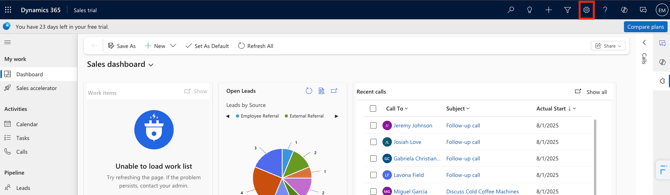
- Click Advanced Settings.
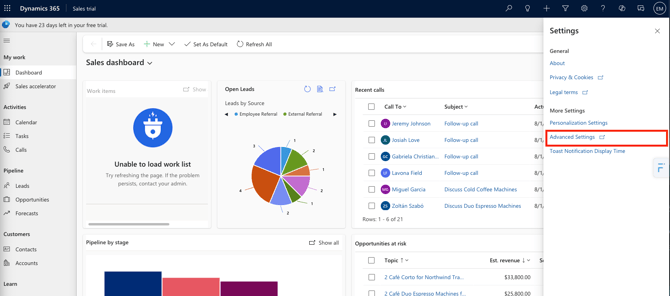
- Click Customizations.
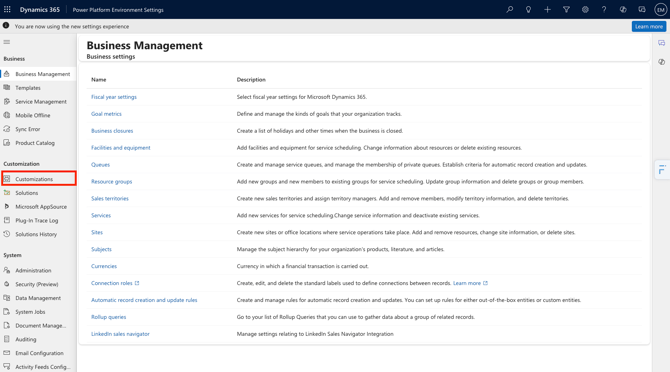
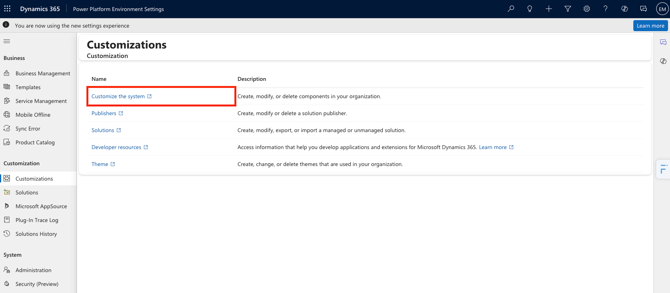
- Click Customize the system.
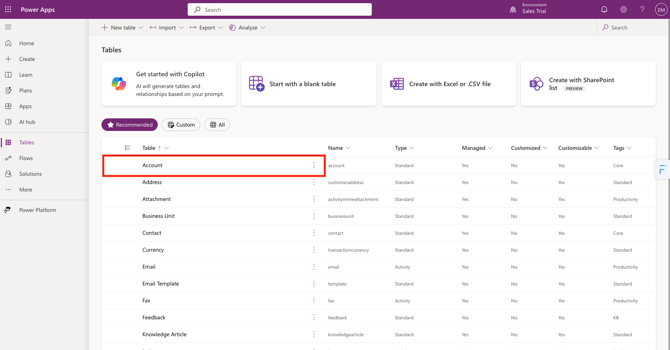
- Click Account.
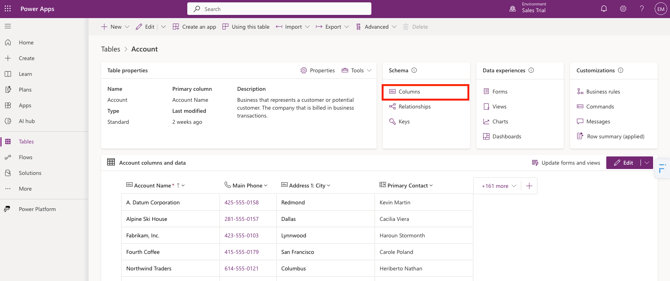
- Click Columns.
- Click New Column.
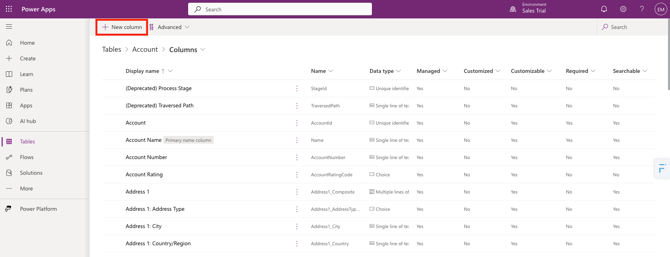
- Enter the Display Name, Data type and Format for the new custom field e.g. Firmable ID, Single Line of text and Text, followed by clicking Save to continue.
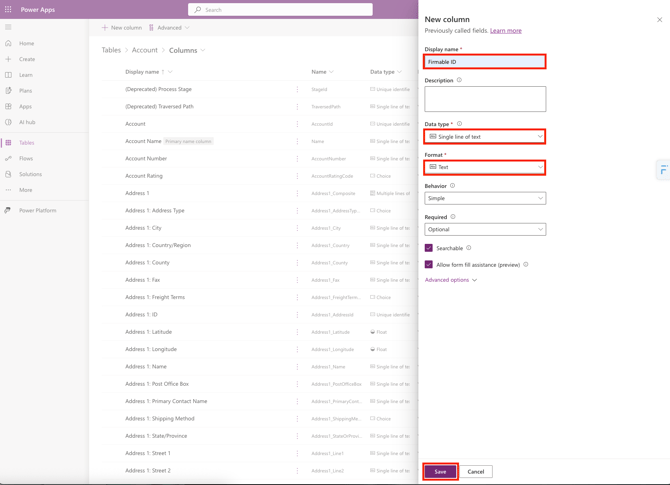
- A new custom field has now been created.