
Below is a step-by-step guide detailing the process of installing the JobAdder integration, including setup prerequisites, setup steps, and property mapping processes.
Learn more:
- Connect the integration
- How to map users
- Mapping company fields
- Mapping contact fields
- Mapping candidate fields
Prerequisites
Before initiating the integration, ensure the following:
- You are on a Small Teams, Teams Pro or Enterprise plan with Firmable.
- You have the Admin, Manager, Partner or Integration role on Firmable and the Admin role in JobAdder.
Note: If your company has multiple Admins, the app only needs to be installed once by one Admin. All other Admins and users can subsequently use it.
Integration setup within Firmable
Connect the integration
- Log in to your Firmable account to begin your installation process.
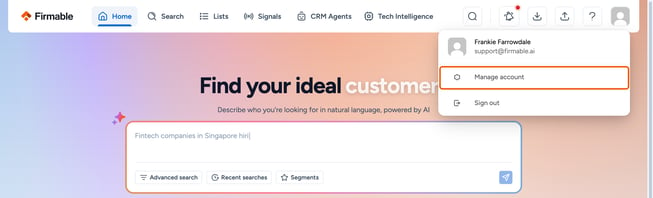
- Click your profile avatar in the top right corner, then click Manage account.
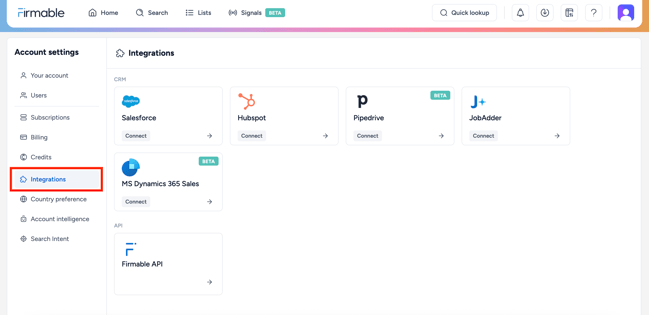
- In the Account settings sidebar, click Integrations.
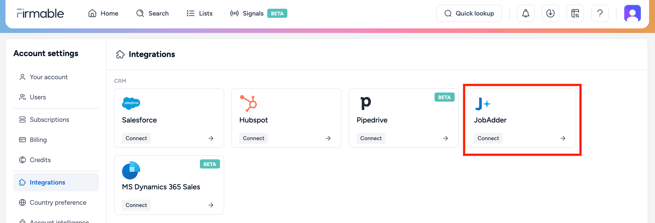
- Locate the JobAdder card and click Connect.
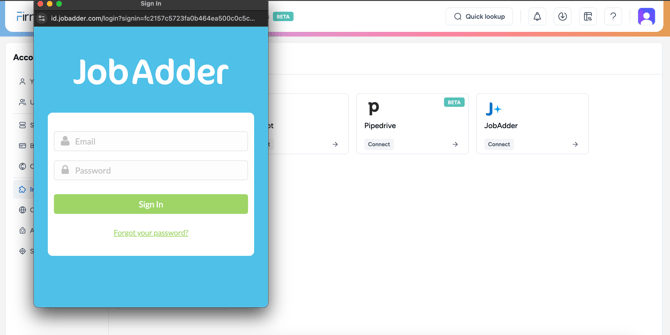
- Sign in to your JobAdder account.
- Click Accept to give permission for the integration.
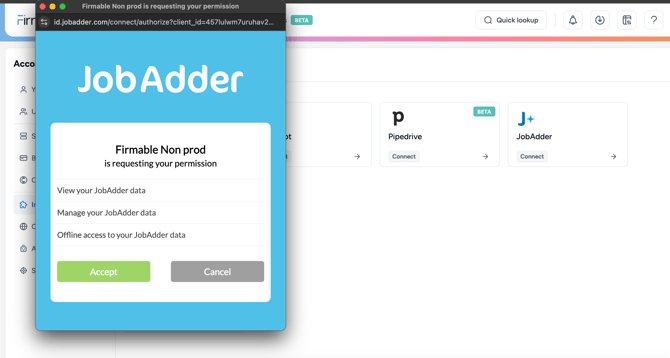
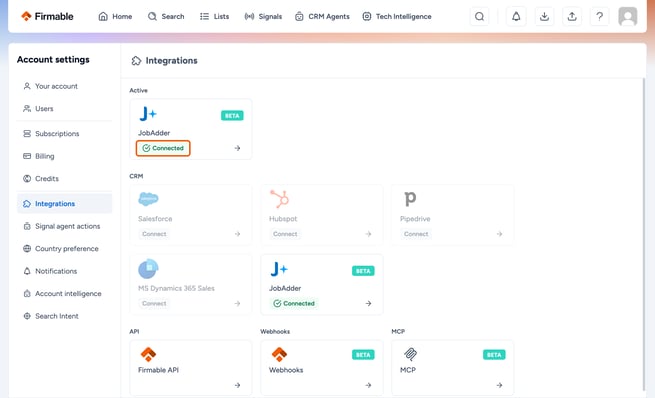
- Now your JobAdder integration will be connected to your Firmable account.
How to map users (optional but recommended)
Note: If users are not mapped, the default behaviour is to set the record owner to the integration user.
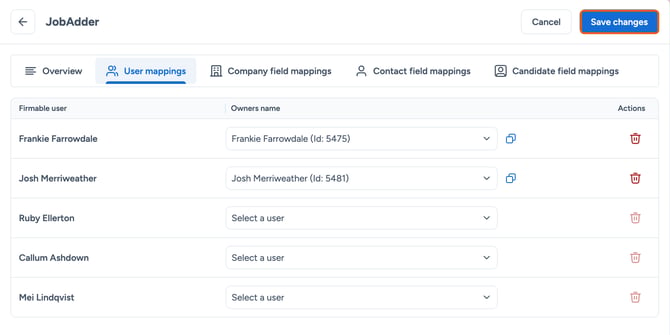
- Click User mappings.
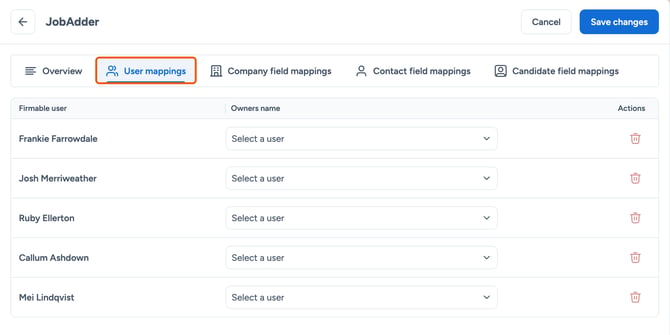
- Select the corresponding Firmable user from the dropdown to update the Owner name field.
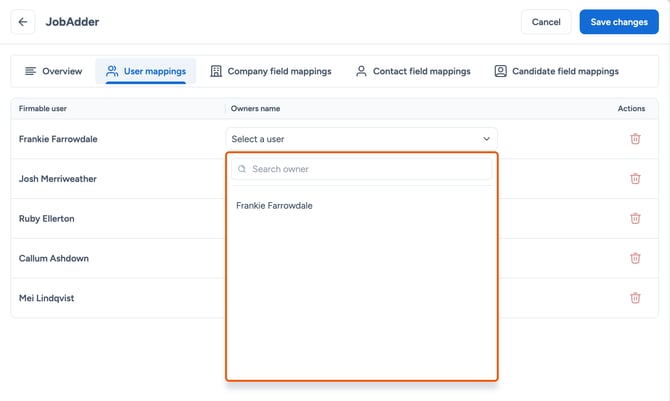
- Repeat for each Firmable user and click Save changes.
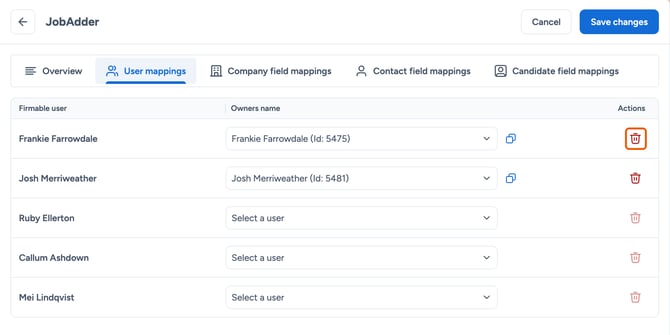
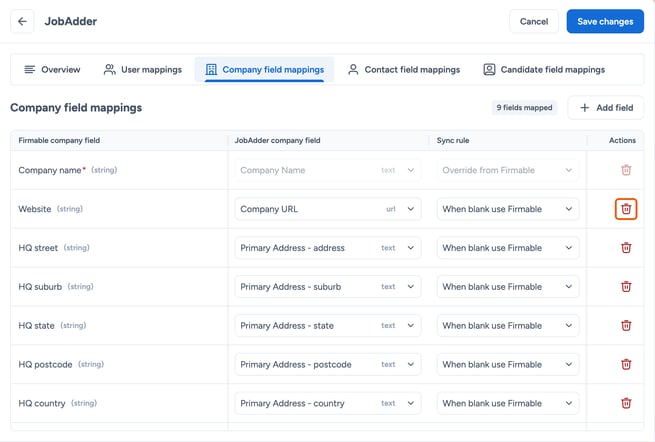
- To clear a user mapping, click the rubbish bin icon and click Save changes.
Mapping company fields
Note: Firmable matches company records by website domain, so ensure the domain or website field is mapped correctly at your endpoint to enable accurate record matching downstream to avoid duplicate records.
- The next step is to review a list of JobAdder company fields mapped to corresponding Firmable company fields. Under Integrations, click on JobAdder.
- Company name mapping is mandatory. This property is automatically mapped to JobAdder’s default Company name field and is set to Override from Firmable. This can't be updated, as Firmable uses the Company name as the unique identifier.
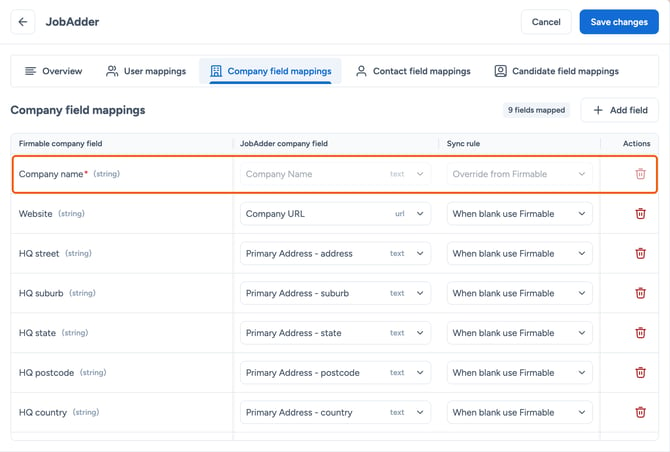
- Change the other pre-selected (or empty) JobAdder fields under the JobAdder company field dropdown to map to available Firmable data fields. Note: Firmable will map some JobAdder fields by default.
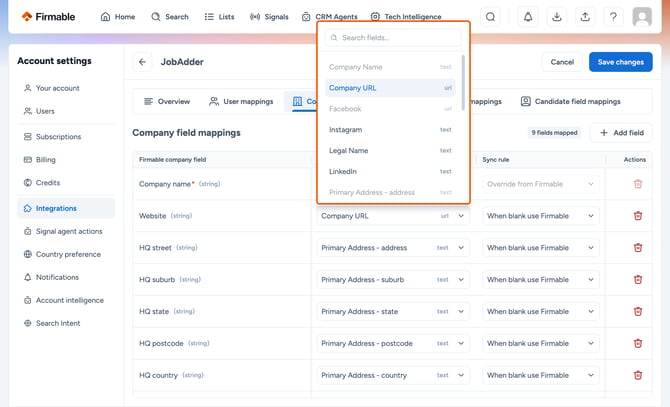
- If a JobAdder field is already mapped, it will be greyed out and unavailable for selection. To map it to another field, you’ll need to clear the current mapping first.
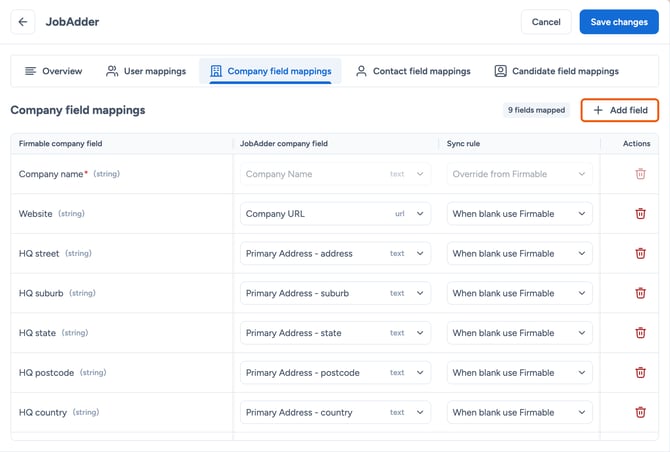
- To add more fields to map, click Add field.
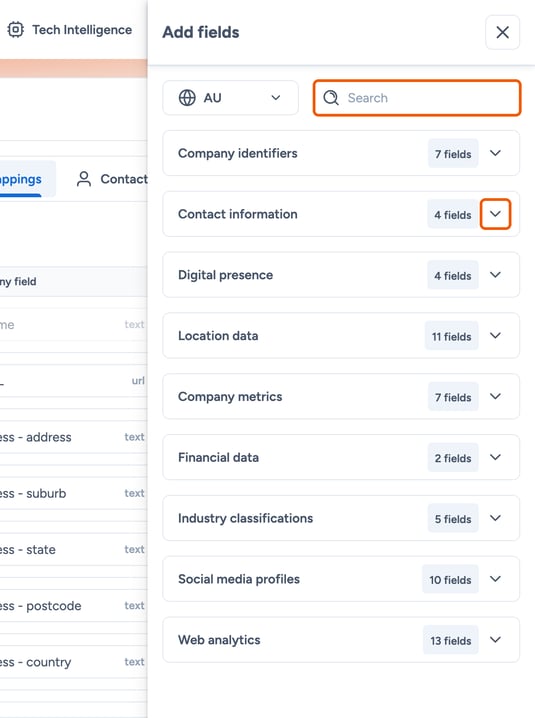
- Use the search bar to find the field you want to map, or browse the category list and expand a category using the down arrow.
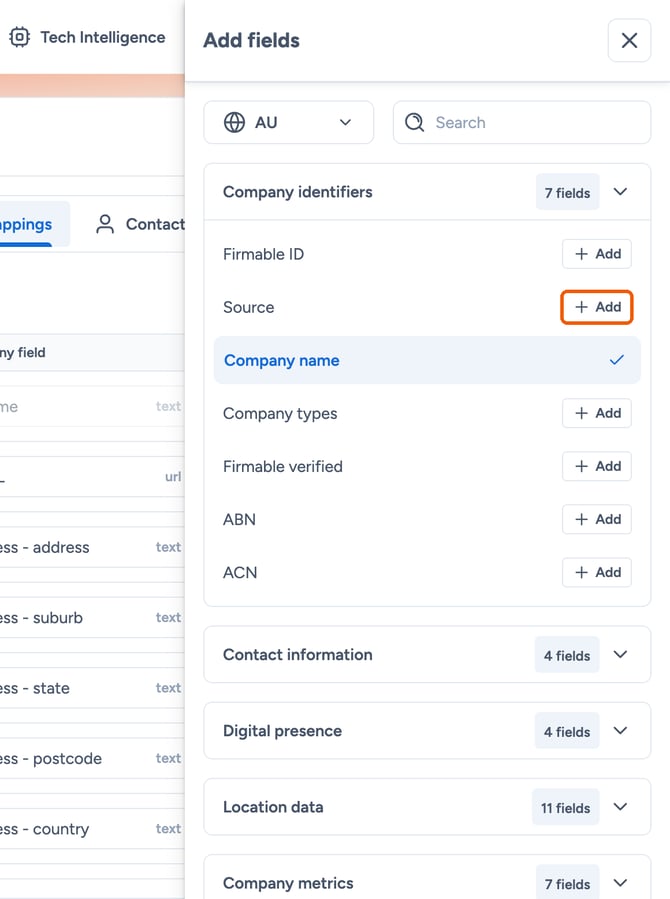
- Click + Add to include the field in your mapping.
- Use the search bar to find the field you want to map, or browse the category list and expand a category using the down arrow.
- Tips on some specific field mappings:
- Source: Used to identify the record origin. It will be populated as Firmable in JobAdder when mapped. This is optional and you can use an existing source field or create a new custom one (so long as it is a text field; we suggest a maximum of 10 characters).
- First name and Last name: Avoid using the JobAdder Name field for mapping here as it is the full name in one field. It's best to map the individual First name and Last name fields instead.
- Once you’ve reviewed all the properties you want to connect, select the Sync rule for each property that applies whenever Firmable updates an existing company record in your CRM, for example when you push, re-push or enrich it. The three options are:
- When blank use Firmable. This means if there is currently no value in the field for a record, Firmable data will be populated when enriched. This is the most commonly used sync rule.
- Override from Firmable. This means regardless of whether there is or isn’t a value in the field for a record, Firmable data will override it when enriched. Note: Be wary of using this as it will override existing data you have populated in JobAdder for that field.
- Don’t sync. You can also choose not to sync the property at all.
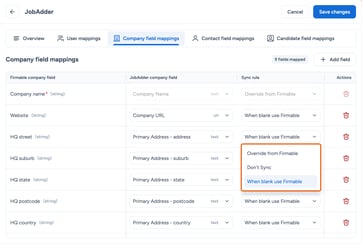
Note: During mapping, ensure that the data types match between JobAdder and Firmable so that the data can be pushed to JobAdder without errors. Firmable supports Text, Number, and Boolean field types, but for optimal compatibility, map to Text type fields in JobAdder.
- Click Save changes when done.
Mapping contact fields
Note: Firmable matches people records by email address, so ensure the email field is mapped correctly at your endpoint to enable accurate record matching downstream to avoid duplicate records.
- Click on Contact field mappings and review the list of JobAdder contact fields mapped to corresponding Firmable contact fields.
- Primary work email mapping is mandatory. This property is automatically mapped to JobAdder’s default Email field and is set to Override from Firmable. This can't be updated, as Firmable uses the email as the unique identifier.
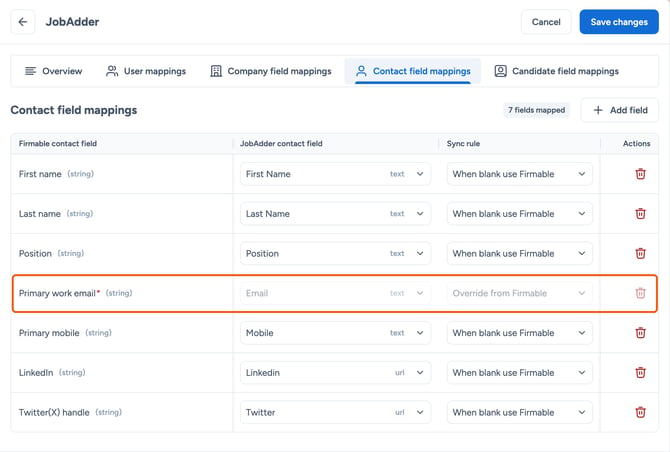
- Complete the same steps as described under Mapping company fields above, including mapping of properties and choosing sync rules.
- Click Save changes when done.
Mapping candidate fields
- Click on Candidate field mappings and review the list of JobAdder candidate fields mapped to corresponding Firmable contact fields.
- Primary work email mapping is mandatory. This property is automatically mapped to JobAdder’s default Email field and is set to Override from Firmable. This can't be updated, as Firmable uses the email as the unique identifier.
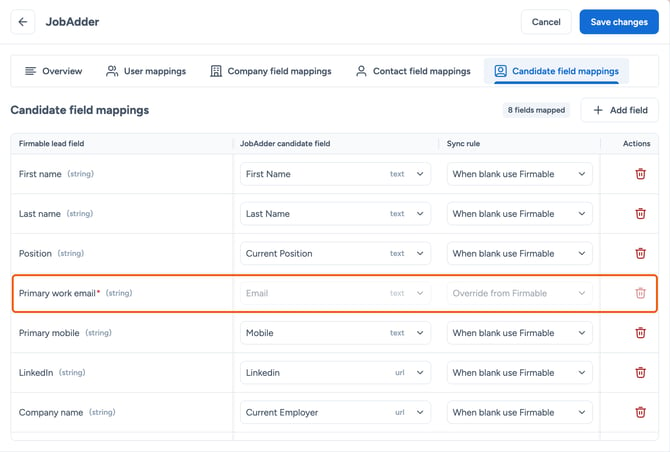
- Complete the same steps as described under Mapping company fields above, including mapping of properties and choosing sync rules.
- Click Save changes when done.
Your JobAdder integration is now set up and ready for use.