
The Firmable mobile app puts search, profiles, signals, lists, and notifications in your pocket. It works as a companion to the Firmable web app; some setup tasks, such as creating lists and configuring signal agents, are done on the web, while the mobile app is built for finding, viewing, and acting on data wherever you are.
Prerequisites
Before using the Firmable mobile app, ensure the following:
- You have an active Firmable account (the same account you use for the web app).
- You have an iOS or Android phone.
Download the app
Download the Firmable app from your phone's app store:
Signing in
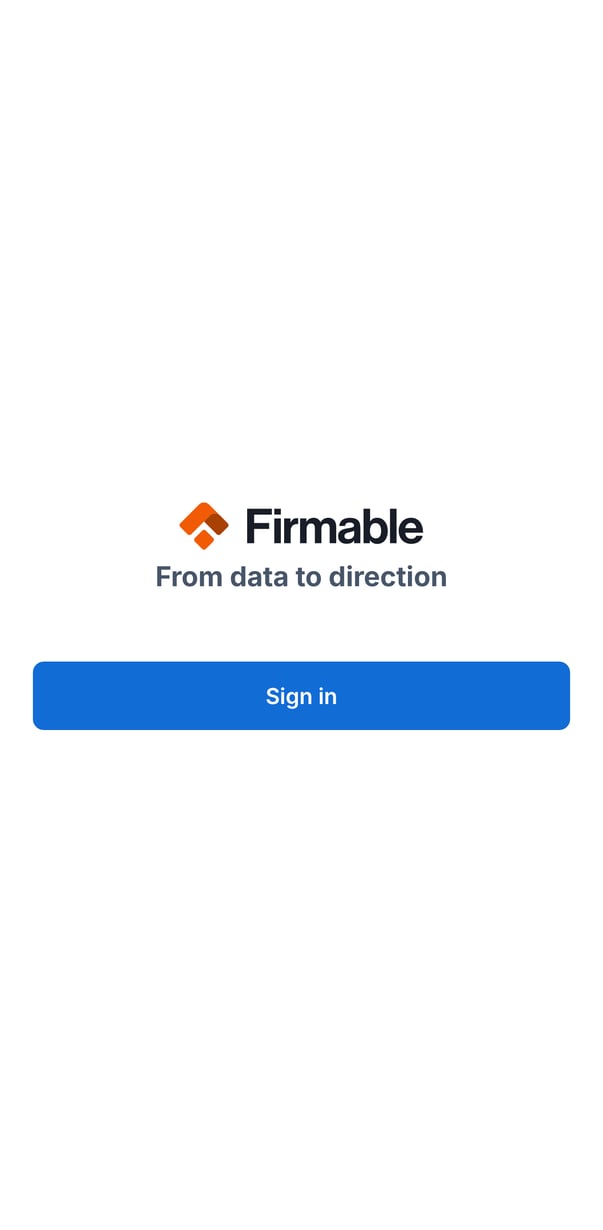
- Open the app and tap Sign in. Firmable's sign-in page opens, and you sign in the same way you do on the web, for example with your email and password.
- To sign out later, open the side menu, tap Sign out, and confirm.
Setting up biometric sign-in
After you've signed in once with your password, you can enable Face ID, Touch ID, or Android face or fingerprint sign-in for faster access next time.
- The app only offers the biometric options already enrolled on your device.
- Biometric sign-in requires biometrics set up on your phone and a previous successful password sign-in in the app.
Finding your way around
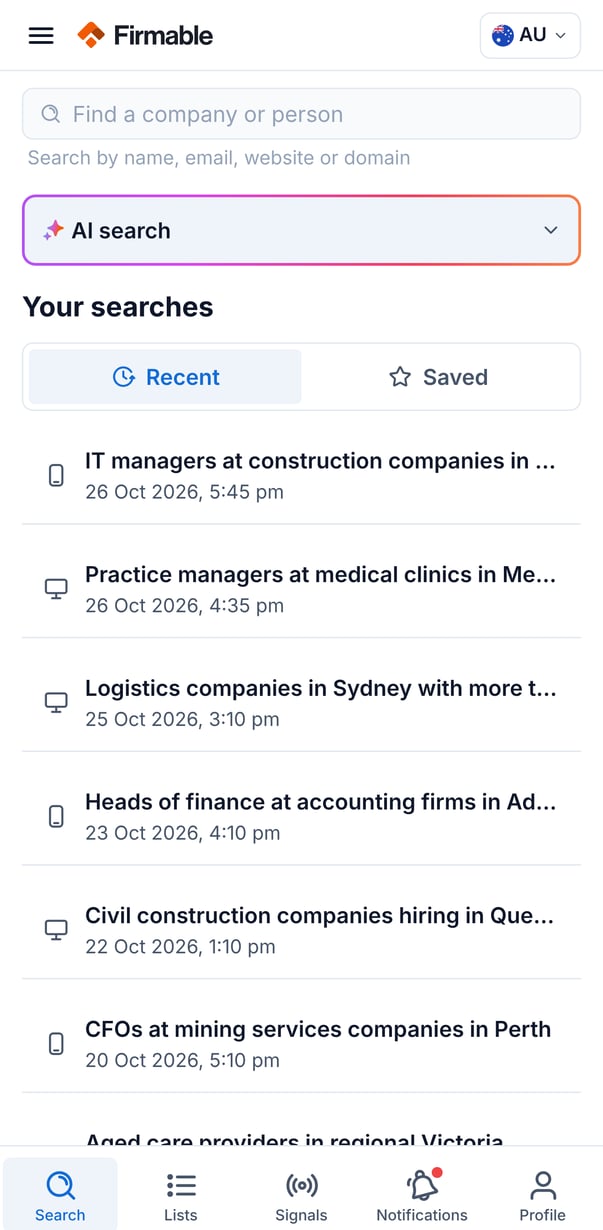
The bottom tab bar is the main way to move around the app:
- Search: find companies and people using AI search, and access your recent and saved searches.
- Lists: your shared and private lists and their contents.
- Signals: your signal agents and the buying intent, company, and people signals they surface.
- Notifications: your inbox of signal alerts and data requests, with an unread badge.
- Profile: account, subscription, billing, credits, and help and support.
Side menu
Open the side menu with the menu icon, or swipe in from the left edge. It gives you shortcuts to Account, Help and support, and Sign out.
Headers
Detail pages show a back chevron to return to the previous page, while main pages show the menu icon. The Search header also includes a country selector on the right; see How to search for companies and people in the mobile app for how it works.