
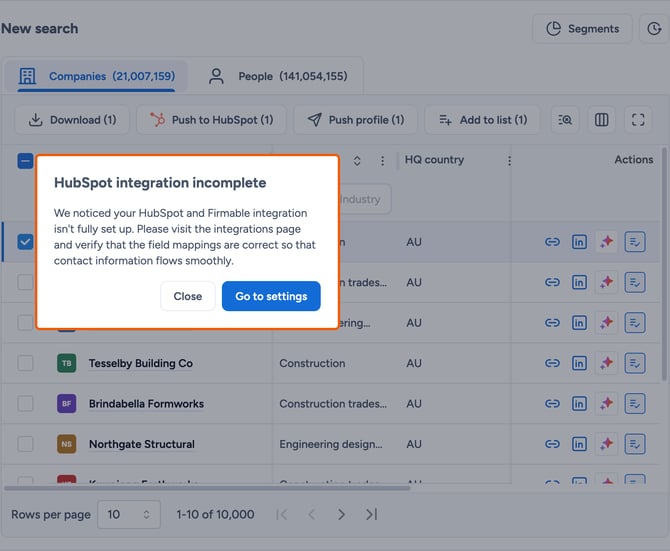
If Firmable shows an "integration incomplete" message, or a push to your CRM is blocked, the usual cause is that one or more mapping tabs haven't been saved. Save changes saves only the field mapping tab you're currently on, not your whole setup, so each tab needs mapping and saving.
Prerequisites
Before using this guide, ensure the following:
- You have the Admin, Manager or Integration role.
- Your CRM is already connected on the Integrations page (click your profile picture (top right) and select Manage account, then select Integrations in the Account settings sidebar).
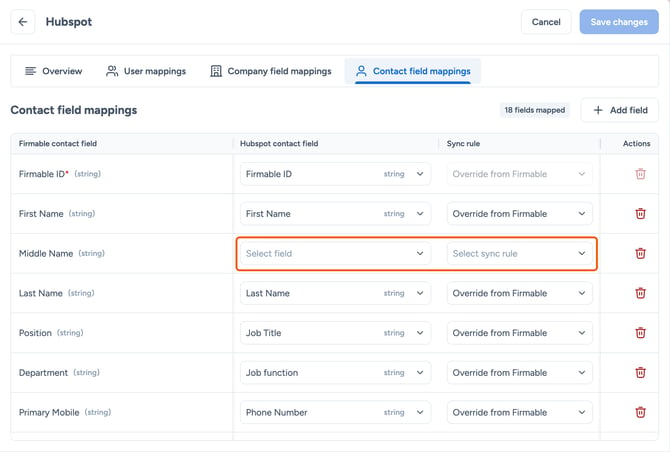
Ensure all desired Firmable fields are mapped to a corresponding CRM field
Each mapped Firmable field needs a corresponding field on your CRM to map to.
If any row has no corresponding CRM field, the tab won't save properly and pushes will fail. Check every row, including fields you haven't changed.
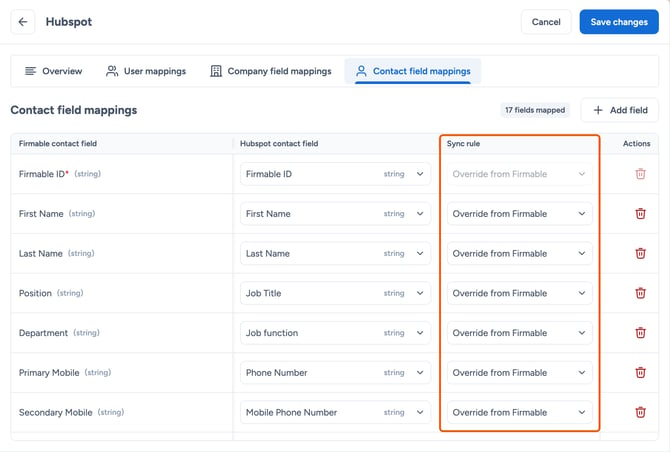
Set a sync rule on every row
Each mapped field needs a sync rule (Override from Firmable, Don't sync or When blank use Firmable). If any row has no sync rule, the tab won't save properly and pushes will fail. Check every row, including fields you haven't changed.
Save every mapping tab
- Click your profile picture (top right) and select Manage account, then select Integrations in the Account settings sidebar, and select your CRM.
- Open the User mappings tab, check the mappings, and select Save changes.
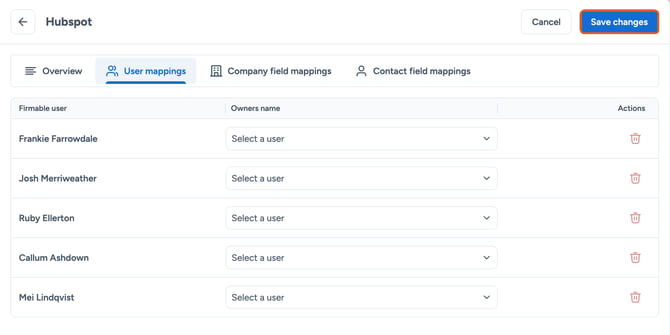
- Open the Company field mappings tab and select Save changes.
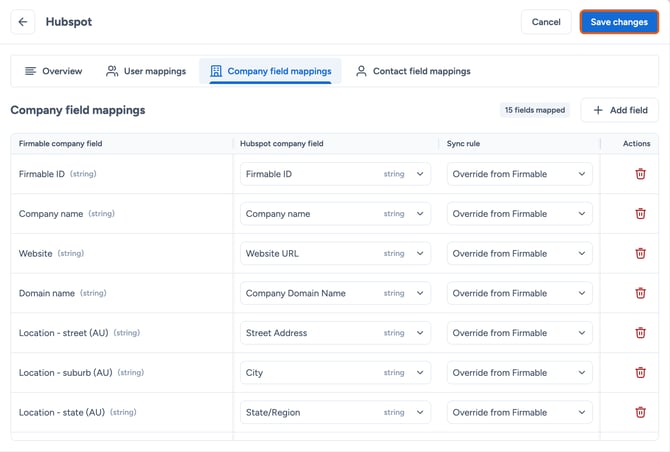
- Open the Contact field mappings tab and select Save changes.
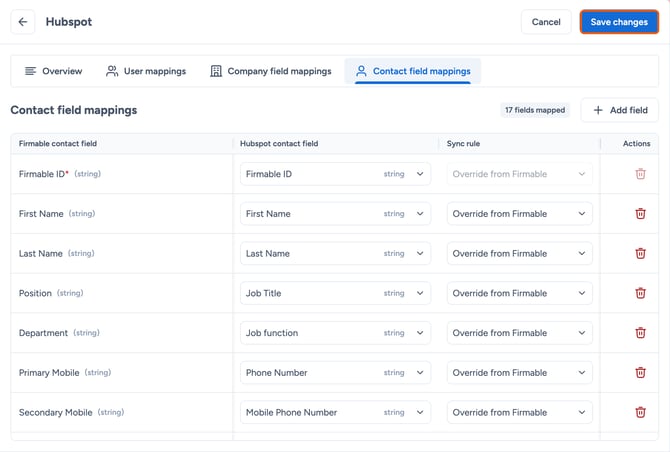
- If you use Salesforce, open the Lead field mappings tab and select Save changes. Lead and Contact mappings are configured separately, so a field mapped on Contacts won't carry over to Leads.
Re-save after reconnecting your CRM
Reconnecting a CRM, including JobAdder, can clear your saved mappings. After you reconnect, repeat the steps above and save every tab again before pushing records.
Fields missing in your CRM after a push
If a field such as a mobile number doesn't appear on pushed records, check that it's mapped on the correct record type. For Salesforce, that means mapping it on both the Contact and Lead tabs if you push to both.