
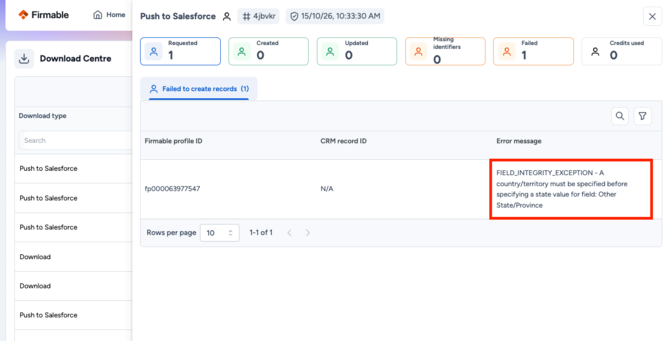
When a push from Firmable to your CRM fails, the Download Centre shows the error your CRM returned, not a Firmable error. Firmable passes the CRM’s message through unchanged, so the cause is almost always a setting, field or permission in your CRM, and the fix is made there.
Where to find the error
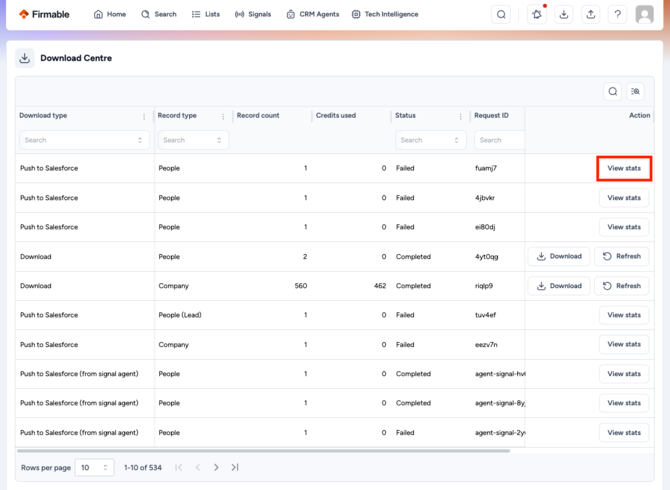
- In Firmable, open the Download Centre.
- Find the push request by date and record type (company or contact).
- Open the failed request by clicking View Stats
- Copy the error message exactly as shown. Don’t paraphrase it. The field name inside the message is the fastest clue.
Look up the error in your CRM’s documentation
Because the message comes from your CRM, the quickest route to a fix is to search for that exact error in the CRM’s own help resources.
- Search the error text, in quotes, on your CRM’s knowledge base or developer docs (HubSpot Knowledge Base, Salesforce Help, Microsoft Learn for Dynamics, Pipedrive Support), or in a web/LLM search with the CRM name added.
- Use the field or object name in the message to find the setting in your CRM.
- Fix it in the CRM. For example, if a required field isn’t populated, give that field a default value, map a Firmable field to it, or make it optional for the integration user.
- Test with 1 to 3 records before pushing the rest (see “Test the fix”).
Before you start
- A push marked completed in Firmable doesn’t guarantee every record landed in the CRM. Spot-check a few records in the CRM.
- Some CRMs fail silently on mismatched picklist values, so a blank field with no error is still a mapping problem.
- Pushes are capped at 5,000 records. Split larger pushes.
Common errors and fixes
The wording differs by CRM. Match on the field name or error code, and use your CRM’s documentation as the source of truth for the exact fix.
| What you see | Likely cause | Fix |
|---|---|---|
| Required field [name] not populated, or REQUIRED_FIELD_MISSING (Salesforce) | A required field in the CRM has no value mapped from Firmable | Map a Firmable field to it, set a default in the CRM, or make it optional for the integration user |
| Value is not one of the allowed options, or INVALID_OR_NULL_FOR_RESTRICTED_PICKLIST | Firmable pushes text, but the CRM field is a picklist and the value doesn’t match an option | Add the option in the CRM or map the value to an existing one. See “How to convert Firmable’s text values into your CRM’s picklist fields” |
| Property does not exist, or field not found | The mapped CRM field was deleted, renamed or archived | Re-select the field in the mapping tab and save |
| INSUFFICIENT_ACCESS_OR_READONLY, or a permission error | The connecting user can’t create or edit that object or field | Give the integration user create and edit rights and field-level access. See “Why you should connect Firmable with a dedicated integration user” |
| FIELD_CUSTOM_VALIDATION_EXCEPTION, or a validation rule error | A CRM validation rule or workflow rejects the record | Compare the rule with what Firmable sends, then adjust the rule for the integration user or the mapped data |
| STRING_TOO_LONG, or value too long | A pushed value exceeds the field’s character limit | Map to a longer field or shorten the source value |
| Duplicate, or DUPLICATE_VALUE | The record matches an existing one on a unique field, such as email or domain | Check the sync rule (Don’t sync, Override, When blank) and your CRM’s duplicate rules. See “How Firmable matches records when pushing to a CRM” |
| Contact not linked to an account | The CRM doesn’t auto-link a new contact to its company | Add an automation in the CRM, such as a Salesforce Flow or HubSpot workflow, matching email domain to company website |
| Authentication, token or connection error | The integration has disconnected | Reconnect it and re-save every mapping tab. See “Fixing the integration incomplete error” |
If there is no error but the data is wrong
- A field is blank: check the sync rule. “When blank” skips fields that already have a value, and “Don’t sync” skips the field.
- A picklist field is empty: the value didn’t match an option.
- The record has the wrong owner: see “Who owns a record after Firmable pushes it to my CRM?”
- Records are missing entirely: check that the record type (company, contact, lead) is switched on in CRM Sync Controls.
Test the fix
- Fix the cause in the CRM or the mapping.
- Push a new test record.
- Check the Download Centre for a clean status, then open the records in the CRM and confirm the fields.
- Push the rest.