
Prerequisites
Before using CRM sync controls, ensure the following:
- You have an active CRM integration set up with Firmable (Salesforce, HubSpot, MS Dynamics 365 Sales, Pipedrive, or JobAdder).
- You have the Admin, Manager or Integration role on Firmable.
- You are on a Small Teams, Teams Pro or Enterprise plan on Firmable.
What are sync controls?
Sync controls let you restrict which record types push from Firmable into your CRM. You can turn individual record types on or off for each CRM integration.
This is useful for companies with specific data governance needs. For example, some teams only want reps pushing leads into the CRM, without also creating contact records. Sync controls make this possible without relying on reps to manually manage what they push.
Accessing sync controls
- Click your profile picture (top right) and select Manage account.
- Select Integrations in the Account settings sidebar.
- Select the CRM you want to configure (for example, Salesforce or MS Dynamics 365 Sales).
- On the integration's Overview page, locate the Sync controls section.
Turning sync controls on or off
- View the Sync controls section for your chosen CRM.
- Locate the record type you want to manage (for example, Push accounts, Push contacts, or Push leads). The record types listed depend on your CRM.
- Click the toggle next to that record type to turn syncing on or off.
- Repeat for any other record types you want to adjust.
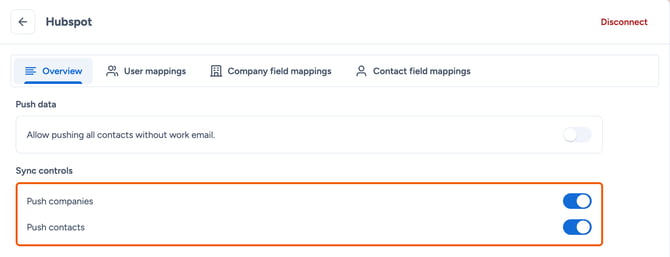
Changes take effect immediately. Turning off a record type stops it from being pushed going forward.
Note: Sync controls only affect future pushes. Records already synced to your CRM remain unchanged.
Choosing a sync rule for each field
Once a record type is syncing, each mapped field also has its own sync rule, controlling how Firmable data is applied to existing CRM records:
- Don't sync: Firmable data is used for matching only; your existing field value is never overwritten.
- Override from Firmable: Firmable data replaces the existing value in that field every time there's a sync.
- When blank use Firmable: Firmable only fills the field if it's currently empty; existing values are left untouched.
Set this per field on your CRM's field mappings page (for example, Contact field mappings).
Limits and admin controls
Pushes are capped at 5,000 records per push. If your list is larger than that, split it into batches of 5,000 or fewer before pushing.
Bulk enrichment is restricted to Admin users. If you don't see the option, ask your account Admin to run it, or to change your role.